Author: legalboardsdev

  • Filevine Integration

    Filevine Integration

    We’re excited to team up with Filevine to provide users with new ways to organize and manage their workflow. By using the Filevine integration with your Legalboards account, you’ll be able to have all of your data in one place. Now, you’ll be able to do what you love and more efficiently- practicing law.

    By combining our task management and automation features with Filevine’s legal case management capabilities, you can start saving time while also working with a simplified visual workflow. With Filevine and Legalboards, you can be sure that you’re delivering excellent client-led service.

    Filevine + Legalboards Benefits

    1) Save More Time

    Utilizing the Legalboards automation capabilities, busy lawyers can save time by automating repetitive processes of their work. Some of the most common automations we see involve email updates to team members, checklist creations, and board (aka matter) management.

    By automating emails, you can set up triggers like time or card movement so that team members and clients can stay updated on the progression of a case. With the time trigger, this can be especially useful for preventing delays or bottlenecks in your workflow. For example, you could set up an automated email to be sent to a responsible attorney when they are approaching a key deadline in a case.

    Additionally, checklist creation helps keep you and your team on top of your tasks. By automating checklists, you can address all of the smaller tasks that are involved with the stages of a case. You can learn more about automation and how to set up common ones in our automation resources.

    2) Get Unparalleled Views Into Your Firm

    Legalboards allows you to easily visualize and organize your matters in whatever way works for you. By using Kanban, you and your team can see your matters in a bird’s eye view or drill down into specific matters. 

    By customizing your board through checklists and custom labels, you can tailor your account to reflect your workflow. If you’re a visual learner, you have multiple options for you to organize your board and cards. Legalboards also allows users to view their matters in different ways- calendar (through the task center), list, and Kanban.

    3) Real-time Data

    With the seamless integration of Filevine and Legalboards, your data will be updated in real-time- no need to input data twice. This saves you the stress of worrying about if the data you’re working with is updated and prevents miscommunications or misunderstandings for your team.

    Getting Integrated With Filevine

    It’s easy to use the Filevine integration. If you’re more of a visual learner, you can watch the video below to learn more

    Step 1: Setting up your account

    The first step is to create a Legalboards account. If you’re a new user of Legalboards, you can follow our onboarding wizard to create your first board and connect your account to the programs you already use. If you’re an existing user, you can integrate Filevine by accessing “Extensions” in the menu.

    The next step in setting up your account is to integrate software. Click on the Filevine tile and then select the “Install Now” button to initiate this process.

    Step 2: Input Your Information

    Because this integration requires an API key to integrate, you’ll need to provide your company name, API key, and App secret (optional) to complete the integration. If you’re unsure as to what that means- don’t worry, finding the API key and App secret is a lot easier than it may seem.

    Filevine has security rules that require you to have access to API credentials to make this integration work properly. The only thing you’ll need to do here is to create Legalboards API credentials in your account. If you need help doing this, Filevine has a great guide to how to get your API key and App secret and connect your accounts.

    If you have any questions or problems with your data being synced, please contact us at support@legalboards.com, generate a ticket, or contact us through the chatbot.

    You can learn more about Legalboards here, or visit our YouTube channel for more help getting started in Legalboards. And if you have any questions, reach out to us!

  • Optimizing Family Law Workflows

    Optimizing Family Law Workflows

    Family law practices oversee a range of legal matters, from divorce to child custody, adoption, and more. To effectively manage these cases, having a well-defined workflow is essential. Let’s explore two workflow approaches that are tailored to the complex landscape of family law. From there, you can see how having a documented process can help your team.

    General Family Law Workflow: One Board to Rule Them All

    For a broad overview of family law cases, a single-board approach can be highly effective. This can be done by creating a centralized Kanban board where each column represents a different stage of the legal process. From initial consultations to court proceedings, this board visually tracks the entire journey of every case in a family law workflow. 

    Whether it’s divorce, adoption, or child custody, all sub-practice areas coexist within this streamlined workflow and offer a comprehensive view of your practice’s operations. With this overview, you’ll be able to get a bird’s eye view of your operations while also being able to drill down into specific matters or tasks as needed.

    General Family Law Workflow: Board Organization

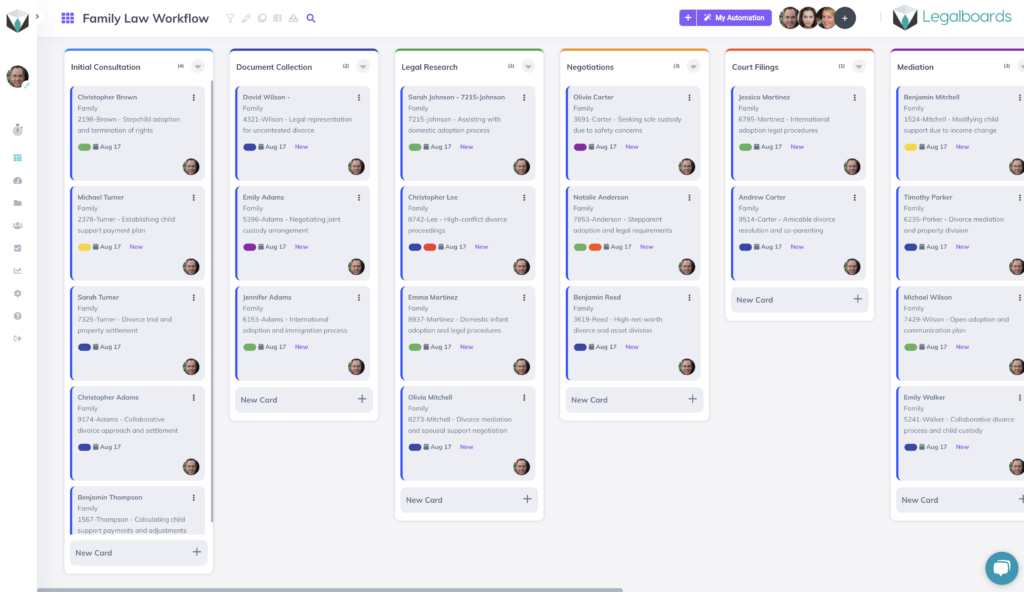
    For this general board, let’s say we organize this board (shown below) where every case is included but categorized using colored labels for specific kinds of cases. 

    General family law workflow

    Complex Management: Specializations

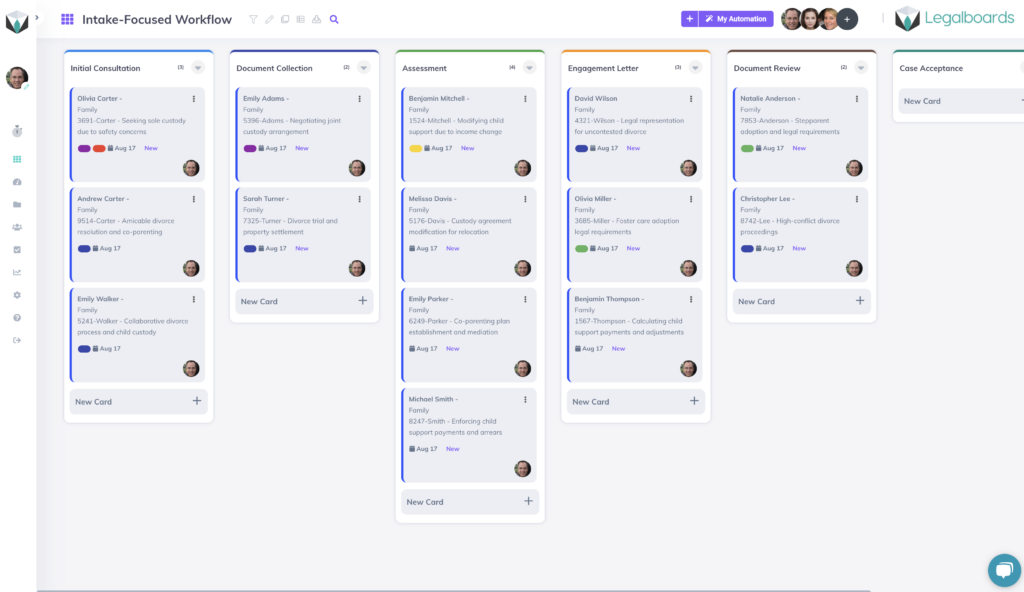
    Another option for organizing your workflow is to create a dedicated board for the intake process. This can make a world of difference when it comes to managing your client’s cases and providing them with superior client-led service. 


    Intake-Focused Workflow: Specialized Attention from the Start

    This involves creating a tailored intake board where each column represents a different stage (for example, initial consultation, document collection, and assessment). Each new case enters this pipeline, ensuring a consistent intake process across all family law sub-practice areas. 

    Customized task automation can send clients essential documents, schedule appointments, and track progress. This specialized approach guarantees that from the beginning, no crucial details are forgotten. 

    Specialized Family Law Workflows: Divorce and Adoption

    Finally, you could also organize your board by specific specialized workflows. Because family law covers a wide range of case types, it can help you to organize those that still roughly follow the same process or require similar management.

    Two examples of this are divorce and adoption cases. These cases usually follow the same steps so using specific boards for each can be helpful. We’ll illustrate this with two examples.

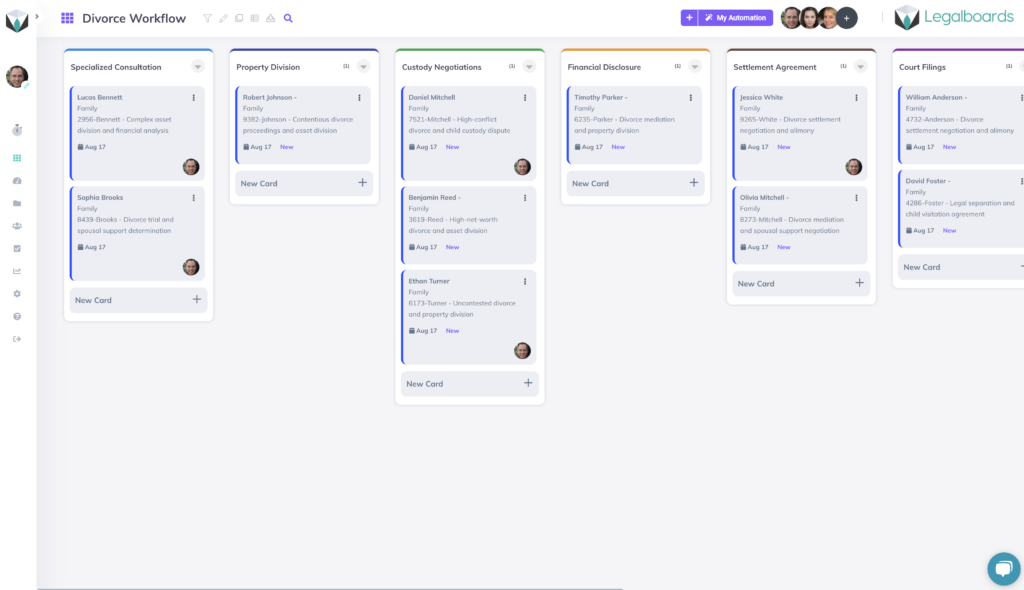
    Divorce Workflow

    For divorce cases, you could create a dedicated workflow that includes stages like property division, custody negotiations, and settlement. In Legalboards, we have divorce board templates (learn more about that here) that can be customized to your specific needs.


    Each column should represent a different stage of a case. This can be as detailed or high-level as you wish, but often having specific columns is much more helpful to you and your team. Custom fields can then capture financial details, while task automation ensures critical court deadlines are met.

    Example family law workflow- divorce board

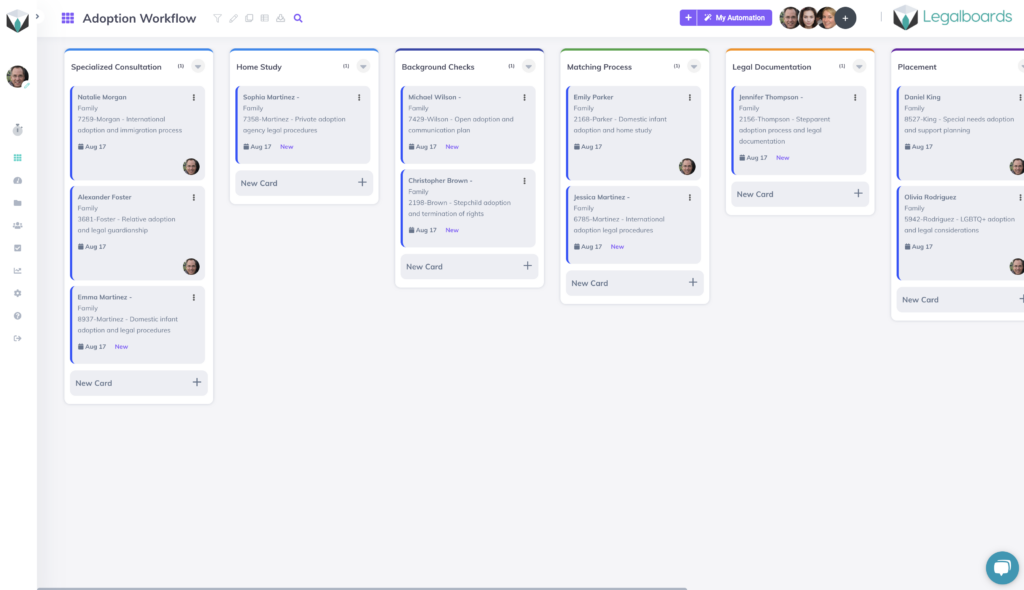
    Adoption Workflow

    Adoption cases demand empathy and precision from legal professionals to deliver great service to clients. Developing a workflow with stages like home study, background checks, and finalization can help lawyers manage cases. 

    Task assignments can keep your team informed about important milestones, while automated reminders guarantee that time-sensitive actions are never overlooked.

    Adoption workflow example in Legalboards

    Want to Get Started Quickly?

    If you’re interested in getting started quickly with Legalboards, you can use one of our templates, which the process is shown below, or contact us for a dedicated setup session.

    Conclusion

    Family law requires workflows that balance flexibility and specificity that reflect the often delicate nature of this practice area. Implementing the Kanban framework can help legal professionals deliver superior service, improve client satisfaction, and enhance the efficiency and productivity of legal teams.

    Whether you decide that a centralized board, intake-focused, or specialized boards are best for your workflow, it will aid you in gaining clarity about matters. With Legalboards, you can also easily implement this framework with a legal-specific solution to manage every aspect of your family law cases. 

  • MyCase and Legalboards Webinar

    MyCase and Legalboards Webinar

    We’re excited about teaming up with MyCase to help busy lawyers save time and stress through our integration. By using both Legalboards and MyCase, you’ll be able to make the most out of both software. This free webinar was hosted by Rafael Miranda, CEO of Legalboards, and originally recorded live on July 27,  2023.

    Learn How to Save 30+ Hours per Month with MyCase and Legalboards

    In this webinar, you’ll get an overview of the Kanban framework, the MyCase and Legalboards integration, and learn some tips & tricks for use.

    An Overview of the Kanban Framework

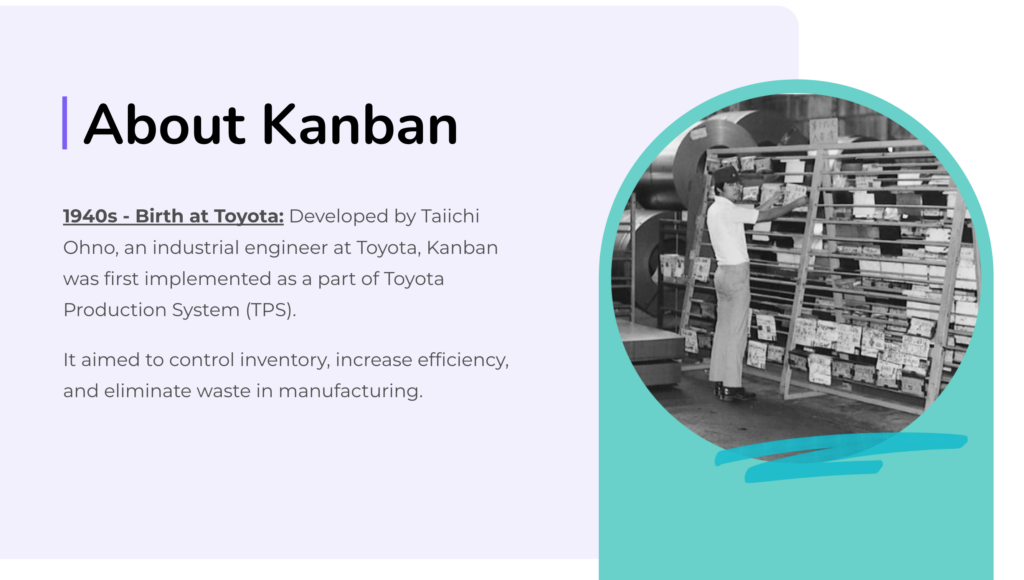
    Kanban was created in the 1940s by an engineer at Toyota named Taiichi Ohno (shown below). The goal of this original framework was to control inventory, maximize efficiency, and reduce waste for manufacturing.

    From there, Kanban was implemented by other industries starting in the 1980s. Now, Kanban is used in various industries, including legal, to help apply project management strategies.

    Kanban For Lawyers: MyCase + Legalboards Integration

    Because of its rising relevance to the legal industry, Kanban has helped lawyers organize their workflows and streamline processes. The Kanban framework is especially effective when there are multiple items to keep track of and team dynamics in play.

    In the webinar, Rafael will go over how to tell when your firm needs to think about implementing Kanban and how to do so. With the MyCase and Legalboards integration, you can start using Kanban to organize your workflow in just a few easy clicks. Click here for more information about the integration.

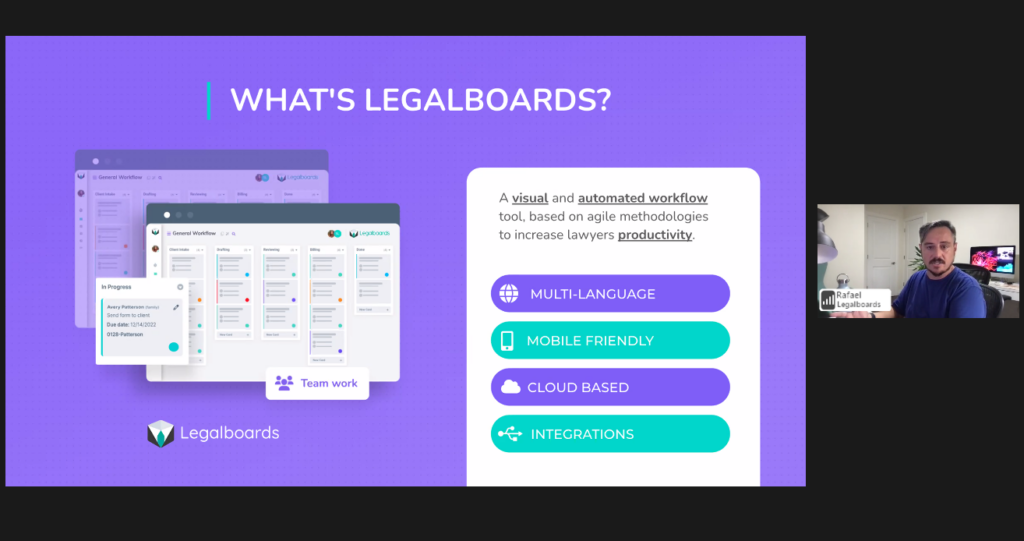
    Legalboards CEO Rafael explaining what Legalboards is and how the MyCase and Legalboards integration works using product demonstration of Legalboards

    Watch the Webinar on Demand

    Want to watch the full webinar? Get access to the free recording here. If you have any questions or would like any additional information, please contact us at info@legalboards.com.

    Curious about how Legalboards can help with the way you work? Learn more about our time-saving features here.

  • Practice Panther Integration

    Practice Panther Integration

    We’ve teamed up with Practice Panther to provide users with new ways to organize and manage their workflow. By integrating Practice Panther with your Legalboards account, you’ll be able to have all of your data in one place. Now, you’ll be able to do what you love and more efficiently- practicing law.

    By combining the two programs, you can start saving time with automations while also working with a simplified visual workflow. With Practice Panther’s robust features, Legalboards can supplement your task and case management to deliver better service to your clients.

    Practice Panther + Legalboards Benefits

    1) Enhanced Automation

    Utilizing the Legalboards automation capabilities, busy lawyers can save time by automating different aspects of their work. Some of the most common automations we see and help users set up involve email updates to team members, checklist creations, and board (aka matter) management.

    By automating emails, you can set up triggers like time or card movement so that team members and clients can stay updated on the progression of a case. With the time trigger, this can be especially useful for preventing delays or bottlenecks in your workflow.

    Additionally, checklist creation helps keep you and your team on top of your tasks. By automating checklists, you can address all of the smaller tasks that are involved with the stages of a case. You can learn more about automation and how to set up common ones in our automation resources.

    2) Visualize Your Workflow

    Legalboards allows you to easily visualize and organize your matters. By using Kanban, you and your team can see your matters in a bird’s eye view. The Legalboards interface allows you to see how your cases are progressing at a glance. You don’t need to open each individual case file in order to see what stage it’s at. 

    By customizing your board through checklists and custom labels, you can tailor your account to reflect your workflow. If you’re a visual learner, you have multiple options for you to organize your board and cards. Legalboards also allows users to view their matters in different ways- calendar (through the task center), list, and Kanban.

    3) Updated Data in Real-time

    By integrating Practice Panther, your data will be automatically synced. Because of this, you won’t need to input your data twice. The specific fields that are synced between Practice Panther and Legalboards are the following:

    Contact information: first and last name, email, and phone number; and

    Matter information: name, case number, opened date, practice area, description, SOL date, and clients.

    Getting Integrated With Practice Panther

    It’s easy to integrate your Legalboards account with Practice Panther. If you’re more of a visual learner, you can watch the video below to learn more.

    Step 1: Setting up your account

    The first step is to create a Legalboards account. If you’re a new user of Legalboards, you can follow our onboarding wizard to create your first board and connect your account to the programs you already use. If you’re an existing user, you can integrate Practice Panther by accessing “Extensions” in the menu.

    Please note, we use the Probate board template in this example but if you practice in a different area, we have multiple options within our board gallery for you to quickly get started. 

    The next step in setting up your account is to integrate software. You’ll find the Practice Panther icon and then click on the “Install Now” button to initiate this process.

    Step 2: Authorizing your account

    Whether you’re a new or existing user, you’ll need to authorize Legalboards to access your Practice Panther data. Once this is completed, you’ll see the data in your Legalboards account.

    To do this, log in to your Practice Panther account and click on the “Grant Access” button. If you have any questions or problems with your data being synced, please contact us at support@legalboards.com, generate a ticket, or through the chatbot.

    Step 3: Getting Started with Legalboards

    You can learn more about the Practice Panther integration here, or visit our YouTube channel for more help getting started in Legalboards. And if you have any questions, reach out to us!
  • MyCase Integration

    MyCase Integration

    We’re excited to be teaming up with MyCase to help busy lawyers get (and stay) organized! The MyCase and Legalboards integration will allow you to get back to practicing law, not administrative tasks.

    By combining Legalboards and MyCase, you can start saving time while working in a new visual way. Legalboards provides some great advantages to MyCase users to help make their case management software run smoothly.

    Benefits of Integrating MyCase + Legalboards

    1) Legalboards Automation Capabilities

    Legalboards allows you to automate various aspects of your work. Common automations include sending email updates, checking in on clients after certain periods, checklist creation, and more.

    Automated emails are to be sent based on triggers like time or card movement, so team members (or even clients) can stay updated on their matter’s progress. The time trigger is especially helpful for ensuring the continued progress of matters.

    For example, if you have an inactive or delayed board, you can set up emails to be sent to the responsible attorney to check in on that matter. If you want to learn more about how these work, check out our automation resources.

    2) Visualizing and Organizing Your Work

    With Legalboards you can easily visualize and organize your matters. The minimal Kanban user interface allows you to see at a glance what stage your matters are at without having to open each case file. Through customizations to the board, you can tailor your account to reflect your workflow accurately.

    As you can see in the screenshot below, how your work is progressing in Legalboards can be understood at a glance. It’s up to you how customized you want to make your board/cards. With the customization capabilities, you can add checklists and custom labels (including colors) to cards so you can quickly navigate your matters.

    Within the task center, Legalboards also has a calendar view so you can see your matter’s timeline in a simple format.

    3) Two-way Synchronization

    By integrating MyCase, your data will be automatically synced. Because of this, you won’t need to input your data twice. The specific fields that are synced between MyCase and Legalboards are the following;

    • Contact information: first and last name, email, and phone number; and
    • Matter information: name, case number, opened date, practice area, description, SOL date, and clients.

    Get Integrated

    To use the MyCase integration, you’ll need to first connect your MyCase and Legalboards accounts. Learn how to do so in the video below;

    Learn more about this integration here, or contact us for more help!

  • Anatomy of a Card

    Anatomy of a Card

    In this guide, we’ll walk you through the anatomy of a card within Legalboards. We’ve heard from our users that knowing every aspect of the card’s features can be overwhelming, and we’re here to help with that! Before we get started, let’s go over the basics of a Kanban board and why they can be beneficial to lawyers. 

    Please note, if you’re a visual learner, there is a video summary at the end of this guide.

    What’s a Kanban Board?

    In our Anatomy of a Board guide, we walk you through both the basics of a Kanban board and boards within Legalboards. You can read more about that here.

    To give you a basic understanding of a Kanban board, it’s important to understand that Kanban boards can be extremely simple. At their most basic stage, they can reflect on the progress of a project in terms of what needs to be done, what’s currently being worked on, and what has been completed.

    As such, the columns on a board are usually the phase/stage of the work and cards are the task, matter, etc., that fits into that phase. 

    The Basics of a Card

    If a card reflects the work that needs to be done, for legal teams, cards can reflect matters with sub-tasks within that matter. In Legalboards, cards can hold a lot of important information and we’ll talk a bit about that now.

    There are three types of cards- contacts, notes, and matters. Contacts and note cards are helpful for organizing specifics of your workflow. For example, note cards can be used to denote important information to your team. By pinning note cards within a column, you can easily communicate considerations for that specific phase. Matter cards are the most common type, and what we will primarily focus on within this guide.

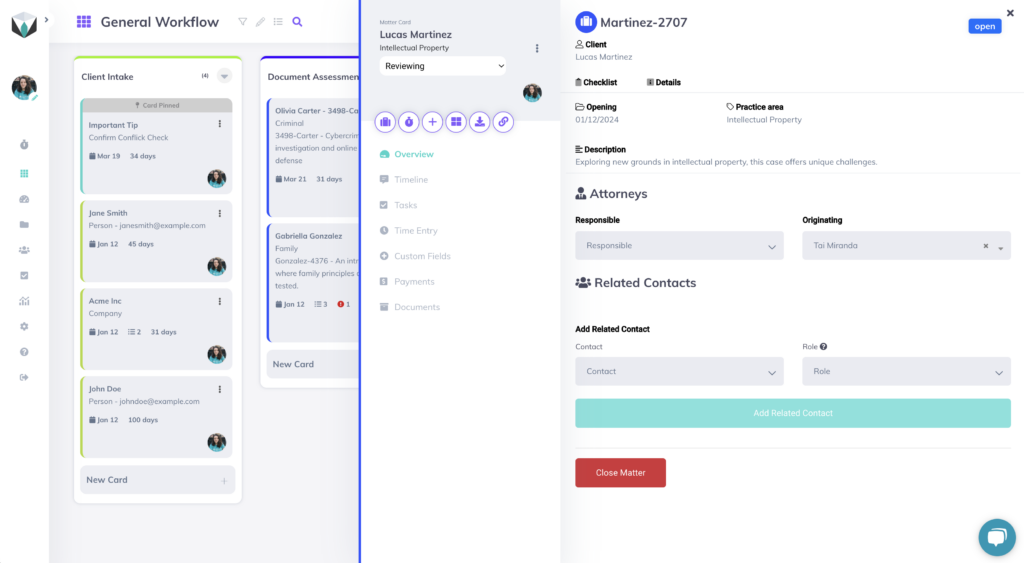
    Whenever you open a card, you’ll see one of two things. If you have a checklist attached to the card, you’ll see that, but if you do not, you’ll see the details of the card. You can see this in the image below. It’s also important to note here that checklists are only for within Legalboards, it will not be shown in your case management software.

    In the details, you’ll see everything about your card. This includes:

    • Client name and contact information
    • Practice area
    • Key dates: open, pending, limitation, and closing dates
    • Description
    • Responsible Attorney
    • Originating Attorney
    • Related contacts
    • And Any custom information you want

    There is also the option to show/hide unanswered fields so you can see only what is appropriate for this card.

    Card Menu

    To the left of any card is a menu that helps organize different aspects of a card. Here, you’ll see the name and number of the matter (based on your integration data) and what column the card is in. Next, you’ll see the label attached (denoted by the color) and a few buttons.

    The first button is how to open your integrated case management, in our example is Clio, “start a timer”, new task, task board, export card, and copy card link. You’ll also see the “Edit Matter” button or the link for the integrated tool to open the same matter.

    From there, the tabs give you options. The overview tab is to see the card details and checklist. The timeline tab lets you view the activity of this card- it will break down movements, automations, and detail changes. You can also filter the timeline by activity.

    Next, we have time entry. This is where you can start a time entry and keep track of those entries as related to this specific card. Then you have activities.

    Next is tasks. This is where you can see the work that needs to be done for this matter and their due dates. You can also see the list of completed tasks by hitting the show completed tasks button. You can also click on the task directly to see more information about it. When clicked, the task will show the assignee, reporter, date, description, checklist, and work logs (time entries).

    Depending on your integrations, there are also notes, communications, payments, documents, and Docuplayer. Each of those gives you more information about an aspect of a matter. For example, LawPay integration users will see information about their billing and invoicing in the payments tab.

    Board View: Card Navigation

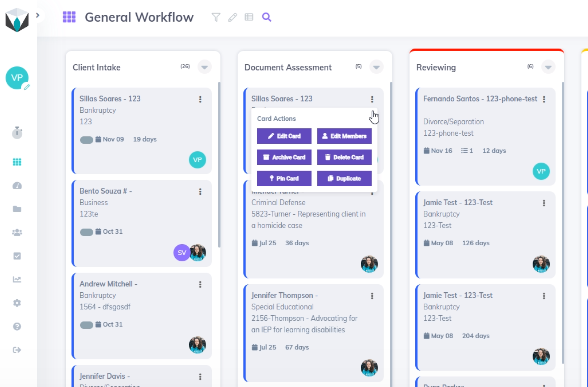
    An easy option to view more information and edit cards is directly within your board view. When looking at your board, you can click on the three dots on the right side of a card to quickly make changes.

    By clicking on the three dots, 6 options will appear. You can edit the card or the members, archive or delete the card, pin the card to the top, or duplicate the card.

    If you click “edit card”, you can edit the title, subtitle, and apply a label. Labels help designate the current status of the card. If you click on “edit members” you can directly edit the card members. If you need more help with managing board members, please refer to this guide. When you add new members, you’ll see both of their tiles on the card.

    Archiving a card means the card will be greyed out and added to the archived card column. Deleting a card however, means it is no longer viewable.

    Summary

    Check out this video summary of this content (with some more detailed examples) below. 

    If you have any questions, please feel free to contact us at support@legalboards.com, use the chatbot in your account, or take out a support ticket here. If you have any questions about how boards work, check out our guide here, which should help you grasp more about organizing and managing your boards.

  • OneDrive Integration

    OneDrive Integration

    It’s easier than ever to keep track of your files with the OneDrive integration in Legalboards. By integrating your Legalboards account with OneDrive, you can seamlessly sync all of your files so you and your team can collaborate effectively while increasing your productivity.

    In this guide, we’ll walk you through how to set up the integration. If you’re more of a visual learner, check out the video guide below, or on our YouTube channel.

    https://youtube.com/watch?v=lnuM21jTL3Y%3Fcontrols%3D1%26rel%3D0%26playsinline%3D0%26cc_load_policy%3D0%26autoplay%3D0%26enablejsapi%3D1%26origin%3Dhttps%253A%252F%252Flegalboards.com%26widgetid%3D1%26forigin%3Dhttps%253A%252F%252Flegalboards.com%252Fresources%252Fintegrations%252Fonedrive-integration%252F%26aoriginsup%3D1%26gporigin%3Dhttps%253A%252F%252Flegalboards.com%252Fwp-admin%252Fedit.php%253Fpost_type%253Dpost%2526paged%253D2%26vf%3D1

    How to integrate OneDrive with Legalboards

    Step 1: Installing OneDrive

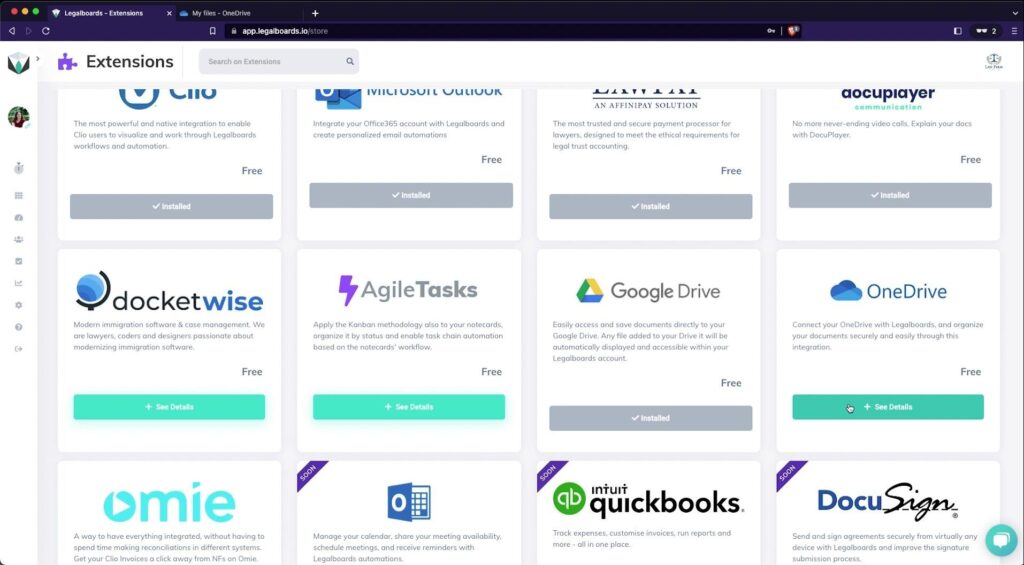
    From the menu on the left of your screen, click on the “Settings” icon. From the sub-menu that appears, choose “Extensions”, and then find OneDrive and click on the “See Details” button (as shown below).

    OneDrive Integration Extension Screenshot in Legalboards

    From here, click on the “Install Now” button and select “Install” on the confirmation pop-up.

    Step 2: Authorizing the OneDrive integration

    After you selected “Install”, another pop-up should appear that will allow you to authorize the integration.

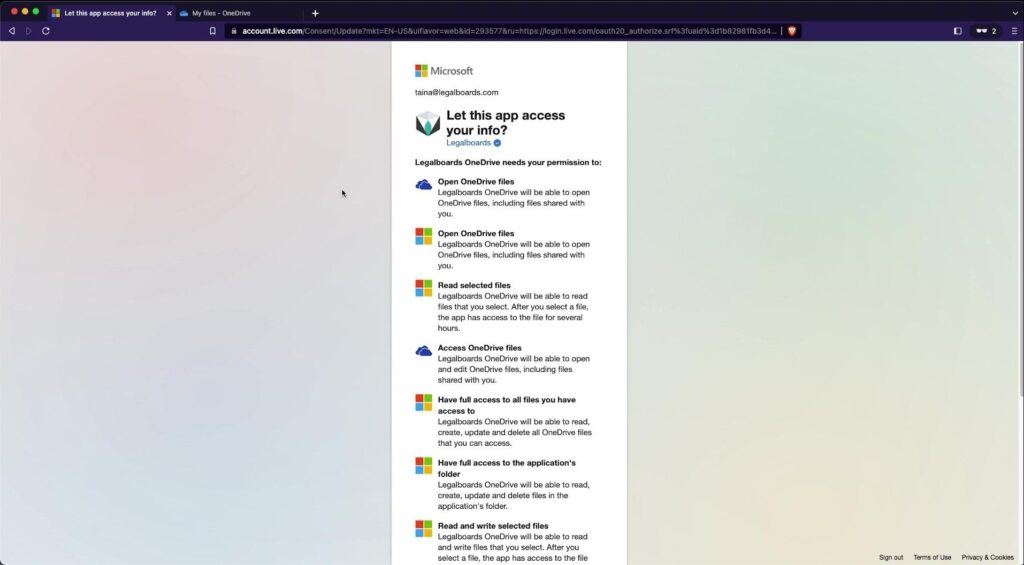
    From here, we’ll sign into our Microsoft account and confirm that we want to allow Legalboards access to our cloud storage (see below).

    Once we’ve allowed Legalboards access to our OneDrive account, we’ll be taken back to the Legalboards interface where we can select which OneDrive we want to use and select “Save” to link the drive to our Legalboards account.

    Step 3: Using OneDrive in Legalboards

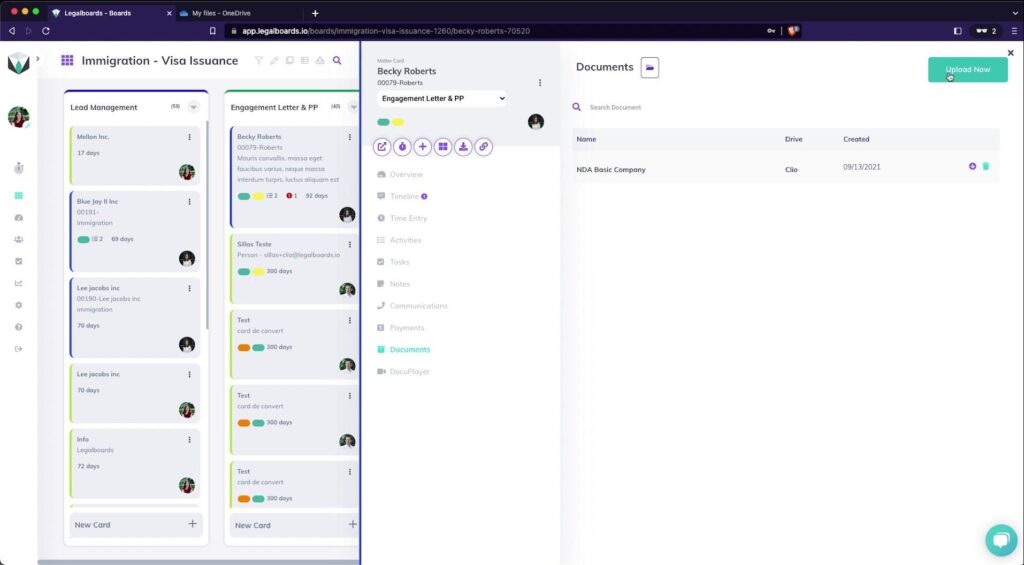
    Now that we’ve successfully integrated OneDrive, we’re able to click on any card and upload or see files from OneDrive in the “Documents” tab.

    To upload files from our computer, we’ll need to add the files by selecting the “Upload Now” button.

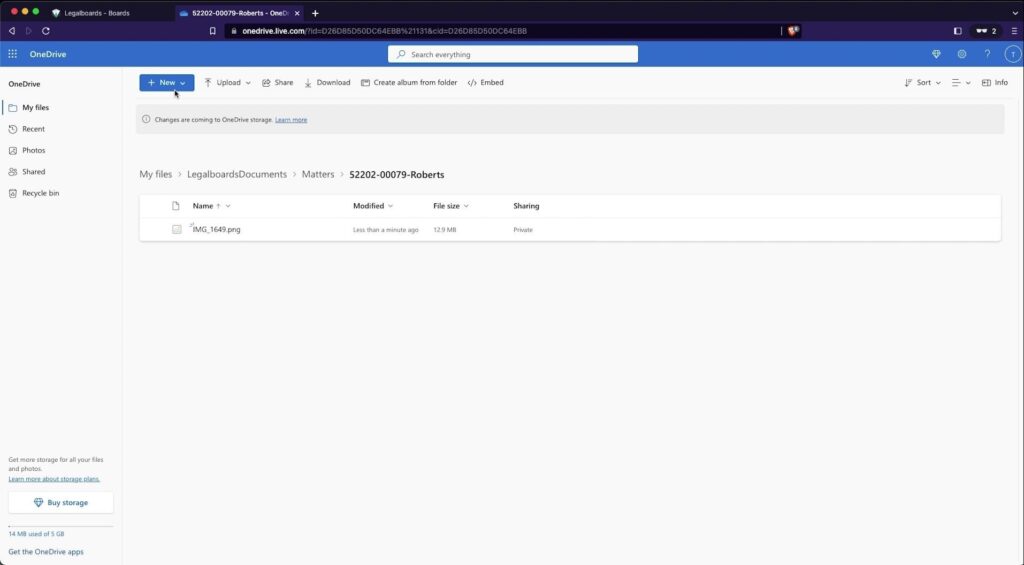
    When we select the file from our computer, we can also now specify OneDrive as a source for the file to upload to as well. We’ll do this now, and then shortly after, that file can be found in our OneDrive.

    As you can see, this integration allows you to easily sync your accounts so you can access the files you need for matters and keep both systems updated in real time.

    Need some more help?

    Didn’t find what you were looking for? Check out our support portal, and YouTube channel, or contact us for more help.

  • Working in Legalboards: Event Automation

    Working in Legalboards: Event Automation

    Some events are bound to happen- especially as your cases progress. That’s why we’ve added the new event automation that works directly within Clio for automated events on your calendar.

    In this guide, we’ll go over how to use the new automation within Legalboards. If you’re more of a visual learner, check out the video below to see how the new event automation works. 

    Please also note, this automation is only available for users that have integrated their Clio accounts. Visit our support portal for information about how to integrate.

    Getting Started

    Like our other automations, creating this follows the same steps of selecting some parameters and a trigger. To learn more about automation in Legalboards, check out this article.

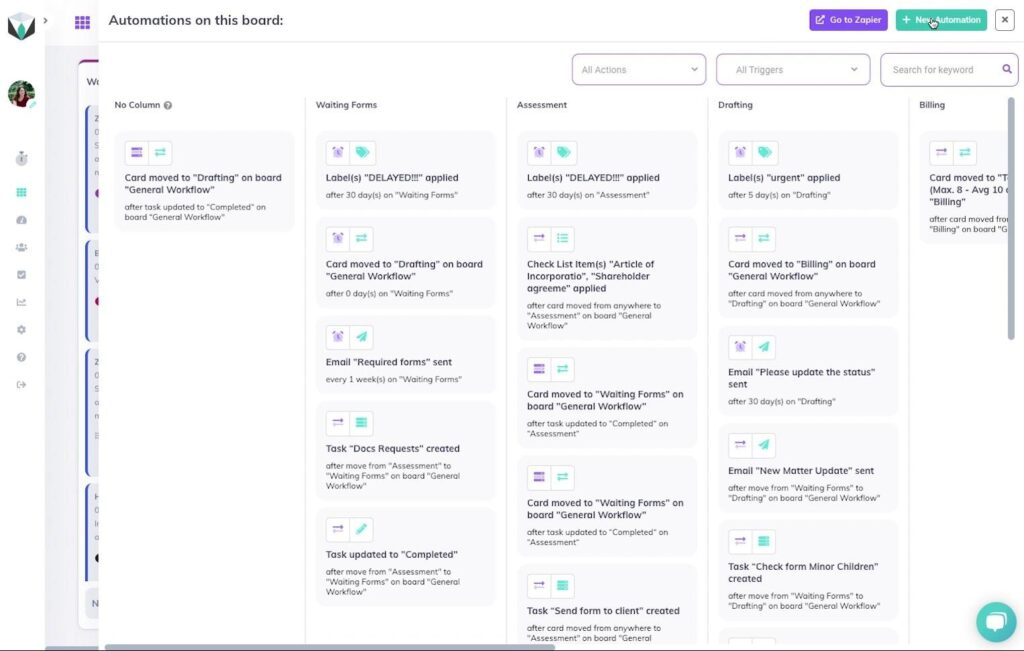
    To view the automations on a board, simply click the “My Automation” button. Here, we can see all of the automations for the current board we’re using organized by the board’s columns. In the case that your board has multiple automations, you can also filter these by the action, trigger, or keyword.

    Creating The Automation

    To create a new automation, we’ll click the “New Automation” button, as shown below.

    Event automation screenshot 1

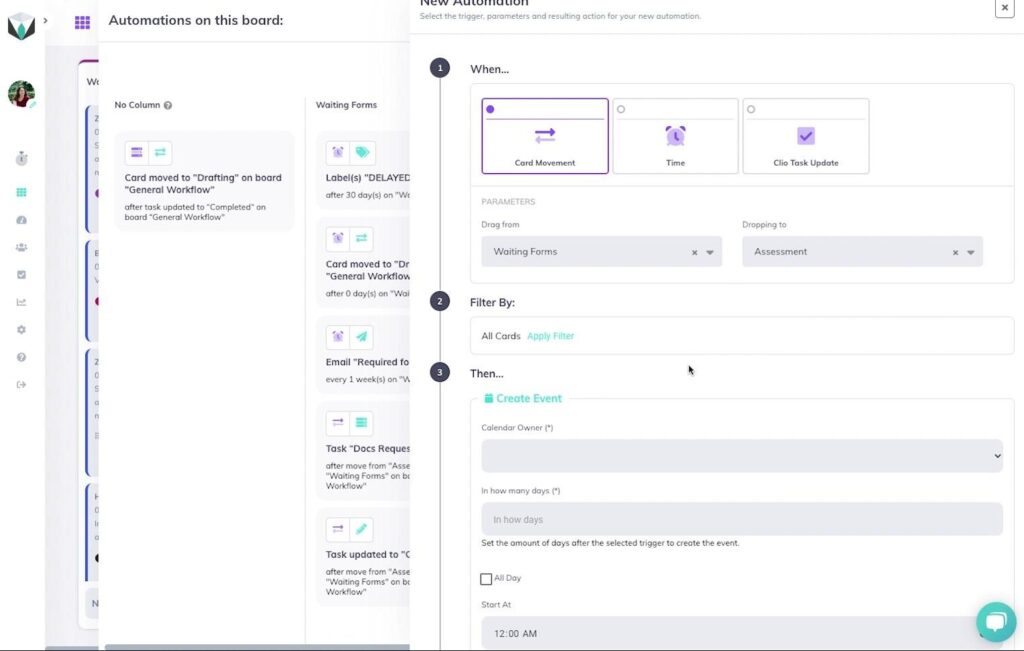
    From here, the sub-menu will appear with options to create a new automation. Now we’re going to select “Create Event”. We can select one of the three triggers (card movement, time, and Clio task update). For this example, let’s focus on using the card movement trigger. Using either of the other two triggers can help create automated events based on completing a task or a follow-up based on elapsed time.

    We’ll select “Card Movement” as our trigger and specify movement from the “Waiting Forms” column to the “Assessment” columns for when we want to set up a call between the firm and clients. Then we’ll keep the filter to be for all cards.

    Event automation screenshot 2

    Specifying Details About Your Event

    We’ll need to specify some information about the event that we want to be automatically created based on the card’s movement. Calendar automation can be especially helpful when we want to set up an event based on case progression.

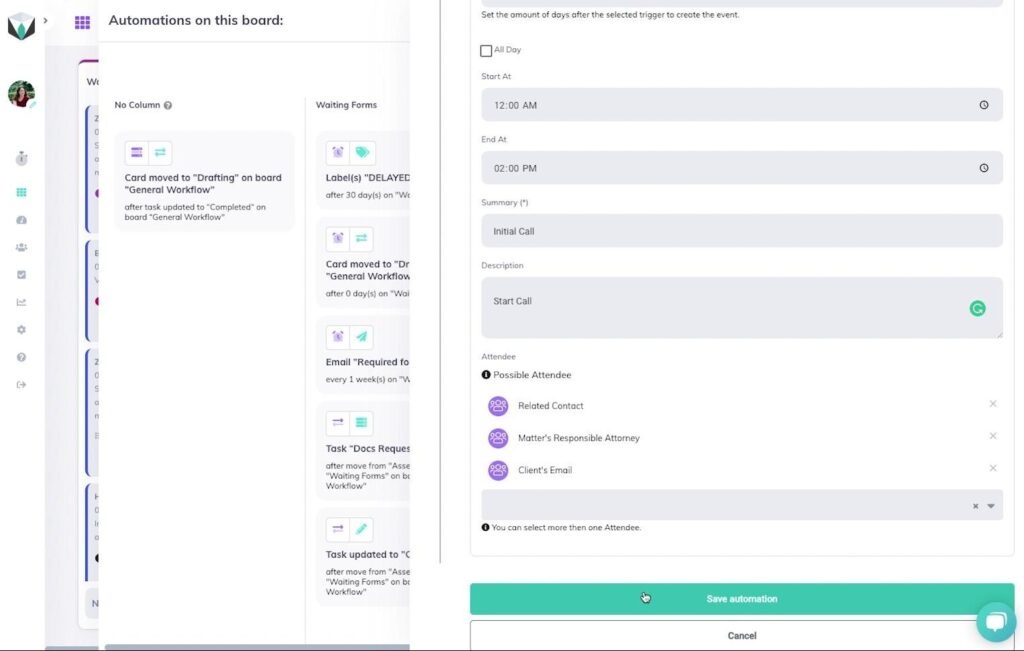
    In this example, we want to create an event 2 days after the card has been moved. To do this, we’ll need to specify whose calendar this event is going to be created for, our period between the task being updated and the event creation, and the timing and summary, description, and attendees of the event.

    For the attendees, we have a selection of options, and you can choose more than one. For this example, we’ll choose “Related Contact”, “Matter’s Responsible Attorney”, and “Client’s Email” as the parties we would like to attend this event, as shown below.

    event automation screenshot 3

    Once we’ve filled out all of the fields, we can save this automation and start benefitting from using it. Automated events are helpful for meetings we know need to happen after certain triggers and can be attended by both internal and external parties.

    Need Some More Help?

    Didn’t find what you were looking for? Check out our support portal, and YouTube channel, or contact us for more help.

  • Working in Legalboards: Clio Embed

    Working in Legalboards: Clio Embed

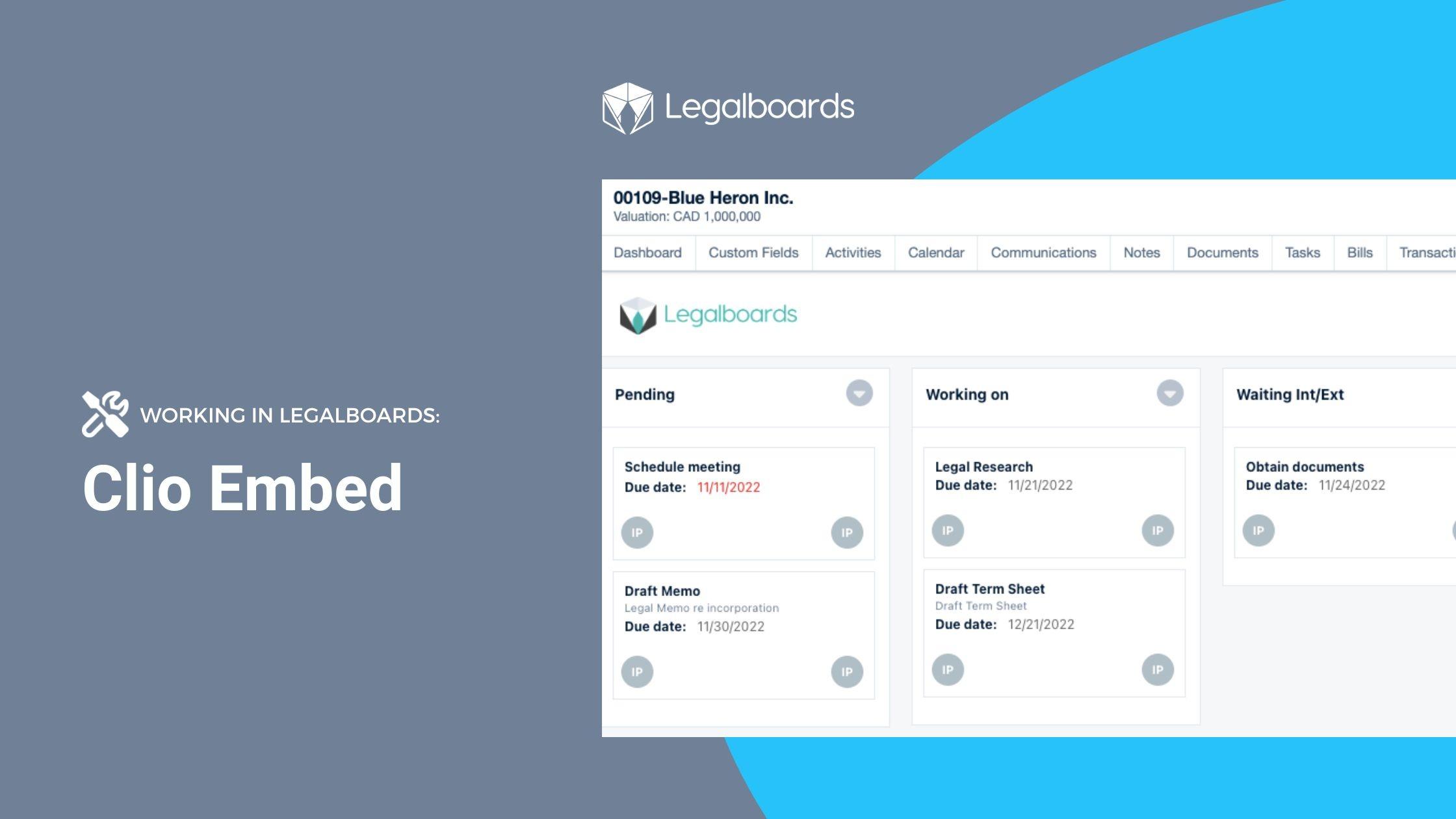
    As announced at Clio Con 2022, Legalboards is one of the first embedded apps within the Clio interface. This guide is to help users make the most of this integration and to help with some of the issues that have arisen for users since the launch of this feature.

    Check out the video below to see how the embedded integration works and read on for the benefits of using this feature and how to solve common issues.

    Why Use This Feature?

    Simply put, the three main benefits of using this feature are:

    1. Customization to your workflow so you can provide more detail;
    2. Organizing your tasks with Kanban; and
    3. Automating your tasks so you can save time.

    Customize Your Work

    We know that tasks can be more than just labeled “outstanding” or “completed”. With Legalboards, you can create custom task statuses (read more here). By using the Legalboards tab in Clio, now you can create and use these statuses directly within Clio. 

    Kanban As A Visual Tool

    It’s pretty well-known how much we love Kanban boards as a visual tool. They’re a great way to see an overview of your workflow at a glance.

    Traditionally, your tasks in Clio have looked like this:

    By using the Legalboards tab within Clio, you can now see exactly how your tasks are progressing. As you can see below, how your boards appear in Legalboards is now viewable in Clio.

    Use Automation To Save Time

    Reduce the time you spend on repetitive tasks with the Legalboards automation capabilities. With us, you can automate email communication with both internal and external contacts. Both clients and team members can stay updated on the progression of tasks/matters.

    With automation, it’s also possible to work more efficiently through the creation of task chains. To learn more about task-chain automation, check out our blog post.

    Important Things to Note

    To get the most out of this feature, it’s important to note the following;

    • Automations (and custom statuses) need to be made in Legalboards first. This is so they can then be shown in Clio once saved.
    • To see more information about a task, click on the task directly. Then you can see the assignee, reporter, status, date, and time entries associated with the task.
    • Data is automatically synchronized between Clio and Legalboards, so you don’t need to input information twice.

    Common Issues and Questions

    Since launching this feature, we’ve heard from users about common issues or questions about this feature. 

    1. Recently Created or Changed Statuses

    If you’ve recently created or changed one of the statuses in Legalboards, you may need to refresh your page in Clio to see that new column reflected in the interface.

    2. Task Creation Visibility

    Some users have reported that they’ve created a task in Clio and when they immediately enter the “Legalboards” tab, it may not be visible. This happens because both platforms may need a moment to sync the information between the two. For now, this is just a matter of time for the task to be created in Clio and Legalboards and then be visible.

    Still Need Some Help?

    Didn’t find what you were looking for? Check out our support portalYouTube channel, or contact us for more help.

  • Highlights from Clio’s “Legal Trends Report” and What They Mean For You

    Highlights from Clio’s “Legal Trends Report” and What They Mean For You

    Every year, Clio releases the Legal Trends Report that helps lawyers take a look at the state of the industry based on the extensive research that the Clio team collects, deciphers, and provides insights on. As we’re all short on time, we’ve gone through the 2022 report and will provide you with some key insights from the report.

    1: Increased Demand for Services Driving The Need For Productivity

    With increased demand for legal services over the past year, there has also been an increase in the amount of work that lawyers are required to complete. As seen below (2022 Legal Trends Report 13), lawyers are billing more hours than ever during 2022.

    However, Clio also reports that only 33% of a typical 8 hour work day is actually spent on billable work, which translates to under 3 hours.

    So, the question is, is the high caseload sustainable? How does this affect the mental health of those within the legal industry?

    2. Optimizing Workdays

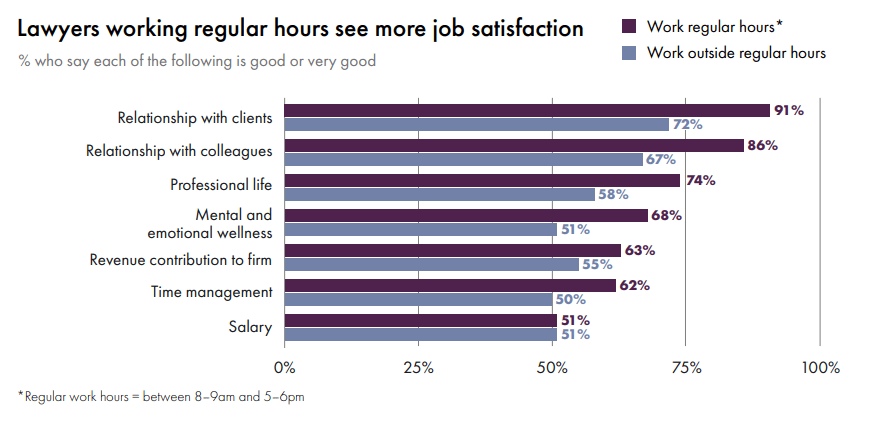
    Unsurprisingly, Clio found that many in the legal profession are looking for flexibility in their work- whether that be by the hours they work or where they do said work. It’s important to note that office use has declined, virtual meetings are actually preferred by clients, and legal professionals are looking to have some combination of hybrid work. 

    49% of lawyers say they prefer working from home and 45% prefer meeting with clients virtually (2022 Legal Trends Report). With these strong indications of variable locations being shown, it increases the risk of professionals to blur the line between work and their personal lives. Lawyers may prefer to work outside of the typical work-day hours (either 8/9 to 5/6), and prefer to communicate with clients and colleagues outside of work (2022 Legal Trends Report). And, how is this achievable? By introducing technology.

    All of these factors need to be balanced with the well-being of those within the industry. Operating at a high-level 24/7 is not sustainable. Combined with the need for agility in response to an uncertain economy, optimizing current processes is essential.

    3. Becoming “Antifragile” (or, Agile)

    Having the ability to quickly adapt to challenges is extremely important for all businesses to succeed. As we’ve all seen over the span of the pandemic, pivoting is sometimes a crucial part of business longevity. While Clio describes this as antifragile, we prefer to use the term agile. 

    Clio argues that the use of cloud-based legal practice management (LPM) technology helps firms become more agile, and we’d agree. This technology helps professionals to stay connected to team members and clients, provide better service, and help with mental health (2022 Legal Trends Report 41)

    Lawyers Working Regular Hours See More Job Satisfaction, “2022 Legal Trends Report.” Clio, Clio, 10 Oct. 2022, https://www.clio.com/resources/legal-trends/2022-report/.

    Looking to The Future

    As the report shows, 2021 was a rebound year for the legal industry. Demand for legal services increased while the industry recovered from the disruptions from the early days of the pandemic. However, the lines between work and life have become increasingly blurred with the increased flexibility of work and variable locations.

    Firms and legal practitioners are now looking for ways to remain competitive and respond to upcoming challenges. Technology (and automation) are one of the strategies used to mitigate risks. As shown in the Legal Trends Report, technology can help provide excellent service to clients, and with automation, can improve client perception of the services they are receiving. In addition to this, technology and automation helps lawyers manage their heavy caseloads and be more productive.

    To learn more about automation and how it can help your firm, check out our other resources.

  • How Clio’s Launch//Code 2022 Winners Are Leading The Way To Legal Practice Agility

    How Clio’s Launch//Code 2022 Winners Are Leading The Way To Legal Practice Agility

    Nashville, TN- Clio announced Clearbrief and Legalboards as the 2022 recipients of “Best New App” and “Most Improved App” at Launch//Code during the 10th annual Clio Cloud Conference. Both will receive $50,000 and directly impact the productivity of their users.

    Legalboards CEO Rafael accepting the cheque at Launch//Code 2022
    Legalboards CEO Rafael Miranda accepting “Most Improved App” at Launch//Code 2022

    Contest winners are also aligned with Clio CEO Jack Newton’s opening remarks about the need for firms to become more antifragile- and agile. Newton also emphasized the need for the application of agile methods in the legal process to achieve and improve efficiency during his opening remarks at the conference. Both contest winners directly impact the productivity of their users. Clio also announced that Legalboards is one of the first featured apps to be directly embedded within their Clio Manage interface, adding to the emphasis on agility.

    Both sessions at the conference and the Legal Trends Report, released by Clio, emphasized the need for firms to adapt to upcoming changes to continue their success from 2021-early 2022. With a recession looming and caseloads currently increasing, it’s important for legal professionals to be able to become more productive, continue delivering high-quality service to clients, and maintain a work/life balance.

    Legal technology is pivotal in helping firms navigate these challenges while growing and scaling the firm. The winners of Launch//Code help legal professionals save time, automate processes, and provide professionals with insights about how they work. While technology can help practitioners become more agile, it’s also essential to keep in mind the importance of developing processes that are agile within themselves and shifting our mindset.

    More About Legalboards

    Legalboards is a growing startup founded in 2019 and operates in Toronto, Ontario, Canada. Legalboards focuses on helping legal professionals save time by organizing, tracking, and managing their workflow in a visual way through the use of Kanban boards and automation flows for daily practice. Legalboards is also one of the first directly embedded apps into Clio, as announced at Clio Con 2022.

  • Advanced Task Filters

    Advanced Task Filters

    In this short guide, we’ll walk you through how to use advanced task filters. Filters can help you easily find valuable information, and the advanced filters on your task board will help you navigate your current tasks.

    You’re likely familiar with how useful they can be in other programs to search for information that’s relevant to your current task or for your case. Let’s start with a quick refresher on how to set up a filter.

    Setting Up Filters in Legalboards

    Creating filters is easy, just follow these steps:

    1. Click the “Add Filters” button at the top of your board
    2. Select what information you want to set up a filter- for example, it can be by keyword, assignee, reporter, label, etc.
    3. Select the “Save This Filter” button to save your selections.

    If you need more help on how to create a filter within a board- check out this guide all about creating board filters.

    Advanced Filters In The Task Board

    Now that we’re familiar with how to set up a filter in Legalboards, let’s look at the advanced task filters that you can use with your task board. If you’re more of a visual learner, check out the video below.

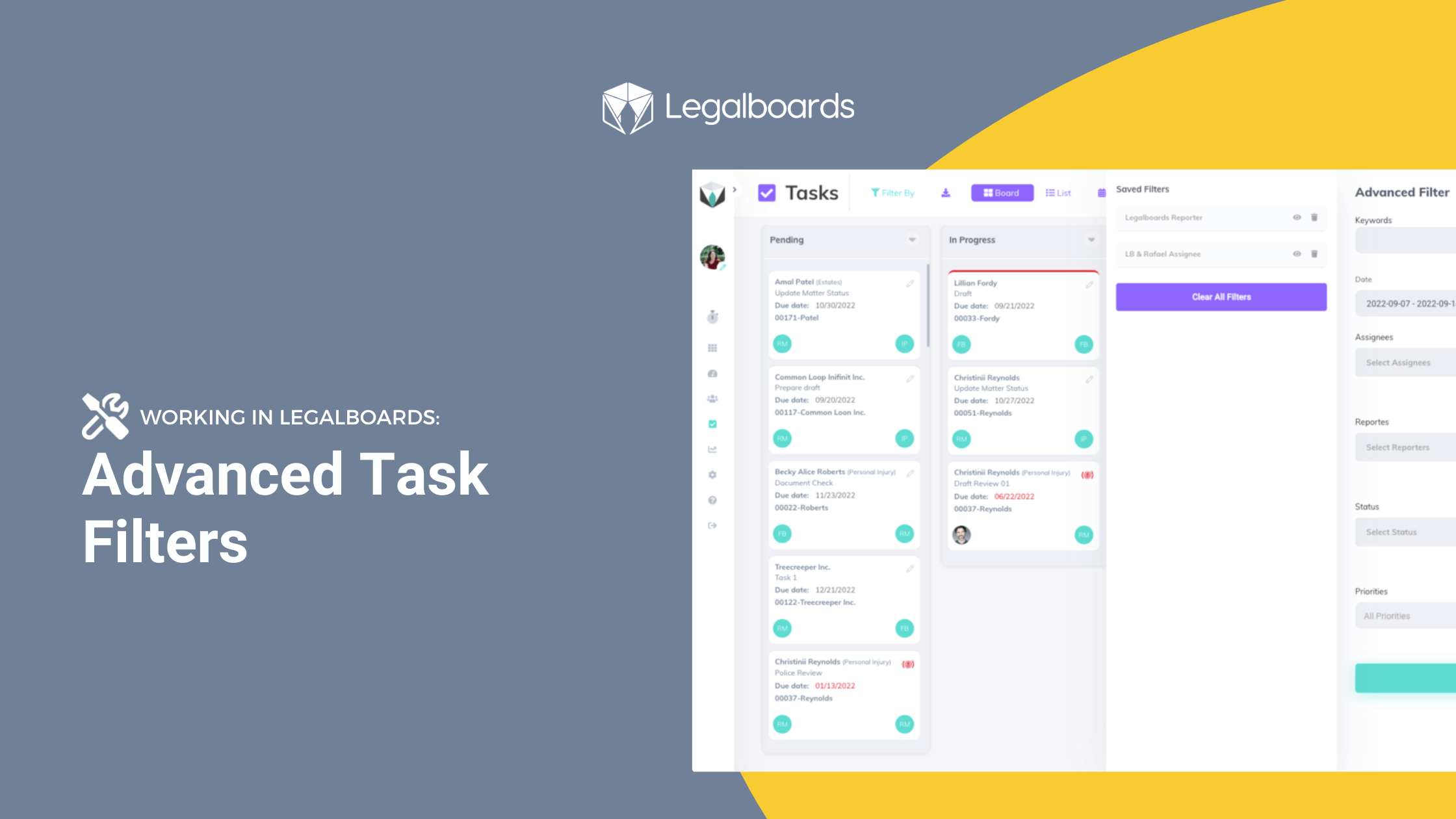
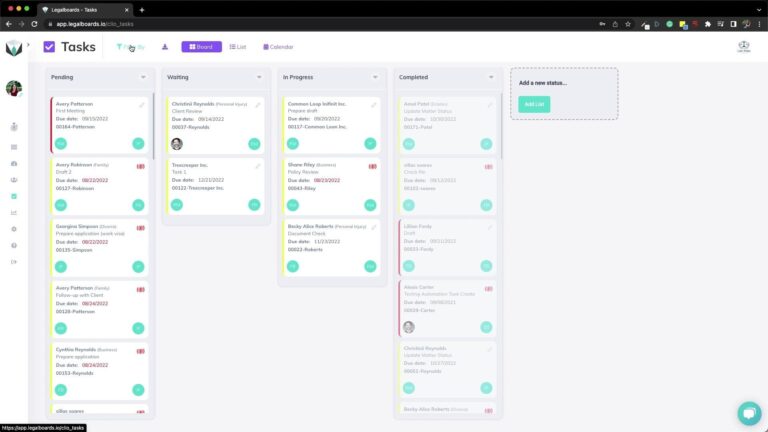
    First, let’s go to your task board. Here you can see all of your tasks sorted by their status. To filter this board, we’re going to click on the “Filter By” button at the top of the board, as shown below.

    Advanced filters on task board screenshot 1

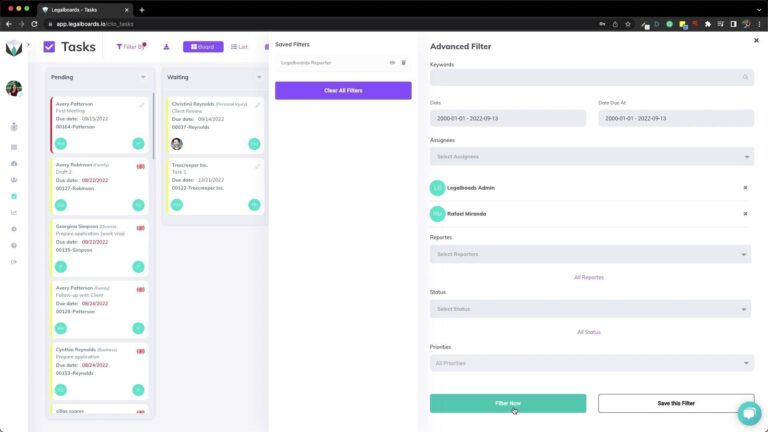
    When we click on this button, a sub-menu will appear that allows us to set up a filter, similar to the other board filters. For the task board however, we have some more options for filtering like dates, status, and priority.

    For this example, we want to filter by any date but with specific assignees. We’re going to select two assignees (Legalboards Admin and Rafael Miranda) and select the “Filter Now” button.

    Please note, the speed results appear may vary by the amount of cards the system has to filter through.

    Advanced filters on the task board screenshot 2

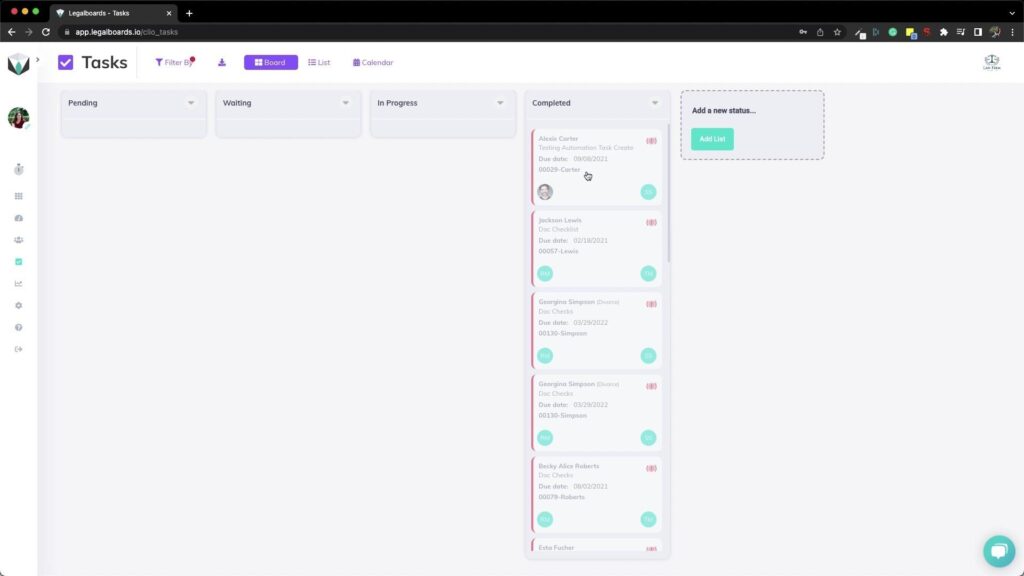
    In our example, we’ve filtered by these basic parameters around who is the assignee of these tasks. But, say we really want to focus on the high-priority tasks from these assignees so we can see the status of these tasks.

    We can do this by clicking the “Filter By” button again to re-open the sub-menu. From here, we’re going to select “High” in the drop-down menu for the Priorities field and then click “Filter Now”.

    Saving The Filter

    Similar to saving a board filter, we can easily save this new filter of specific assignees and high priority by entering back into the menu through the “Filter By” button. From here, simply click the “Save This Filter” button and name the filter to save it for future use.

    Advanced task board filters screenshot 3

    To clear the filters you have, simply click the “Clear All Filters” button.

    Need More Help?

    Didn’t find what you were looking for? Check out our support portalYouTube channel, or contact us for more help!