We’re excited to announce our latest integration- Office365 Calendar! Now, you can connect your Legalboards account directly to your calendar and make scheduling a breeze.
In this guide, we’ll walk you through how to get started with this integration and talk a bit about the benefits of doing so.
If you’re more of a visual learner, please check out the video below. Otherwise, let’s get into it!
Getting Integrated
Step 1: Download the Application
The first step is to connect your Legalboards account with your Office365 calendar. You’ll need to permit the two software programs to “talk” to each other, so let’s walk through that first.
On the side menu, you’ll see the “Settings” option. When you click on that, a sub-menu will appear. From there, click on the “Extensions” option to add this new integration to your account.
When you click on the “Extensions” option, you’ll see all of the third-party applications that Legalboards integrates with. To find the Office365 Calendar, we’ll need to scroll through to find it. Once you’ve found it, you can click on the “see details” button to get an overview of what the integration does and install it in your account.
A pop-up will appear to confirm that you’d like to install the application. Once you confirm it, an authentication pop-up will appear.
Step 2: Authentication
So, you’ve downloaded the application and have confirmed that you want to install it. Next, you’ll need to permit Legalboards access to your Office365 Calendar. This is simple, all you’ll have to do is click the “Authenticate My Office Calendar” on the pop-up.
Now, you’ll pick the account that you want to connect with, and then in the integrations settings, you can select which of the calendars you’d like to use.
In our example, we have two options, one called “Calendar” and another option that is our specific Legalboards calendar. I’ll select the second option so that the Legalboards calendar syncs with the Office365 calendar.
Once your accounts are connected, you’ll get an automated pop-up to tell you it was successful.
Step 3: Connecting Accounts Successfully
Now that the accounts are connected, I can see the tasks in my calendar. Please note that this applies only to the tasks that are assigned to me.
Why Integrate?
It’s simple! By integrating your Legalboards and Office365 Calendar, you’ll be able to see and make changes to events instantly. No need for dual data entry, we’ll make sure your data is updated.
If you have any questions about the integration or need some help, please feel free to chat with us using the chatbot in your app, take out a ticket, or contact us at support@legalboards.com.
In this guide, we’ll walk you through Kanban concepts and the anatomy of a board in Legalboards. If you’re new to Legalboards or would like a refresher, this will help you understand all of the different aspects of a board.
If you’d like more information about how to build a board for your specific practice area or workflow, please get in touch with us at support@legalboards.com. Boards can also be built using our templates in the board gallery, the new AI board generator, or from scratch.
An Overview of Kanban
Kanban methodology at its core is fairly simple to grasp. As you can see in the example Kanban board below, it’s a visual way to show the progress of work. Think of it as a timeline of the progression of your work. The most basic Kanban boards show work as one of three phases: to-do, doing, and done and have cards representing different tasks.
For many knowledge workers, it’s a great way to approach managing work. But, often this requires breaking down your entire workflow, so you may have a more complex Kanban board like the one pictured below.
A key concept of Kanban is that the goal is to get tasks to flow through the phases that are reflected in each column. No matter how basic or complex the Kanban board is, the work it represents needs to be completed with minimal delays. Kanban boards can be especially helpful for lawyers as a tool for managing all of their cases and related tasks. The phases, or columns, can reflect different steps of a process.
For example, it could reflect the intake or billing processes or a specific practice area. These workflows often follow the same steps, but with so many things happening simultaneously, it may be hard to track. And, this is where Kanban boards shine.
Basics of a Kanban Board
Let’s go over the basics of the boards in Legalboards. If you’re more of a visual learner, check out the video below.
Let’s move to the basics of a Kanban board in Legalboards. With the basic board, you’ll have cards that represent matters or cases, columns that represent a phase, and visual cues like labels. You can add cards based on your client’s name, matters from a third-party integration (like Clio or MyCase), and more.
Boards can be organized in multiple ways. Depending on preference and workflow or process, boards can reflect a practice area, process (for example intake or billing), or by the attorney. Again, this organization is dependent on the workflow within a specific firm and what may be appropriate for one firm may not be for another. Most users use boards to reflect a specific practice area, and for our example, we’ll be talking about boards that are set up this way.
In Legalboards, you can build board in one of three ways: from scratch, using a pre-built template, or our AI Board Generator Tool. No matter which approach you use, you’ll still be able to customize the board. You can move the columns, edit, or add new columns.
To edit a column name, click on the arrow next to the title. Here, you can rename the column, delete the column, hide/show the archived cards, and sort cards by a specific order.
While scrolling through columns, you’ll always see at the very end, “add a new column”. Here, it’s important to note that every column must be given a name before it is created and before cards are added, but you can change those titles at any time.
On the right side of any board, you’ll see the board members as icons and the “My Automations” icon that allows you to create and manage automations on the board.
Visualize Your Matters
One of the main benefits of Legalboards is the ability to quickly see and understand your workflow. Some of our visualization features include labels, column colors and descriptions, task counters, filters (both simple and advanced), and the list option view.
Let’s start with labels, these are ways for you to show directly on the card things like priority, or type of case, or some other nuance about the matter. Often this can depend on the practice area or the board organization. Along with labels, column colors, and descriptions allow you to quickly differentiate the different phases of the workflow.
Some filters can be applied to a board. If we click on the “Advanced Filters” icon, we can set up a filter to view this board. This is helpful if you have a large board and want to find something specific. Check out the video below to learn more.
You can filter the board by active cards, keywords, card members, responsible attorney(s), or labels. There is also the option to save the filter so it can be used at a later date.
To see the list option view, you can use the “toggle board view” button next to the board title to view the information differently. When you click this button, you’ll now see the matters in a drop-down list under headings that correspond with the board columns.
While in this view, you can still move cards around and see the same information that you would in the board view. There’s also a search bar at the icons at the top that allows you to quickly search through the board for a specific keyword without using a filter.
Board Management
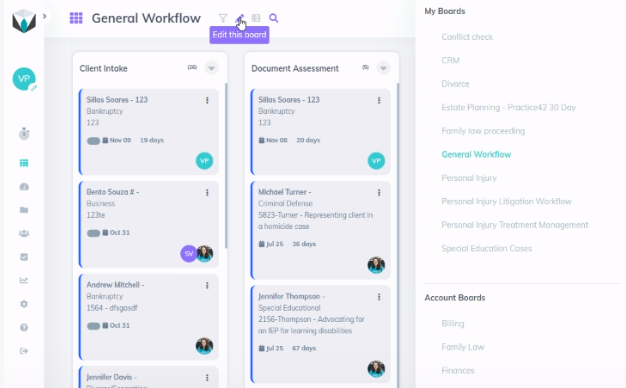
When you view a board in Legalboards, you’ll see icons at the top next to the board title (see below). These icons allow you to filter, edit, toggle views, or search your board.
Managing a Board
From this menu, we can manage our board if we are a board admin. When we select “Edit this board”, a sub-menu will appear. On your left you’ll see your boards first and then other boards within your account. This is especially helpful for adding members to boards. Let’s talk about the first few options that help you manage your board first.
From here, you can clone, export, or view the activity of the board through it’s log. Cloning a board can be helpful if you have automations to use this board as a template for a new one. You can select what elements you would like to be copied- the members, automations, and/or cards. If you select that cards will copied, you can also copy tasks. While copying, you can also edit the board title.
If you choose to export the board, this will generate an Excel file where you can see each matter, each column, and everything related to those cards. This can be helpful depending on your integration to make sure that matters are being updated or to create custom reports based on data from Legalboards.
Then, you have the log board option. This allows you to see the board activity. It allows you to see the timeline of activity on each card within the board. You’ll be able to see information like card movements, task updates, and automations by user and date. When a mistake happens and you’re troubleshooting an issue, this is a great place to start looking into any issues.
Editing a Board
You can also edit the board within this same sub-menu. Here you can edit the board title, description, permissions for members and viewers, labels, and card members, and delete the board if necessary.
For permissions, “Disable automaton editing for members” and “Disable column editing for Members” are good options to allow admin-level members to control the board. These options act as a safety net to ensure who can make changes to automation settings for each one of your boards.
The two hiding card options help prevent unnecessary viewing of cards. For members, this can help reduce the overwhelm of a regular member because they can only see the cards that they are involved in. With this option selected, they’ll be able to see the card, the column that it is in, and some information about it. Similarly, for viewers, this option is useful for giving restricted viewing options to clients.
Next is labels. Labels allow you to identify different details of a card. In our example, we use labels to denote the status (pending- external or internal, late, accepted, etc.). These are helpful visual cues as to what’s going on with a card without opening it. You can also change the titles and colors of these labels here as well.
You can also view and edit the board members from here. You’ll see a list of those with access and their level of access. As well as the user that created the board. If you need more help with this, check out our resource here.
Finally, there is the option to delete this board. Please note that after deleting a board, you are unable to recover it. You can watch the video below for a recap of everything we talked about here.
Still Have Questions?
If you still have questions, we’re here to help! You can contact us here, or check out our other resources.
The Legalboards team was excited to be joined by Audrey Ehrhardt, Esq., CEO of Practice42 for an informative session originally held on February 29th, 2024. Audrey talked all about estate planning workflows, how to improve what firms already do, and how to keep delivering superior service to clients.
Watch The Webinar
In this free previously recorded webinar, you’ll get 5 tips and tricks to help you improve how you handle your estate planning cases. This session is a can’t miss for estate planners who want to learn more about how they can communicate and streamline their current processes. With these tips and tricks, you’ll be able to save money, time, and stress without sacrificing the quality of service you provide to clients.
Learn How To Implement These Tips Using Legalboards
Want to learn more about how to take the theories and make them practical? Stay tuned for a special course that will help you apply what you learned during this session. Curious about how Legalboards can help with the way you work? Learn more about our time-saving features here.
If you have any questions about the session, please feel free to reach out to us here!
It’s no secret that Kanban and Agile methodology is one of our favorite subjects. Here at Legalboards, we see firsthand how much it can affect a law firm’s productivity and efficiency. At its most basic level, it opens up the visibility into daily work, which then positively impacts the service provided to clients. But, it can seem like an overwhelming concept to start applying to your firm even when in reality, it’s not.
Why Kanban and Agile?
Kanban allows law firms to make their work visible. For many of us, our first task of the day is figuring out a to-do list of action items based on our memory. This can quickly become complicated. It relies on a perfect memory for every case we’re working on, which can be difficult to achieve for many reasons.
By implementing Kanban, this process itself can be simplified. A Monday morning meeting between team members is simple- let’s look at our board to see where we left off, and make a plan of action for the most important items.
Law firms especially can see the benefits of this, and you can learn more about how to get started with the basics of Kanban here, or learn more about it in our “Applying Agile to Legal Practices” course here.
Making Kanban and Agile More Effective For Your Team
One thing to keep in mind when considering Kanban and other Agile methodologies is that it can help reduce inefficiencies in your process. Using Kanban, you can document and analyze your workflow, and that visibility is important. But, how can we make sure we’re using this new insight into work properly?
Avoid Multitasking
It’s well documented that multitasking is hindering our ability to work effectively. By multitasking, we’re unable to complete mental tasks effectively when we’re switching between tasks constantly. Psychologists recommend avoiding multitasking when complex tasks are involved as shifting between tasks can cost up to 40% of productive time.
Setting Priorities and Cadence of Tasks
With Kanban, you can identify the tasks that need to be completed and their priority level. By avoiding multitasking and instead creating Work-In-Progress (WIP) limits or queues of tasks, you can set yourself up for success. WIP limits are simply a way to make sure that completing work remains attainable, taking into account what is a reasonable task to complete. For more information about WIP limits, check out John Grant’s “Kanban For Lawyers”.
WIP limits are a helpful way to rein in how much work your team is taking on while also ensuring that the proper cadence is followed. Priorities can change depending on if there’s an emergency related to a case or even just internally for the responsible attorney. Those changes can easily be reflected in the framework because of its flexibility.
How to Start Using Agile Methodology
If Kanban and Agile sound like something you’re interested in implementing at your firm, we can help with that. Check out our other resources, our webinar with Gimbal Canada, or get in touch with us at support@legalboards.com for a personalized demo session of our Kanban interface for your firm.
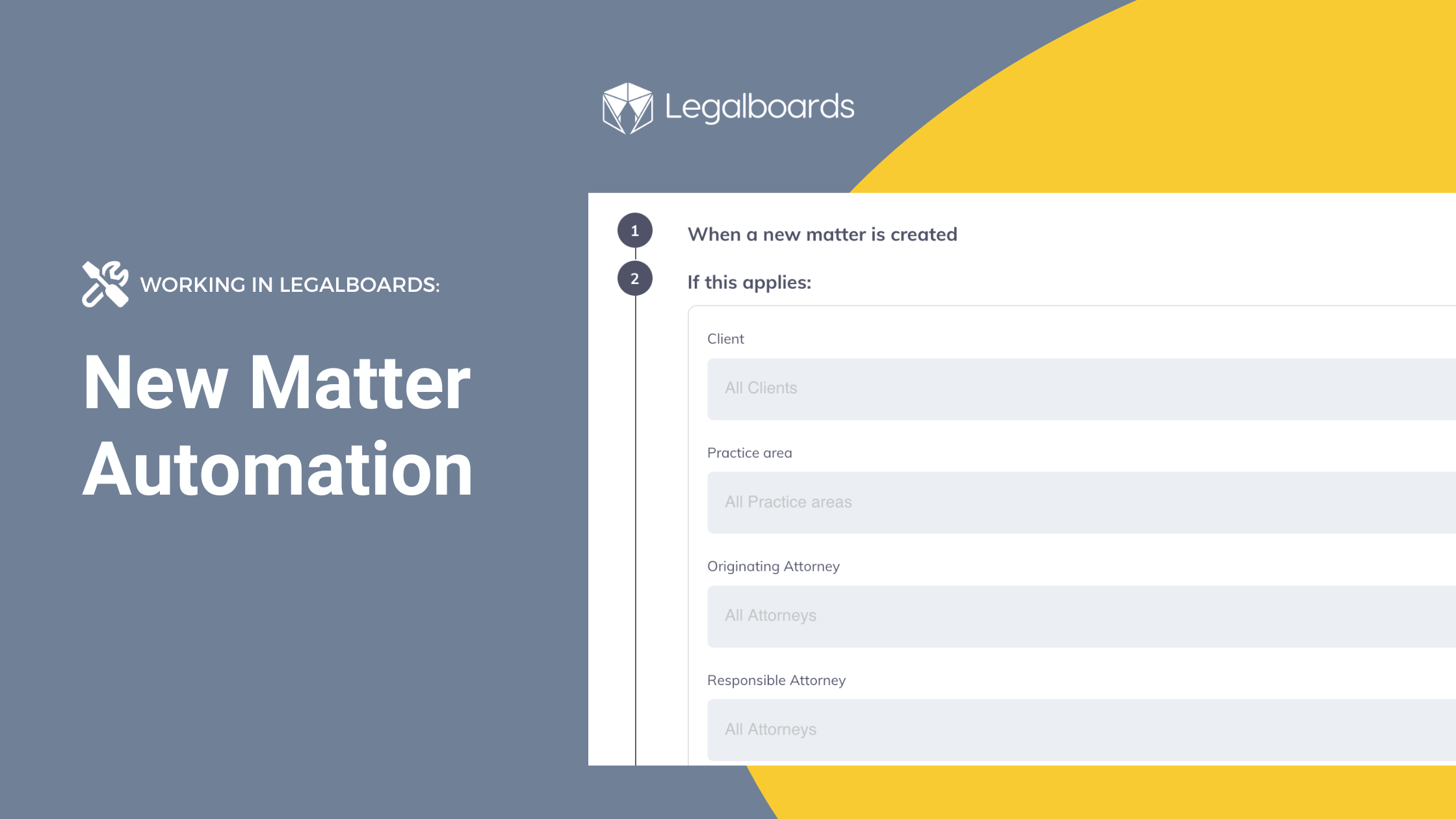
In this guide, we’ll walk you through how to use the New Matter automation so you can save time while creating new matters. No matter if you use Legalboards by itself or are integrated with one of our case management software partners like Clio, MyCase, Filevine, or Practice Panther, you can use this automation to handle these tedious tasks.
If you’re more of a visual learner, check out the video below or on YouTube. Otherwise, let’s get into it!
Step 1: Setting Up New Automations
To get started, you’ll need to click on “My Automations”. Here, you’ll see all of the current automations that are set up for the selected board. To set up another one, click on the “New Automation” button.
Now, you’ll see the sub-menu of automation recipes. Click on the “Create New Matter Card” tile to set this automation up. Once clicked, you’ll see the screen below.
Step 2: Set Filters
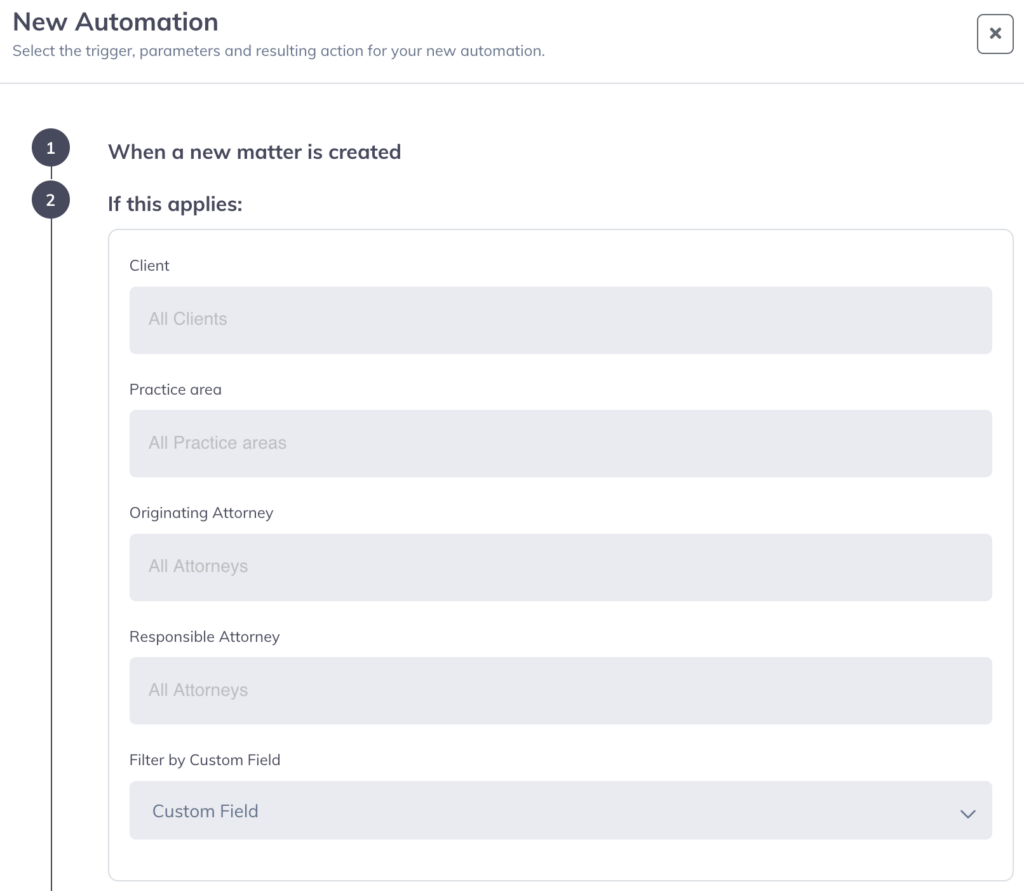
Next, let’s populate these filters. Automations follow the basic pattern of “if this happens, then that”. For the new matter automation, these fields tell Legalboards what to do when a new matter is created.
You’ll see the fields “Client”, “Practice Area”, “Originating Attorney”, “Responsible Attorney”, and “Filter by Custom Field”. For this example, we want to create a new matter card without any of these filters so every new matter has a new card, so we’ll keep these fields blank and go to selecting which column the new card will be added to.
If you wanted to use specific filters, you could set this automation to only be used for a specific practice area, attorney, or some other custom field. So, you could create a board for Family law cases, if you have a large volume of cases from a specific client, or by using the custom fields, you could use this automation for Family law cases that are designated as divorce cases.
Step 3: Choose A Column
The next step is to specify which column of a board these new matter cards will be added to. In our example, we want the new cards to be shown in the intake column, so we’ll specify that. With that selection, we can click on the “Save Automation” button to save this new automation.
Now that it’s saved, we’ll be able to see this recipe in our overview. You could use this automation for all of the boards you have and use specific filters to define each matter that should be added to each of your boards. Depending on the organization of your boards, this can be especially useful for overlapping matters or showing both a micro and macro view of your firm’s operations.
Goff Legal, PC. is a mid-sized law firm that focuses on estate planning, trust administration, probate, and conservatorship based in California.
They had noticed that while they had a list of all of the clients they had, they couldn’t visualize where those clients were in the process. They weren’t sure if their clients were in specific stages, and wanted to be able to quickly understand just what was going on within the firm.
Visualizing their workflow
Miriam, their firm administrator, described this as “because our estate plans move in and out in an average of one to three months, we’re dealing with faster times than the case average of others”. Their estate planning paralegal especially wanted a way to visually track cases.
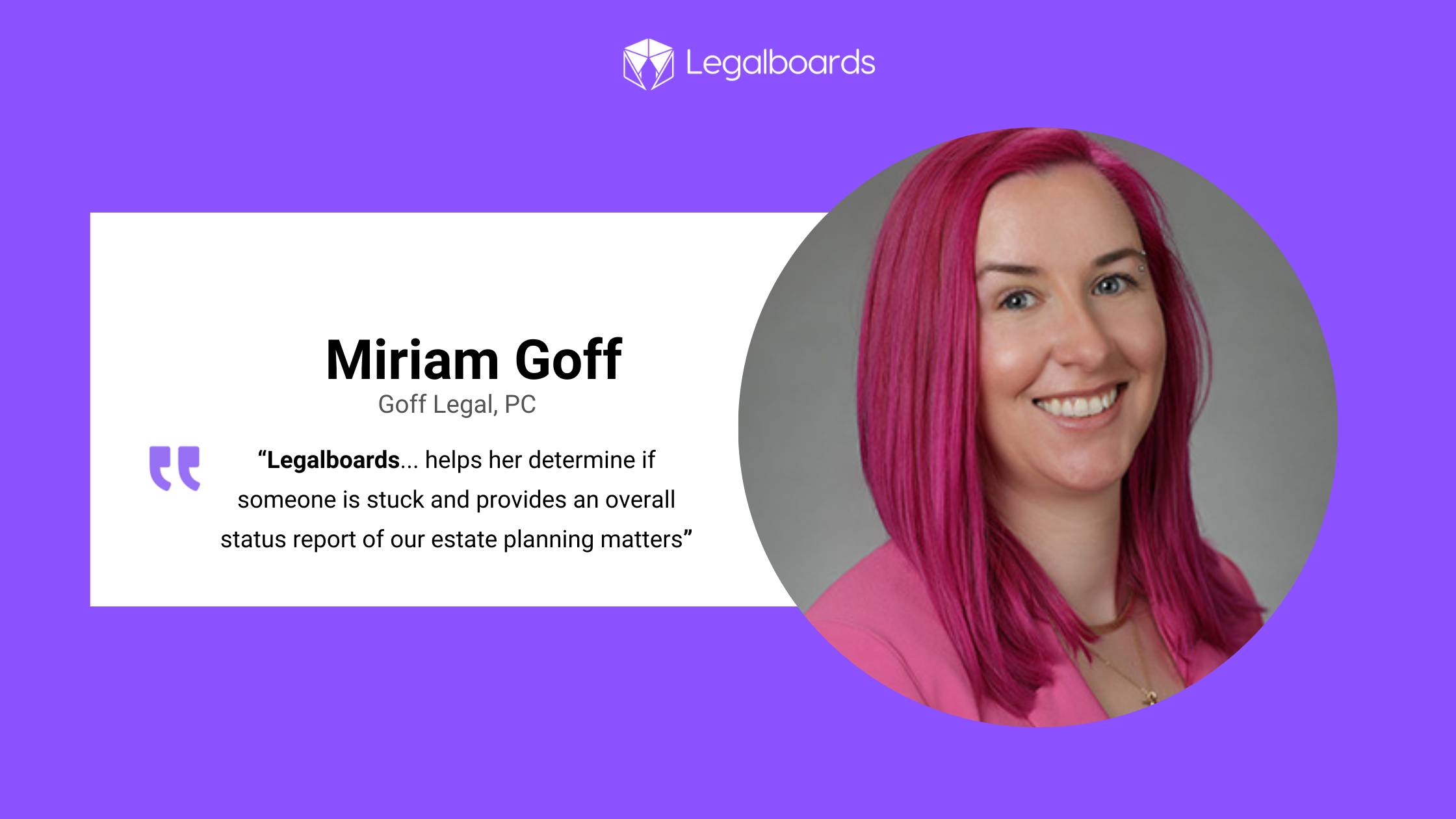
“Legalboards is used by our paralegal for her visual representation of where all of our estate planning cases are. It helps her determine if someone is stuck and provides an overall status report of our estate planning matters”, Miriam says.
By using Legalboards, Goff Legal is now able to visualize their firm’s workflows. But, they also found real value in the automation capabilities.
Saving time with automations
“We started with visualizing and then we found the automations,” Miriam describes, “which cuts down a lot of the time that was spent on sending reminders to the client. It has taken a lot of tasks off of our paralegal.”
Goff Legal found the automated emails helpful for creating a more effective and efficient scheduling process with clients. They were able to reduce their workload by creating automated reminders about scheduling their review, design, and signing meetings.
They also started using automated task reminders for tasks that they noticed were often getting overlooked. One of their automations within Legalboards directly solves this issue by automating the assigning of tasks. When their team moves a card from one column to another, they have automated task creation based on that phase.
In their estate planning process, this is their document drafting process. Between their Legalboards and Clio accounts, their paralegal can set up an automation that pulls the required documents and drafts what they need. Then, similar to their scheduling process, they’ve set up an automation for a 30-day follow-up with clients after they receive their closing letters.
Legalboards as an organizational tool
Because of the visualization and automation capabilities, Legalboards is used as a tool at the firm’s comprehensive meeting to see a status report of their cases. Automations run in the background to streamline the functions of their office by removing repetitive tasks that don’t need to be done by a human.
Ready to start visualizing how you work?
Schedule a demo with us to see how we can help you solve a problem- whether it’s similar to Goff Legal, PC, or not, we can help improve an aspect of your workflow in 15 minutes or less.
Shefter Law, P.A is a small education and IEP firm based in Maryland. They believe in empowering families with the knowledge and support they need to navigate the school system. They learned about Legalboards from a recommendation from another attorney and specifically, about how Legalboards could help them automate their tasks.
Preventing cases from falling through the cracks
Before Legalboards, the team was struggling to keep on top of every aspect of their cases. They needed a solution that would ensure that no cases were overlooked and they could focus on providing their important services to clients.
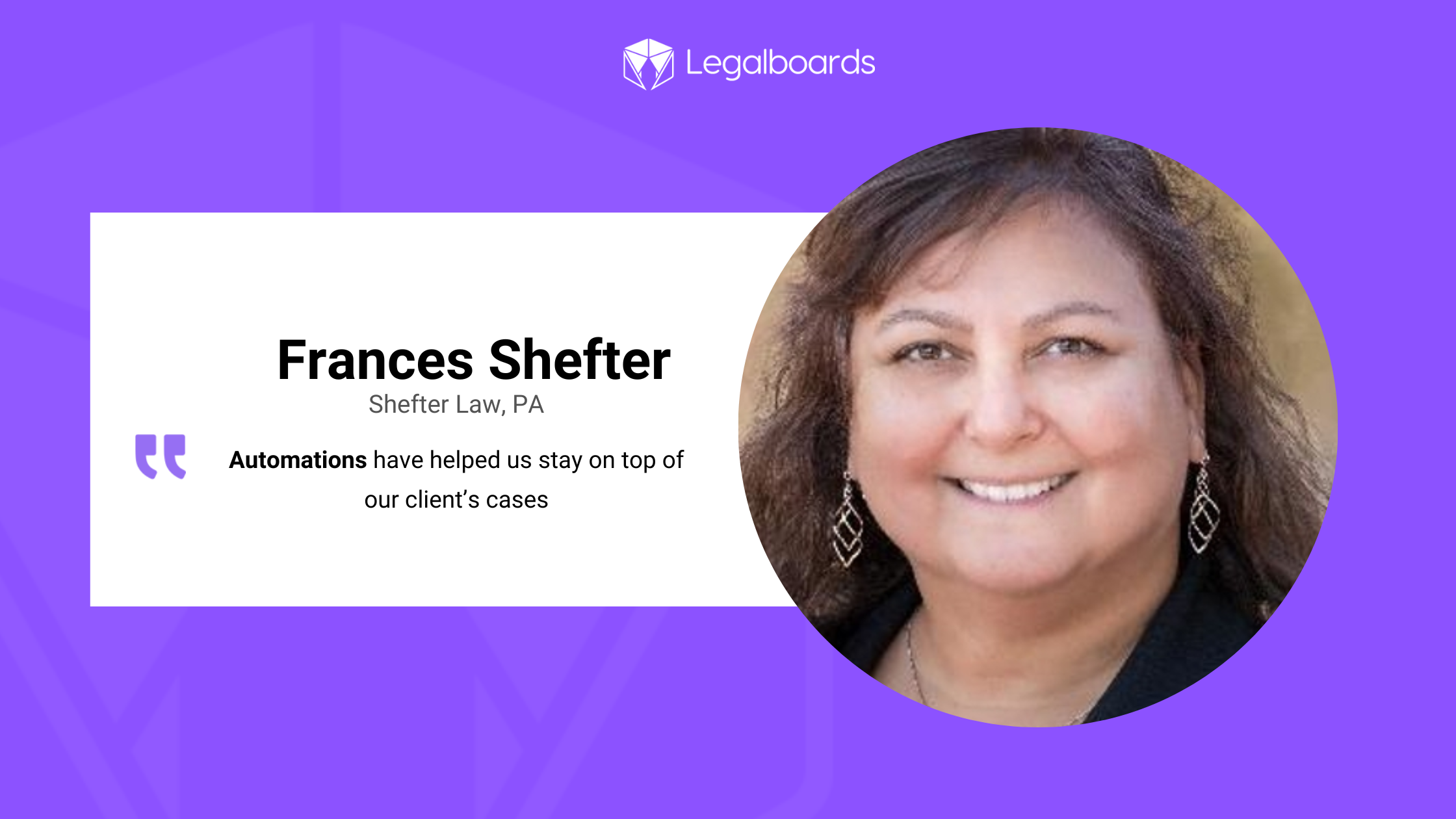
By using Legalboards, Shefter Law was able to automate much of its work. As Frances said, “Automations have helped us stay on top of our client’s cases”.
Although they originally started using Legalboards for the automation features, they also saw improvements to their processes.
Legalboards as a business tool
While Shefter Law uses Legalboards to stay on top of all tasks, they also use Legalboards to ensure they are operating their firm efficiently. They used Legalboards to improve both their internal processes and profitability.
It goes without saying how important knowing your firm’s financial standing is. Profitability analysis is crucial for operations. Frances says that Legalboards helped them conduct that analysis and adjust as needed.
Making new boards
When the firm has new needs, the responsible attorney creates a corresponding board to reflect the new area or specific process. From there, the firm can automate aspects of this new process or area with ease.
Ready to start visualizing how you work?
Schedule a demo with us to see how we can help you solve a problem- whether it’s similar to Shefter Law, P.A.’s experience, or something different. Get in touch with us to see how we can help your firm or start a free trial today.
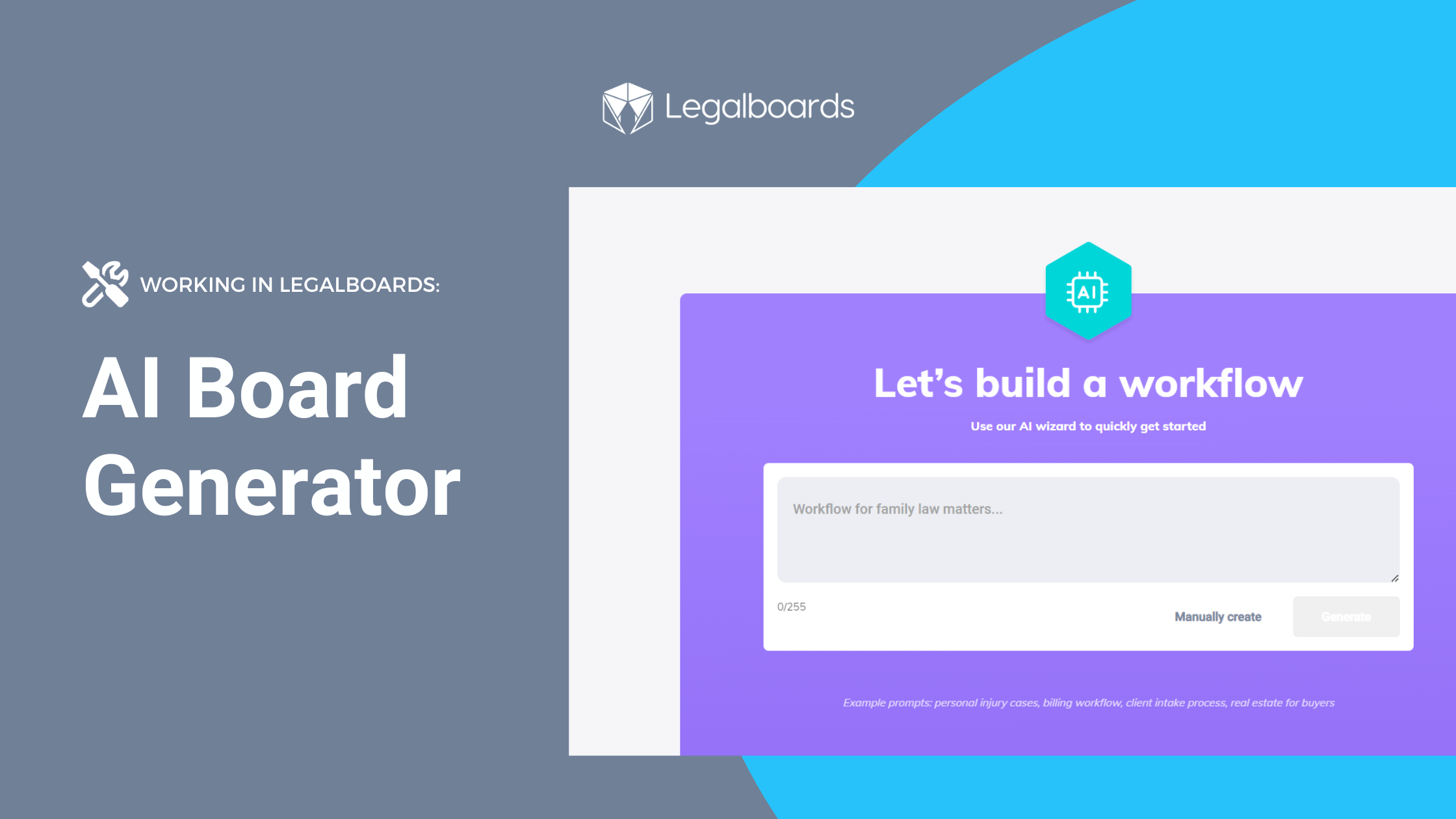
With AI being more adopted within the technology industry, we’re excited to share more about how AI is being used in Legalboards. Legalboards’ AI board generator has been developed to help new and existing users build boards in just a few clicks.
The AI board generator can help you reduce the time and stress of building boards so you can start streamlining your work with Legalboards’ capabilities.
In this guide, we’ll walk you through how to make the most of the new AI Board Generator.
How does it work?
Let’s start with how it works. A reminder that your board organization can be as specific or as general as you need it to be. Kanban boards are especially great for specific practice areas like immigration, estate planning, divorce, etc., but also for specific processes like client intake, contract review and management, and billing.
If you’re more of a visual learner, you can check out the video below.
To build a board using the AI tool, simply go to the board menu and select “New Board”. From here, you’ll need to provide some information or context about the board you would like to create. You can provide detailed or general information. This is also called a prompt, which we’ll cover best practices about AI prompts next.
A note on prompts
A key concept to grasp when using AI tools is the idea that high-quality input creates high-quality output. For many AI tools, this input is called a prompt. That prompt needs to give the AI information about what it should create. From here on, a prompt refers to the information inputted into the AI tool to generate the board.
While you can use a more generalized prompt, often the best results are from providing as much information as you can. For the context of structuring legal work, it’s entirely up to you. If you know your process, what you need at each phase of a case, and/or are comfortable providing details about your work, a specific prompt can be more helpful than a generalized one.
It’s also important to note the importance of checking and reviewing work done by AI. As you may know from profiled cases, AI is not perfect. While our board generator is tasked with specific tasks, it still may require approval from your team before use.
Prompts in Legalboards
In our example, we’ve provided some more information. Our prompt here is “My firm is starting to take on personal injury matters, I need a workflow for these cases, and for labels: Motor Vehicle Accidents, Workplace Injuries, Medical Malpractice, and Slip and Fall”. Here, the idea is to create a board that reflects the practice area of personal injury while also using labels to designate directly on the card the kind of case.
Another example prompt, as shown below, could include ” a comprehensive Kanban board layout to manage multiple cases in estate planning in Michigan.” This prompt is great at capturing the nuance of a specific state or practice area that may be overlooked with a general prompt.
If you need a more general board for any practice area or process, you can use a shorter prompt. For example, “personal injury”, “intake process”, or “estate planning workflow” are all great prompts for the tool.
Once we’ve created our prompt, we’ll hit the “Generate” button. A note here- if you would rather manually create your boards, you can! Just hit the “manually create” button.
Step 2: Generate your board
Now that we’ve generated our board, let’s check if we’re happy with all of the column names and add automations. In our example, our column names are basic but we can see that the AI tool created for us the labels that we wanted.
You can customize the boards to your needs, and the more general the prompt, you’ll likely have to customize the board if you need something more specific.
For help with automations, you can check out our resources section or our YouTube channel. Or, contact us at support@legalboards.com to get help.
Save time and stress while building boards with Legalboards AI
By using the AI board generator, you can save time and stress while you’re getting set up. Setting up your board is the first step to streamlining your practice, but often can be the most demanding.
You’ll need to populate boards before you can start using the automations to save time. But, once you’ve integrated your Legalboards account with your case management tool, you can use case data to populate your board automatically.
For new users or practice areas, this helps you grasp the software easily. We’ve heard from current users about their onboarding process with Legalboards. Many said that creating boards took the most time and for some, required the steepest learning curve of mapping out their workflow. With the AI board generator, you can reduce both the time and stress of getting started.
Once set up, you can take your boards to the next level with automations. Automating repetitive tasks like email reminders, client communication, event scheduling, checklist creation, and more can help you streamline your workflow.
If you have any questions about the AI board generator or about Legalboards in general, please check out our support portal, resources, or contact us directly.
We were excited to be joined by John E. Grant from Agile Attorney Consulting for a very special session all about Kanban and the implementation of it and other Agile methodologies within a law firm. This webinar was originally recorded on November 16th, 2023.
This webinar is also a part of our free course, which you can register for here.
Applying Agile to Legal Practices
In this webinar (watch below), you’ll get an overview of the Kanban framework, Agile methodologies, and how to successfully implement within your firm. John will cover some key concepts to use so you can enhance what you’re currently doing.
Learn How To Implement These Tips Using Legalboards
Want to learn more about how to take the theories and make them practical? Enroll in our course where we take you through the concepts John talked about within Legalboards.
Curious about how Legalboards can help with the way you work? Learn more about our time-saving features here.
Legalboards can be a helpful tool for legal operations management. Applying Kanban to your firm is quicker and easier than you may think. In our recent blog, we covered how legal operations managers can overcome some of their biggest challenges.
Those challenges include a lack of firm visibility and inefficiencies in their workload and communication. In this guide, we’ll walk you through an overview of some features that will help you streamline and optimize your workflows. Let’s get started with the first challenge- a lack of visibility and understanding around your caseload.
Challenge 1: Understanding Your Firm’s Workflows
Often, legal operations or office managers tell us that they’re unsure about case progression. They may know the gist of the stages that cases are at, but find their team is more efficient if they know more. Part of that solution is often documenting their workflow for clear understanding throughout the team.
Solution: Customize Your Boards
In Legalboards, you can create customized Kanban boards that help you understand what’s going on at a glance. Now, if you’re already a Legalboards user, you may have already organized your boards or used one of our templates to get set up. You can take your boards to the next level by customizing them more.
This can done in one of two ways; organizing your workflows into boards in a way that works for your firm, and applying visual markers to your workflow.
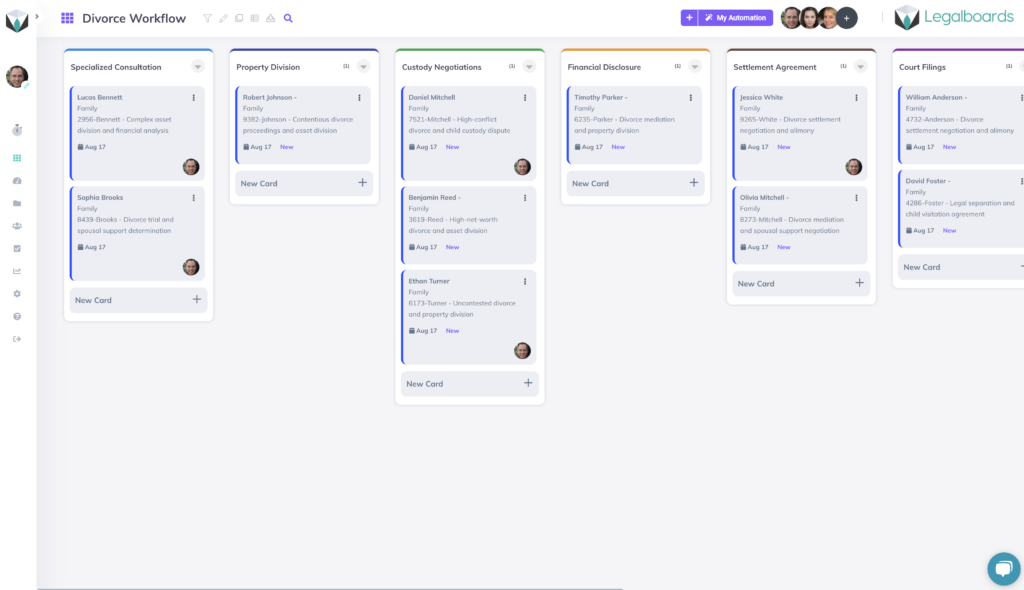
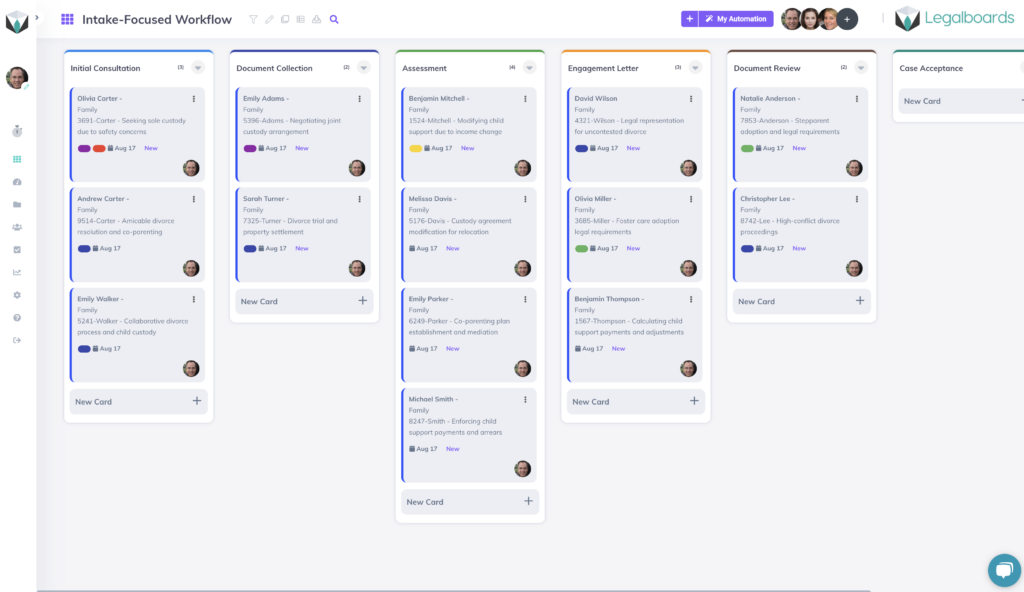
Customizing your board organization can be as simple or as complex as your firm needs. Boards can be organized by practice area, responsible attorney, or operational complexity and can be any size. Sometimes it can also be helpful to have a main board for legal office managers so they can see an overview of all open cases. This is completely up to you and your team’s preferences, and you can check out some examples below.
As you can see from the example boards above, Legalboards has different visual markers that you can customize to suit your workflow. Some possible uses are creating labels for specific practice areas, team members, or more.
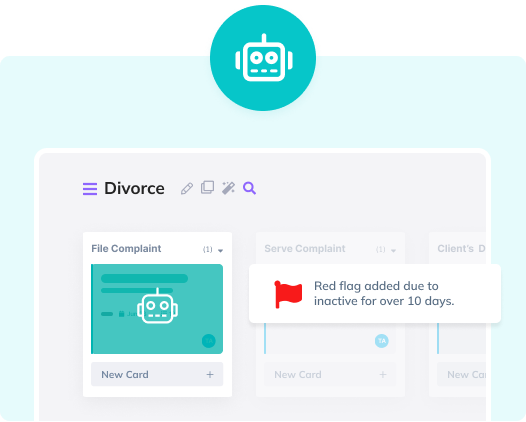
You can take this a step further by setting up time-based automations to apply labels that reflect the urgency of a matter.
Challenge 2: Dealing with Manual Workloads
Another challenge that we hear about often from users is manual workloads. A great first step to solving this problem is to document your process so you then create automations that eliminate the need for manual intervention.
Automations are a great way to keep cases progressing and ensure nothing falls through the cracks.
Solution: Task-based Automation
If you haven’t already read our guide on task-chain automation, you can do so here. To give you a quick overview, task-chain automation allows you to create dependent tasks that reflect the natural progression of a matter. We can take this a step further with the task-chain automation.
If you’re unfamiliar with task-chain automation in Legalboards, it’s as easy as creating an automated task once other tasks are completed. This allows you to have an automated workflow that reflects what your organic process would be anyway. Check out the video below to see how this can be created.
Challenge 3: Inefficient Communication
Clients place value in their legal representation’s communication. Part of delivering superior client-led service is to make sure they understand what’s happening with their case but also feel satisfied with the amount of communication.
An easy way to do this in Legalboards is to create automated messages to be sent to your client based on their case’s progression. For example, this email could be sent out based on the movement of a card between columns (or stages). The resulting email could include the next steps that outline if they need to provide any further documentation and/or the next meeting.
Another way to do this in Legalboards is to create a timeline of a card so if there are any questions from a client, your team is confident they can provide an answer in a timely manner.
Need Some Specific Help?
If you have any questions, please reach out to us by email (support@legalboards.com), opening a ticket, or directly through our chatbot. We’re happy to help you customize your boards and set up automations that enhance what you already do.
Managing partners face multifaceted challenges in their pursuit of ensuring smooth operations and maintaining firm profitability. One aspect of firm management that often demands their attention is resource management, and more specifically, resource allocation.
We’ve heard from managing partners that some of the challenges include feeling overwhelmed, dealing with teams that have insufficient or inefficient workloads, and struggling to provide clients with the current status of their cases. Efficient (and fair) allocation of resources can be the difference between a thriving practice and one struggling to keep up with the ever-evolving legal landscape.
In this article, we’ll walk you through some of the challenges of resource management for law firms and suggest ways to overcome common challenges. Let’s get started by examining the challenge of firm visibility.
Lack of Firm Visibility
Managing partners can often find themselves grappling with the lack of real-time visibility into their firm’s daily operations. However, being mindful of operations but not micro-managing is also important for team morale.
A lack of visibility into the firm’s operations can have significant repercussions, especially when it comes to resource allocation. The absence of timely insights into case statuses, impending deadlines, and team workloads hinders the ability to make informed decisions.
Consider a scenario where a managing partner is unaware of the current status of an important case. Without real-time visibility, they may allocate resources ineffectively, leading to missed deadlines or overburdened team members. This not only affects the quality of service but also impacts the firm’s overall efficiency.
Manual Workload
Another hurdle in inefficient resource management stems from the burden of manual tasks. Managing billable and non-billable hours, client communications, and report generation often rely on manual processes.
These tasks consume valuable time and energy, diverting focus from critical resource allocation decisions. They also create space for errors and inefficient work, and much of this time could be spent on more valuable tasks or providing better service for clients.
Imagine a managing partner who spends hours meticulously tracking billable hours and juggling client communications manually. Such manual workflows not only drain time but also introduce the risk of errors and inefficiencies.
Inefficient Communication
Effective resource allocation requires seamless communication within the law firm. However, many firms still lack centralized communication platforms, leading to inefficiencies in team collaboration. Misunderstandings missed messages, and a lack of clarity can detract from a firm’s daily operations.
Consider a situation where you often have clients calling your office to have updates, and only specific people have the information. The client may feel frustrated with your firm and with the need to wait even longer for a response. This client’s feelings could affect case outcomes and your firm’s client satisfaction ratings. But, by being proactive about your communication, you can be sure that clients (and team members) are kept informed about their cases without costly mistakes.
Strategies for Effective Resource Management
To address these resource allocation challenges, managing partners can adopt practical strategies and agile methodologies. We know from experience that there are multiple ways to address challenges around resource management, and the solution may not be one size fits all.
Here are some actionable steps:
1. Implement Agile Workflows
Embrace agile methodologies to improve your resource allocation. The first step can often be observing and documenting your workflow to conduct further analysis.
By documenting your workflow, it’s easier to identify potential bottlenecks, improvements, and more. It’s important to remember that projects can be broken down into smaller, more manageable tasks. With smaller tasks, it’s easier to prioritize them and deliver superior service to clients accurately.
You can think of this as dissecting what you currently do to make it more efficient. By breaking down a larger project into smaller tasks, it’s often easier to complete and prevents team members from feeling too overwhelmed. Learn more about checklists vs. tasks in our blog post.
2. Continuous Improvement
Encourage a culture of continuous improvement within the firm. Regularly review and refine workflows according to team feedback, identify bottlenecks, and seek opportunities for optimization. If you notice that team members are asking for more work or are waiting for other members to complete work, consider how to make this process more efficient.
With continuous improvement, you’ll be able to quickly adapt to any changes that happen within your firm or even on a more macro level within the legal industry. As well, improvements to processes can be made from your team’s experience working on certain projects that help shape the future of your operations.
3. Transparent Communication
Foster transparent and open communication practices. Implement periodic meetings or huddles to keep the team aligned and informed. Agile enthusiasts will recommend that these meetings be held daily, but we know that lawyers may not have a schedule that allows them to do this. We would recommend weekly meetings but this can change depending on your team and/or your operations.
Effective communication is one of the most important aspects of a great team. From the top down, effective communication must be prioritized to create a great firm culture while also ensuring everyone understands priorities and resource allocation needs.
Conclusion
In conclusion, efficient resource management is pivotal for managing partners in law firms. Addressing the challenges of lack of firm visibility, manual workload, and inefficient communication is essential for optimizing resource allocation.
In our experience, we’ve noticed that firms that adopt innovative solutions and best practices allow their managing partners to thrive. With these solutions, managing partners can improve firm efficiency, make more strategic decision-making, and, ultimately, drive the success of their firm.
We also know that solutions need to be tailored to your firm’s specific needs. This may not look the same for firms specializing even in the same practice area. Explore how Legalboards’ legal management software can help today by contacting us for a free consultation on how to become more efficient.
We’re excited to announce our latest integration- Google Calendar! By connecting your calendar to Legalboards, you’ll be able to automatically sync data between the platforms and get back to what matters most- delivering superior service to your clients.
By combining our task management and automation features with your Google Calendar, you can start saving time while also working with a simplified visual workflow. With the seamless integration of Google Calendar and Legalboards, your data will be updated in real time- no need to input data twice. As well, Legalboards can also integrate with your Google Drive (learn more about that here).
Why Integrate Google Calendar + Legalboards?
1) Save Time With Automations
Legalboards has basic automations that will help you to become more efficient. Some of the most common automations we see involve email updates to team members (more on that later), checklist creations, and board (aka matter) management. With the Google Calendar integration, you’ll be able to set up schedule-based events directly based on your workflow. For example, you could create automated events with clients or other important contacts related to a case based on intake or pre-agreement.
2) Easily Understand Your Workflow
Legalboards allows you to easily visualize and organize your matters in whatever way works for you. By using Kanban, you and your team can see your matters in a bird’s eye view or drill down into specific matters. By customizing your board through checklists and custom labels, you can tailor your account to reflect your actual workflow.
Legalboards also allows users to view their matters in different ways- calendar (through the task center), list, and Kanban. By using the Google Calendar integration, you can also set up work previews and after-work processes. For example, you could set up tasks for your paralegal to prepare documents for the meeting, send a task to your team after the meeting to follow up with the client with their next steps, or directly send a client an email detailing what they’ll need for the next meeting.
How to Integrate Your Accounts
It’s easy to use the Google Calendar integration. If you’re more of a visual learner, you can watch the video below or on YouTube to learn more.
Step 1: Set Up Your Account
The first step is to create a Legalboards account. If you’re a new user of Legalboards, you can follow our onboarding wizard to create your first board and connect your account to the programs you already use.
If you’re an existing user, you can integrate your Google Calendar by accessing the “Extensions” tab within “Settings”. The next step in setting up your account is to integrate software. Click on the Google Calendar tile and then select the “Install Now” button to initiate this process.
Step 2: Authorize Google Calendar Integration
Before you can connect your accounts, you’ll need to authorize Legalboards to connect with your Google account. After clicking “Install Now”, you’ll be automatically prompted to complete this process.
Once you’ve clicked on the authorization button, you’ll need to sign in using your preferred Google account and allow Legalboards to access your calendar data.
Step 3: Creating Schedule-Based Automations
Example: Automated Event Creation
To show you how you can use the integration, we’re going to use an example immigration board and create an automated event.
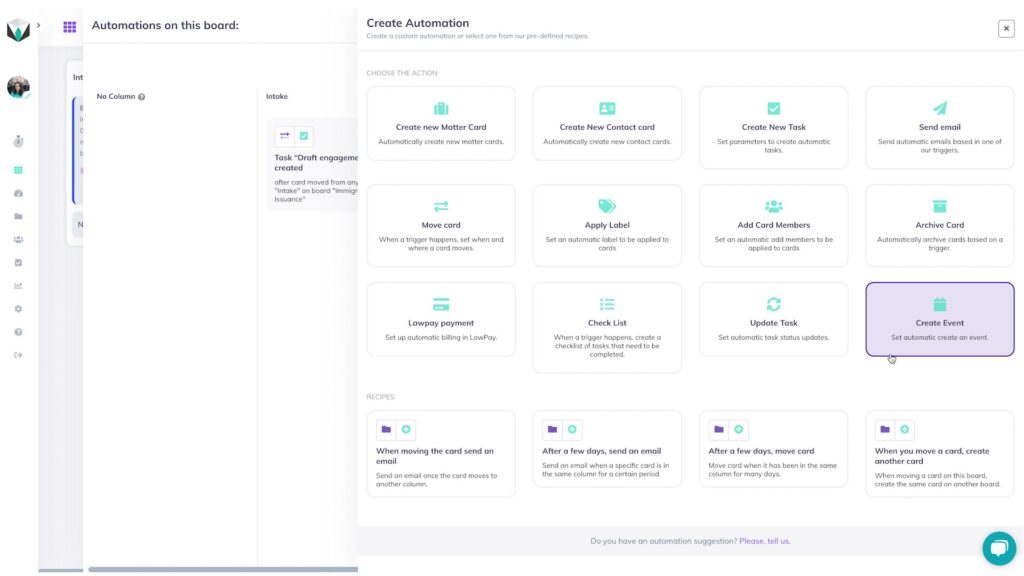
To do this, we’ll navigate to the correct board and click on the “My Automation” button at the top of the board. Once clicked, we’ll see all of the current automations that have been created for this specific board.
Next, click on the “New Automation” button to be able to create an automated event using the “Create Event” action (shown below).
From here, you’ll need to set up the automation by indicating what happens after a trigger is completed.
For this example automation, we’ll set up an automated event creation based on the card movement trigger. In this specific example, when a card is dropped into the “Intake” column on the board, an event will be created on Google Calendar 3 days after the card movement from 12-1 PM.
In order to do this, the “Then…” fields need to be entered as the following:
On: Google Calendar
Calendar: Legalboards
In how many days? 3
Start at: 12 PM
End at: 1 PM
We’ll use the “Summary” field to title this event as “First Meeting” and give the description “Discovery call with the client”. Then, we’ll set who we want to be invited to this event. For this example, we can use the dynamic fields of “Matter’s Responsible Attorney”, “Contact’s Email”, and “Card’s Members” to automatically invite those involved with this card on Legalboards.
Example: Automated Email Updates
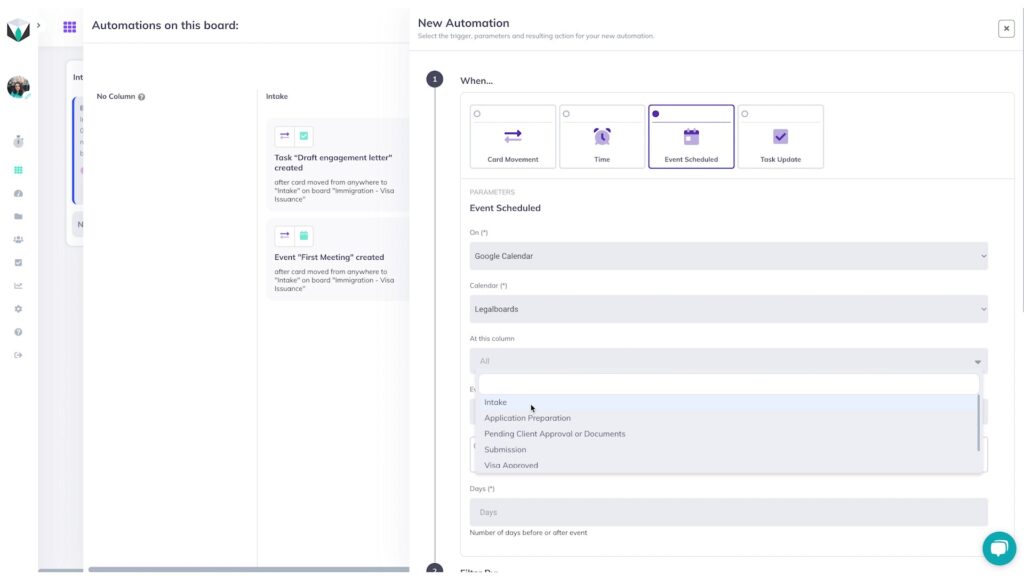
So now we’ve set up an automated event to be created based on our client intake. To make this more effective, we’ll now set up an automated email to be sent out to relevant parties. To do this, we’ll follow the same steps as before by clicking on the “My Automation” button and then “New Automation”. Next, click on the ” Send Email” tile where we’ll specify the details of this automation.
For this automation, we want the trigger for it to be that an event was scheduled. So, we’ll select that for the “When…” section.
Now, we’ll need to input the information about the event this automation will be based on. As the event we’re using is the same as the one we just created, we’ll use the first example for reference.
One thing to note here is that we need to specify if the email is being sent before or after the meeting, and the time period between the email and the meeting. In this example, we want the email to be sent 1 day before the meeting in order to remind the responsible attorney about the upcoming meeting.
Next, we’ll need to choose who we want to receive this email. Because we want to remind the responsible attorney of this meeting so that they are prepared, we’ll select them. We’ll make the subject “First Call Tomorrow” and give a brief description of what the attorney needs to do. We can also select if we want to include the card information to provide more clarity.
Still Need Some Help?
If you have any questions or problems with your data being synced, please contact us at support@legalboards.com, generate a ticket, or contact us through the chatbot.
You can learn more about Legalboards here, or visit our YouTube channel for more help getting started in Legalboards. And if you have any questions, reach out to us!