Blog

  • Getting Organized With Kanban For Lawyers

    Getting Organized With Kanban For Lawyers

    We’re big fans of Kanban over at Legalboards, and we want to share with you why it’s not just for tech companies. Kanban can be used in multiple applications, including in a legal setting. When Kanban for lawyers is used, it can help improve practice management.

    For many of us, changing what already works for our workflow is a lot less complicated than trying to completely reinvent it. As such, an important part of adopting Kanban is recognizing the effectiveness of its principles:

    • Changing what you currently do to be more effective
    • Encouraging leadership and collaboration
    • Emphasizing client experience

    Let’s take a closer look at each principle and how it can help your firm. Keep in mind that Kanban works best when it’s optimized to your needs. Knowing and identifying where you have bottlenecks is a key part of being able to implement effective agile methods.

    Optimizing Current Processes

    For some, it can be clear what works and what doesn’t. But making changes to current processes to improve them doesn’t need to be difficult or time consuming.

    Kanban allows you to take a visual approach to understanding workflows. The process can be as simple or as complicated as the work it’s reflecting. 

    For example, if you specialize in estate planning, Kanban can be especially beneficial. Estate settlement can take several years and involves multiple steps, i.e., basic administration, tax filings, and probate court. Applying Kanban will improve the efficiency of turning these procedures visual. Different boards for different procedures can make this practice area more productive. And with the ability to visualize your workflow, you can easily identify potential roadblocks from looking at your boards.

    As well, it’s important to continually improve your processes. Small changes can be much more effective rather than large (and often disruptive) changes. 

    Encouraging Leadership and Collaboration

    It’s safe to say that when we feel empowered about our work, we often are more productive and feel more satisfaction from our work. Motivation matters and Kanban can help firms foster a positive environment.

    Because Kanban helps improve processes and requires continual innovation, team members need to understand a couple of things. 

    1. Priority of tasks;
    2. Strategies or processes to complete tasks; and
    3. Where they may require help/potential delays.

    This understanding cannot be limited to management, legal professionals at all levels are also impacted. By understanding these three areas, teams can work more efficiently.

    Emphasizing Client Experience Throughout The Process

    Client experience is important and in order to maintain positive relationships. Any changes to how a firm operates need to take into account how clients will be impacted. At the core of Kanban, workflows are meant to be optimized for efficiency while taking into account the end-user’s needs.

    That efficiency benefits two parties; your firm and your clients. By implementing Kanban (or other agile methods), you can provide more effective communication to both. Clients also benefit from an improved service because:

    • Workflows are much more efficient,
    • Delays can be somewhat prevented, and
    • It’s easy to track how things are progressing.

    Start Getting Organized

    Want to learn a bit more about Kanban? Check out this article from Thomson Reuters, or one of our previous blogs. Kanban is a great approach to improving your workflow, which is why Legalboards uses a Kanban board within our interface. Set up a free demo session today, and see how you can get started.
  • Multiple Checklists

    Multiple Checklists

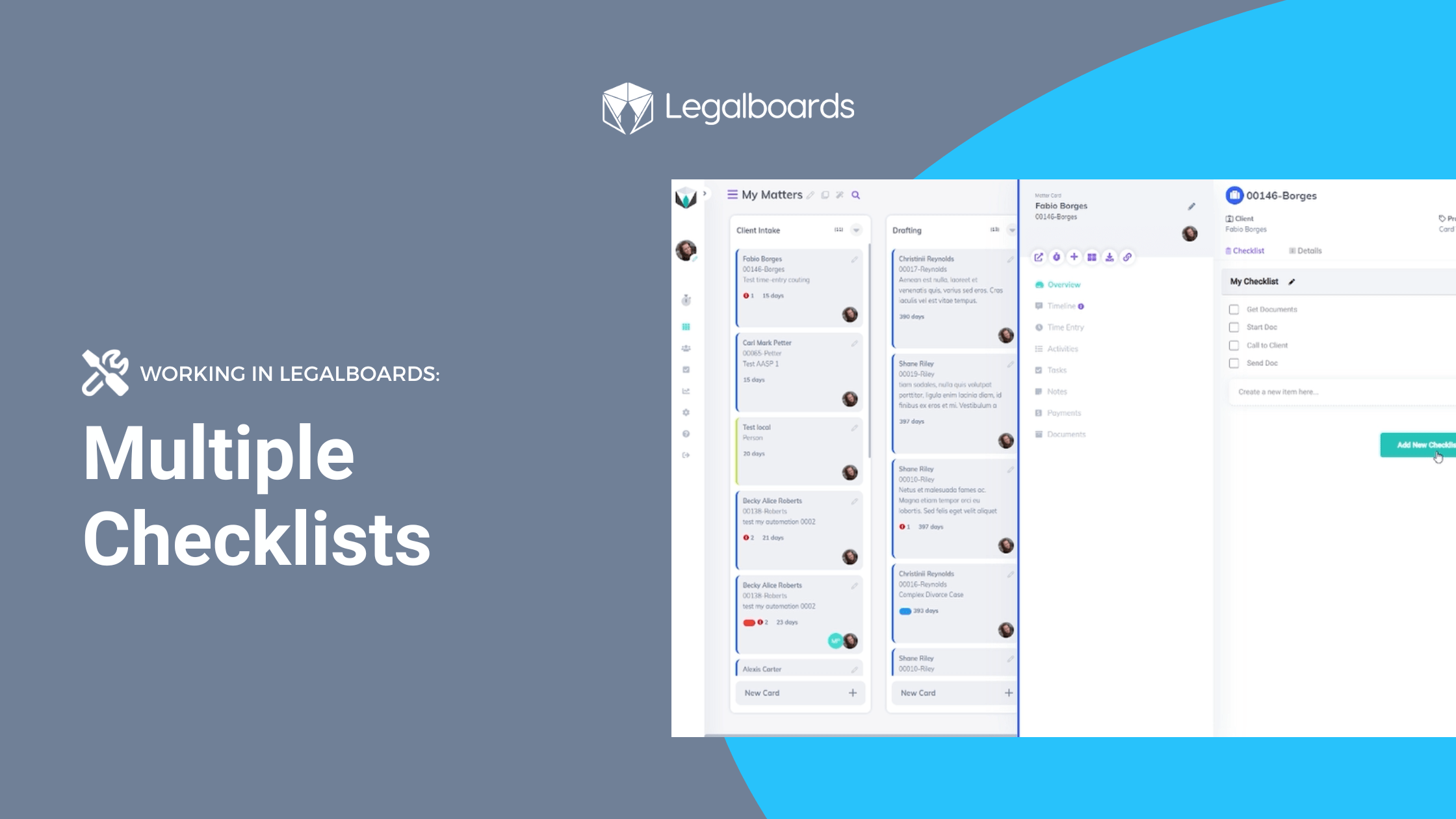
    Having multiple checklists within the same card in Legalboards can be super helpful. With the ability to create multiple checklists, you can improve the organization of your workflow by enhancing your cards.

    In this guide, we’ll walk you through how to create multiple checklists within the same card in Legalboards.

    How to Create Checklists

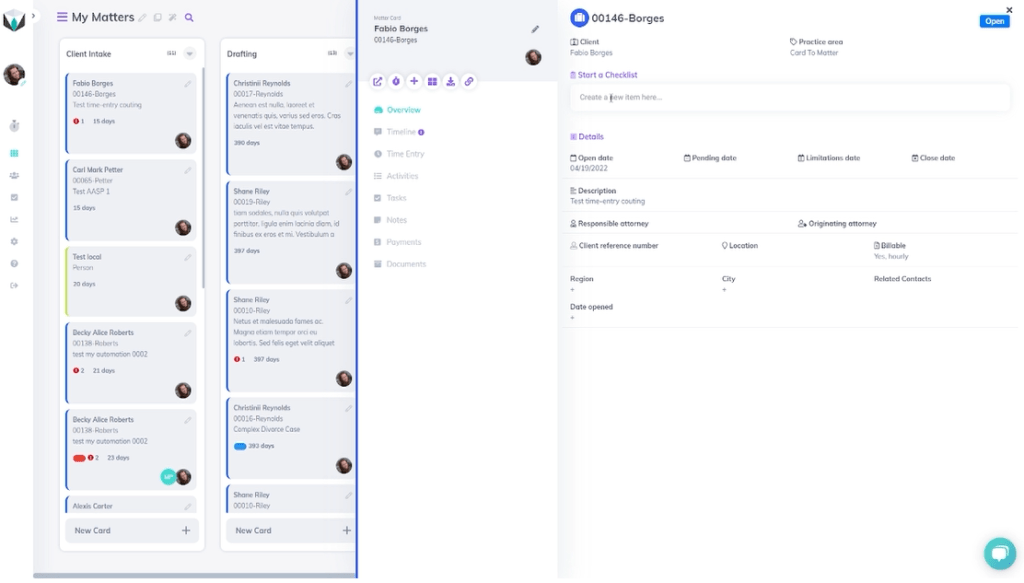
    Let’s start by clicking on a card within our board. From the sub-menu, we’re going to focus on the “Start a Checklist” field. In our example, we’re going to add the item “Get Documents” here.

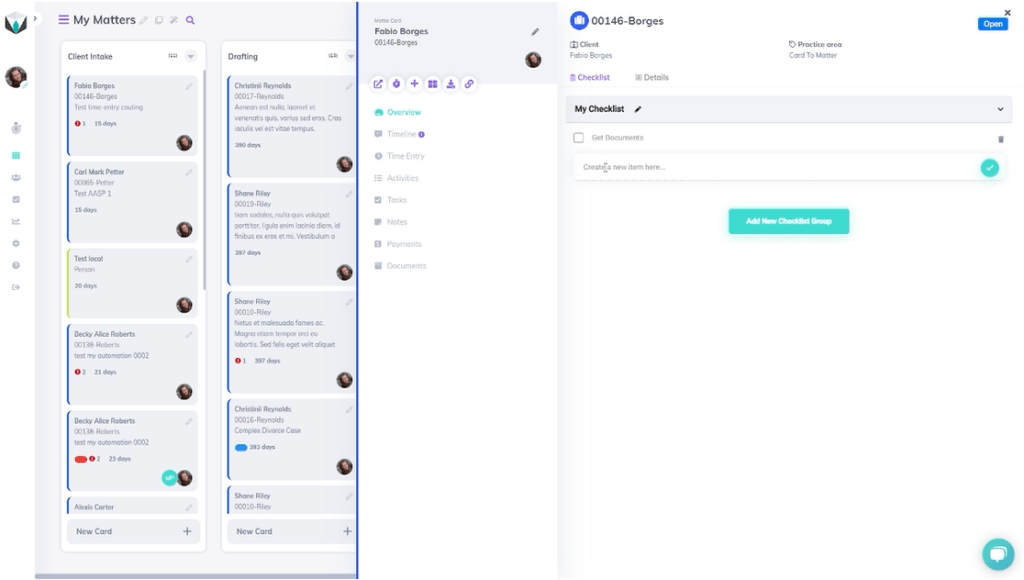
    Once we’ve added that item to the checklist, it will appear under a sub-menu called “My Checklist”, as seen below.

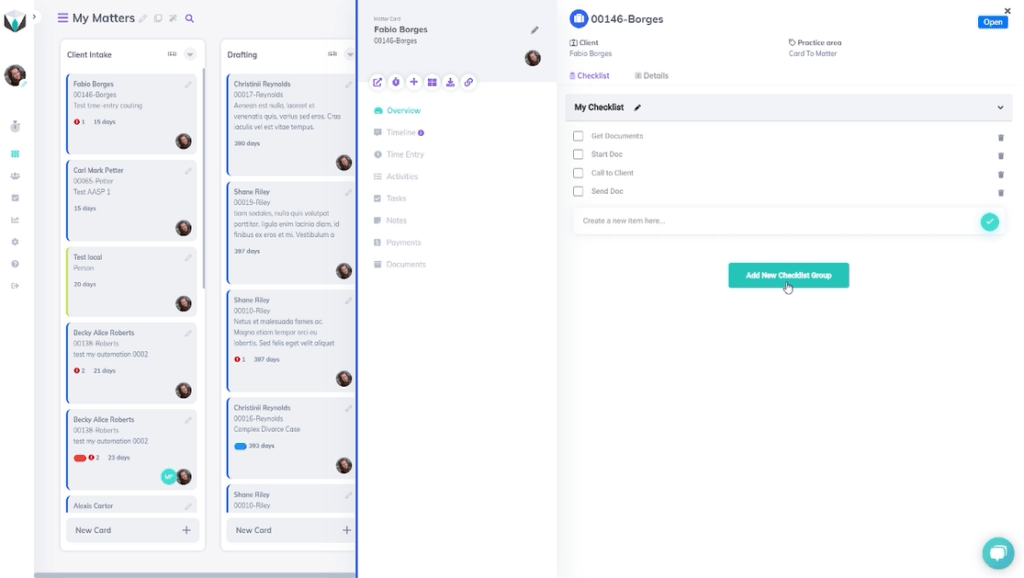
    From here, we can add more items to the checklist for this card. For our example, we’re going to add three more items on our checklist (“Start Doc”, “Call to Client”, and “Send Doc”) that are relevant to the card. Once we’ve added these tasks, we have now created one checklist.

    To create another, we’ll click on the “Add New Checklist Group” and give it a name. For this example, we’ll name the new checklist “Accounting” and click on the name to be able to add new items to this new checklist within the card.

    For this specific list, we’re focused on billing activities. So, we’ll add the items “Start Bill”, “Approve Bill”, and “Contact Client” to the checklist (shown below). A reminder, by clicking the checklist name, the items will be shown.

    Completed Items and Changing Names

    Completed Items

    The goal of creating a checklist is to break up a larger task into smaller and easily completed steps (find more about the difference in our resource). So, let’s go over what happens when you complete an item on a checklist.

    When we’ve completed an item, we can click on the name of the checklist that it’s associated with. In our example, we want to update the checklist to reflect the completion of one of the tasks on the “My Checklist” checklist.

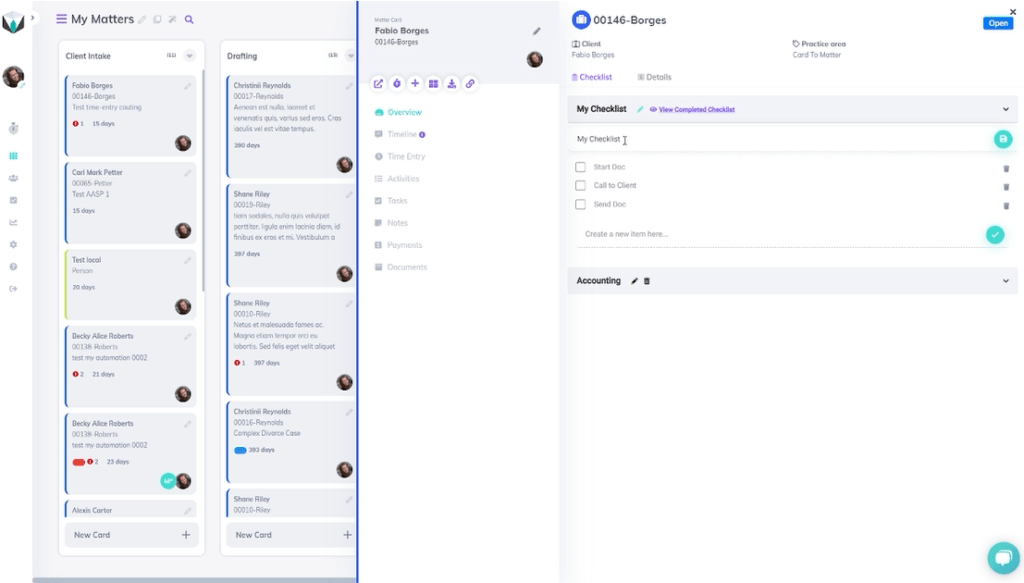
    By clicking the box next to an item, it’s then marked as completed. To see these items, we can click the purple text (“View Completed Checklist”) next to the checklist name.
    Changing The Name of a Checklist

    In our example, we also want to change the name of the “My Checklist” checklist to “General Checklist”. We can change the name by clicking the “Edit” button next to the checklist name, where our screen will look like the one below.

    To change the name, we’ll update it to be “General Checklist” and select the save button to save the changes.

    Still, Need Help?

    Didn’t find what you needed? Check out more videos, visit our support portal for more help, or contact our support team.

  • Customer Stories: Alexia @ rb Legal, LLC

    Customer Stories: Alexia @ rb Legal, LLC

    At Legalboards, we love to hear user feedback and tell customer stories. What we hear from users has a direct impact on new features, bug fixes, etc., that we develop and put into production.

    We especially love to hear from our happy clients, like Alexia from rb Legal, LLC based in Golden Valley, Minnesota, US.

    Meet Alexia

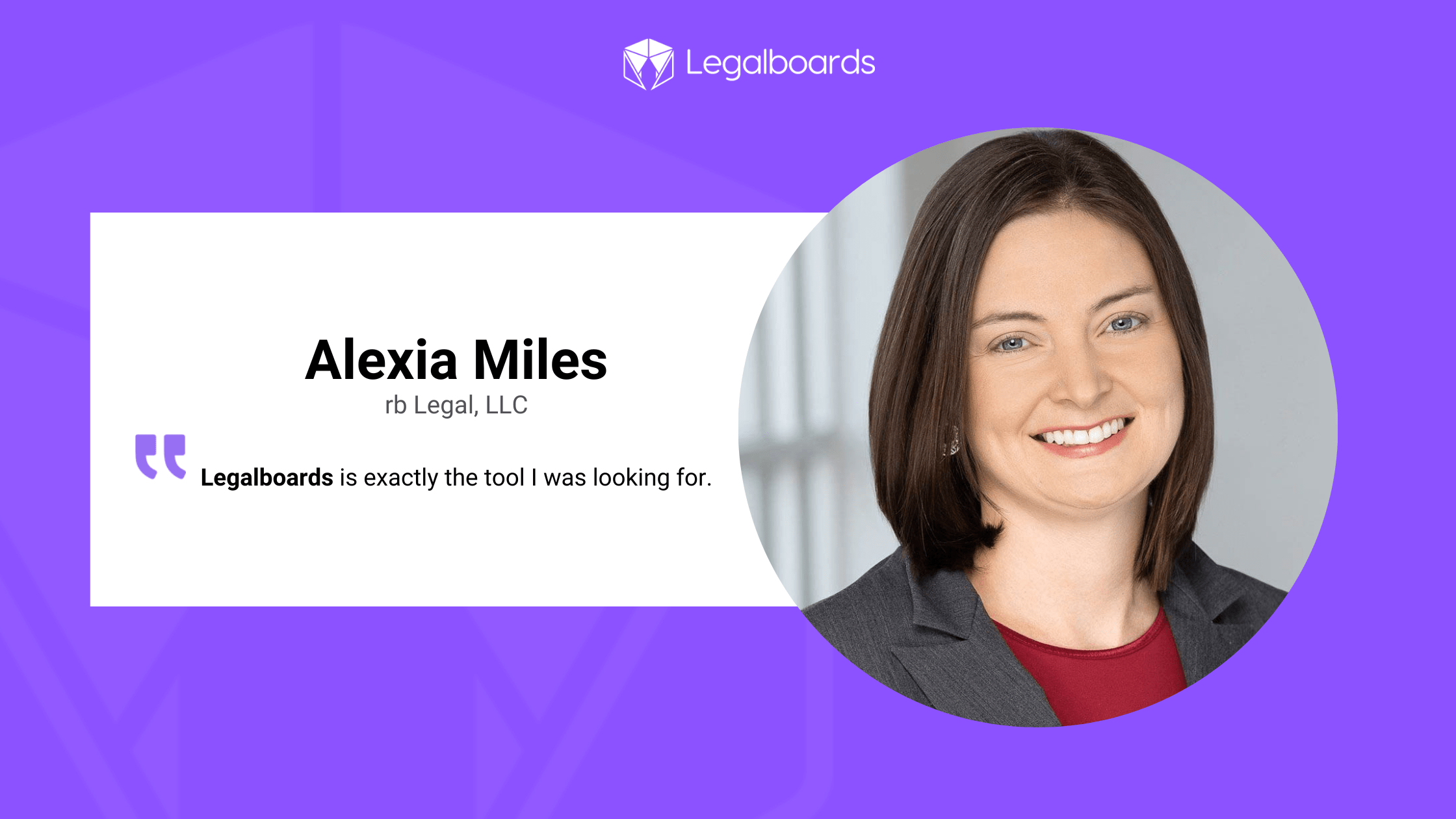
    Alexia specializes in estate planning and elder law and uses Legalboards for those clients. She had this to say about Legalboards;

    “Legalboards is exactly the tool I was looking for. I had tried on my own with a spreadsheet to try and track all of our estate planning clients and all of our matters, and I kept thinking ‘there has to be a better way’, and there is. Legalboards is the better way.”– Alexia

    We had asked her how Legalboards helps her and her firm, to which she said,

    “It [Legalboards] allows me to see everything at once. I can see all my matters and all of my estate planning clients and know what I need to do next. It [Legalboards] helps me quickly determine what my next steps should be, and it also automates a bunch of different tasks seamlessly so that I can spend more time doing actual work for my clients.”– Alexia

    https://youtube.com/watch?v=iHbl25K-b5k%3Fcontrols%3D1%26rel%3D0%26playsinline%3D0%26cc_load_policy%3D0%26autoplay%3D0%26enablejsapi%3D1%26origin%3Dhttps%253A%252F%252Flegalboards.com%26widgetid%3D1%26forigin%3Dhttps%253A%252F%252Flegalboards.com%252Fresources%252Fblog%252Fcustomer-stories-alexia-rb-legal-llc%252F%26aoriginsup%3D1%26gporigin%3Dhttps%253A%252F%252Flegalboards.com%252Fwp-admin%252Fedit.php%253Fpost_type%253Dpost%2526paged%253D3%26vf%3D1

    We want to thank Alexia for her very kind words, we’re extremely happy to hear how helpful she has found Legalboards on a daily basis for her estate planning clients.

    Get In Touch With Us

    Have any feedback for us or would like to tell us your customer story? Contact us here and let us know what you think of Legalboards.

    Or, want to see how we can help you and your clients? Schedule a demo with our support team or start a free trial, and start seeing benefits for both you and your clients like Alexia.

  • Board Filters

    Board Filters

    We’ve introduced a new feature that helps you easily find exactly what you need in no time. With the new board filters, you can filter your board by multiple parameters and save those selections to use again anytime.

    In this guide, we’ll walk you through how to get started with creating board filters to easily see the information you need.

    How to Set Up Board Filters

    Step 1: Set Up a Filter

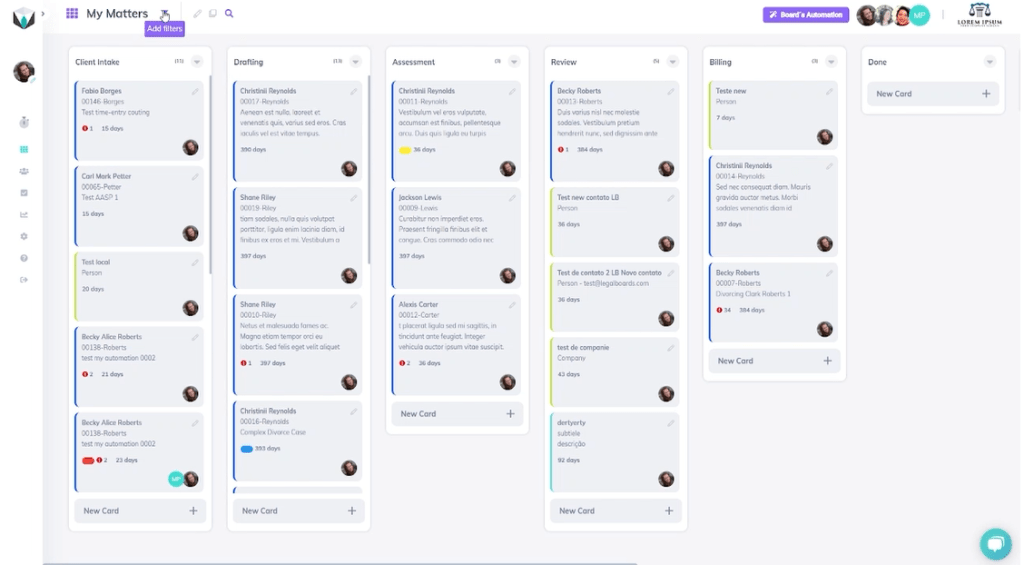
    To get started setting up filters for the board, we’re going to find the “Add Filters” icon (as shown below).

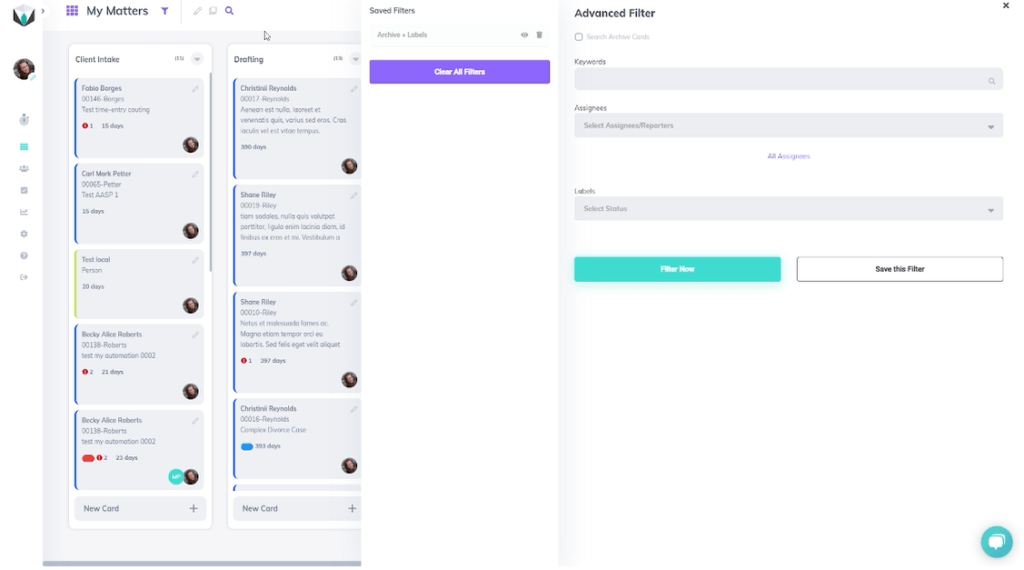
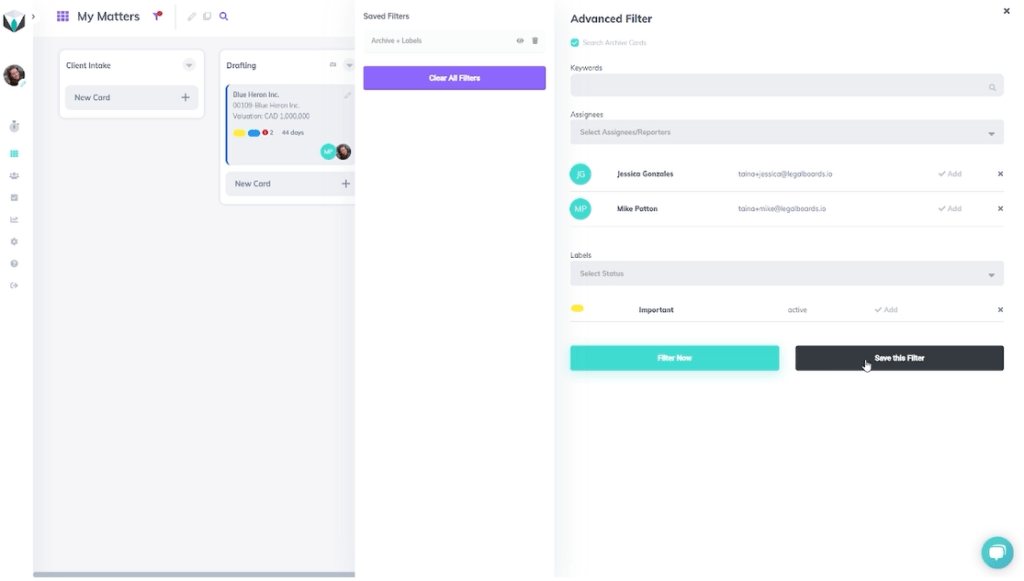
    When we click on that icon, we can set up an advanced filter from the sub-menu. To make an advanced filter, we can filter by active cards, keywords, assignees, and labels, as seen below.

    In our example, we’re going to select active cards, include the keyword “test”, a specific assignee, and select the “Important” label. Once we’ve inputted the desired information, we’ll select the “Filter Now” button to see our selections. Depending on the amount of cards on your board, it may take a second to properly filter through the cards.

    Step 2: Saving a Filter

    So, now we have the first filter results. Now we want to create another filter without the keyword information. To do this, we’ll click the same “Add Filters” icon. To create a filter without it, we’ll take out the keyword information and select the “Filter Now” button again.

    By excluding the keyword information, we can now see more cards on the board. Notice how in addition to the first assignee (Jessica Gonzalas), there is another important assignee. Let’s add that assignee to the filter as well and then save it.

    Again, we’ll open the filter sub-menu through the “Add Filters” icon. Then, we’ll add this second assignee (Mike Patton) and select the “Save this Filter” button to save our selections.

    Now, a pop-up will come up asking for a name for the filter. For us, we will name the filter “Mike Patton Filter” and save it. From there, a new saved filter will appear to reflect our newly saved filter. By selecting the eye icon we can toggle saved filters on a board.

    Filters can also be easily removed by selecting the “Clear All Filters” button. When that button is selected, we can return to seeing all of the available cards.

    Still Need Help?

    If you want to start using more automations in your workflows, check out our other video guides on our YouTube channel.

    Didn’t find what you needed? Check out our support portalcontact our team, or check out our other resources for help using Legalboards.

  • Benefits of Adding Legalboards to Your Clio Account

    Benefits of Adding Legalboards to Your Clio Account

    Many professionals- in any industry, are grappling with what combination of software and devices works best for them. As we move into fully remote or hybrid work environments, it’s clear that using multiple devices/software is the best way to get things done.

    For software specifically, a combination of multiple programs can be the best solution for optimizing how we work. However, it’s important to keep in mind that software should work with you to complete tasks. And a common challenge is finding the right combination of programs to include in your tech stack.

    Within the legal industry, a leading software designed specifically for lawyers is Clio. And the benefits of adding Legalboards to your Clio account are clear.

    Legalboards allows Clio users to visualize their workflow, simultaneously update files/data, and automate tasks within workflows. You can read more about this in this article.

    With Legalboards’ features focused on getting your tasks organized, you can enhance the data you already have in Clio. By integrating Legalboards with Clio, we can help you automate tasks and visualize your work. Using automations can be a great place to start getting organized, so let’s focus on it first.

    1) Legalboards Automation Capabilities

    Legalboards allows you to automate various aspects of your work. Common automations include sending email updates, checking in on clients after certain periods, and more.

    Automated emails to be sent out for triggers like time or card movement so clients (and even team members) can stay updated on their matter’s progress. The time trigger is especially helpful for ensuring the continued progress of matters.

    For example, if you have an inactive or delayed board, you can set up emails to be sent to the responsible attorney to check in on that matter. If you want to learn more about how these work, check out our automation resources.

    2) Visualizing and Organizing Your Work

    With Legalboards you can easily visualize and organize your matters. The minimal Kanban user interface allows you to see at a glance what stage your matters are at without having to open each case file. Through customizations to the board, you can tailor your account to reflect your workflow accurately.

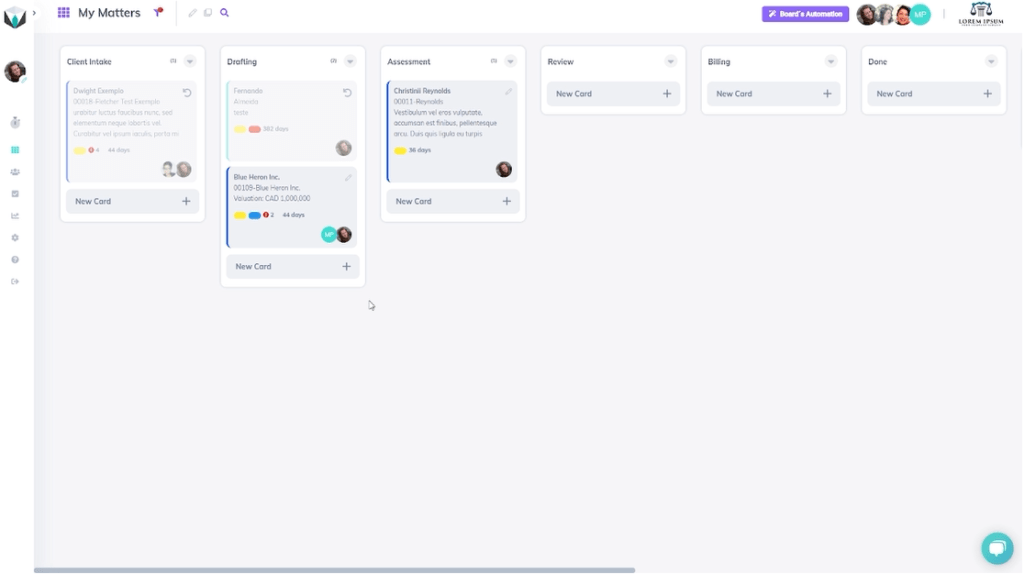
    As you can see in the screenshot below, how your work is progressing in Legalboards can be understood at a glance. It’s up to you how customized you want to make your board/cards. With the customization capabilities, you can add checklists and custom labels (including colours) to cards so you can quickly navigate your matters.

    Legalboards screenshot

    By integrating Clio, your data will be automatically synced. Synced data means you don’t need to input updates twice. Within the task center, Legalboards also has a calendar view so you can see your task’s timeline in a simple format.

    3) Get Integrated

    By integrating your Clio account with Legalboards you can get organized and save time through our automation capabilities and easy-to-understand interface. These are just two of the benefits of adding Legalboards to Clio, and some can be specific to practice areas.

    Find us in Clio’s App Directory here, and start your free trial with us here.

  • How Kanban Can Help Lawyers Improve Their Workflow

    How Kanban Can Help Lawyers Improve Their Workflow

    Lawyers are under many constraints. One of the many constraints that they face is time. The processes that may already be in place may not actually work with them as effectively as they should.

    So how can legal professionals improve how they work? Through Kanban for lawyers. Kanban helps to reduce the time spent on tasks, promote effective collaboration, and harness agility.

    What is Kanban?

    Kanban is a framework that aims to improve how work is managed (learn more here). The framework is best applied to teamwork, so that teams can work more efficiently and effectively. Kanban is fairly straight-forward in terms of how it is completed. A key component of Kanban is the visual aspect, so building a visual model of your work is important.

    The visual model follows the same pattern; columns to represent phases of the project and cards to represent the tasks. Once that visual model is built, the focus shifts to now be on how work progresses.

    Learn more about Kanban and how it can help your firm in this short video from Kanban University:

    https://youtube.com/watch?v=-D3f1xcvpd0%3Fcontrols%3D1%26rel%3D0%26playsinline%3D0%26cc_load_policy%3D0%26autoplay%3D0%26enablejsapi%3D1%26origin%3Dhttps%253A%252F%252Flegalboards.com%26widgetid%3D1%26forigin%3Dhttps%253A%252F%252Flegalboards.com%252Fresources%252Fblog%252Fhow-kanban-can-help-lawyers-improve-their-workflow%252F%26aoriginsup%3D1%26gporigin%3Dhttps%253A%252F%252Flegalboards.com%252Fwp-admin%252Fedit.php%253Fpost_type%253Dpost%2526paged%253D3%26vf%3D1

    How Does Kanban Help Reduce Delays and Improve Client Experience?

    Kanban helps to reduce the load on lawyers/legal teams through increasing the understanding of how work progresses. Another goal of Kanban is to improve the client experience by improving the project management process.

    The framework helps provide clients with better timelines, estimated completion dates and gives them more information about how their case is progressing. 

    The framework tries to reduce the delays in work through reducing how much work is “in progress”, and optimizing how tasks are completed. Kanban frameworks also emphasize the importance of collaboration. It acknowledges the importance of allocating team members effectively, fully understanding what needs to go into projects, and using data for insights.

    With an increased emphasis on fully understanding how your work progresses, lawyers and law teams can improve the cadence of their tasks, how they communicate with clients, and more.

    Why Use Kanban As A Lawyer?

    The legal industry has had to quickly pivot as a result of the pandemic. With more virtual expectations for both changing workplaces and delivery of service, Legal Tech has been quickly adopted.

    As Lillian Mateu from Kanban University wrote in her article,  “the greatest challenge those of us in the legal sector face in coming years is being able to create agile organizations and robust businesses that are capable of reinventing themselves.” Legal professionals can become more agile through Kanban.

    Kanban is one of the agile methodologies (read more here) that can be applied to the legal industry. The key thing to remember is that Kanban wants to improve your existing processes not completely change them. We don’t have to reinvent the wheel in order to improve how we work. Kanban also includes how we approach work in our attitudes. By fostering a culture of effective collaboration it’s a win for professionals and clients.

  • Managing Board Members

    Managing Board Members

    At Legalboards, we want to help you and your team collaborate more effectively. One of the ways to improve how your team works is adding board members to your Legalboards account. These members can be view-only or have the ability to make changes, so you can work effectively, so managing board members is easier than ever.

    In this guide, we’ll walk you through how to manage board members within your Legalboards account. If you’re more of a visual learner, check out the video guide below or on our YouTube channel.

    Managing Board Members

    Editing Board Members

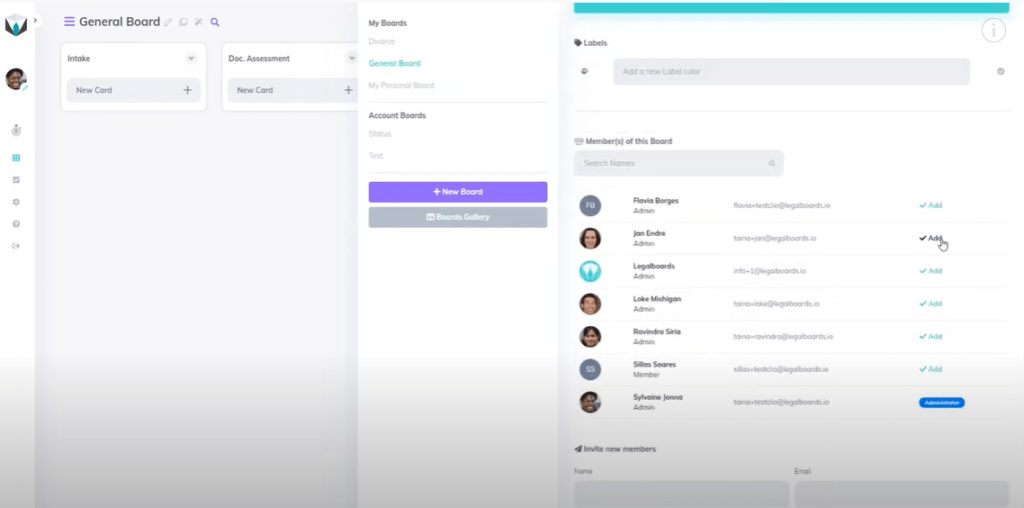
    Managing board members in Legalboards is easy. The first step is to go to a board and click on the pencil icon (“Edit this board”) next to the board’s name.

    From here, we can add, edit, or invite new members to the board we select, as seen below.

    We can easily add or remove members by clicking the “Add” button next to a name. When members are added, this icon will change to “Remove”, which allows you to remove them from the board. Also remember that you can edit members at any time!

    Inviting New Members

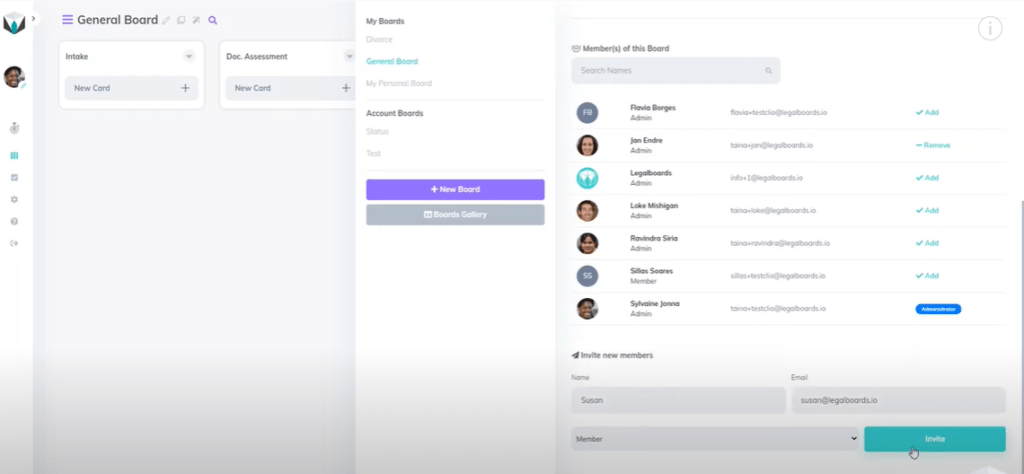
    If we want to invite new members, we’re going to scroll down within the menu to the heading “Invite New Members”. To invite a new member, we just need to provide their name and email and then select what kind of permission they will have.

    Types of Permissions:

    • Admin: Admin permission allows a member to manage all features. These members can use boards that are shared with them and create their own.
    • Viewer: Viewers can only access the boards that are shared with them but do not have permission to make changes.

    Once we’ve selected a permission type, we’ll click on the “Invite” button to invite that person to the board, as seen below.

    Once that invite has been sent, the person will appear under the “Invite New Members” heading similar to the “Member(s) of This Board” heading. If you want to change this, you can also hit the remove button.

    Need Some More Help?

    Didn’t find what you needed? Learn more about other features in Legalboards by checking out more videos or visit our support portal for more help.

  • Avoiding Duplicate Tasks

    Avoiding Duplicate Tasks

    A common issue we’ve heard from users is about duplicate tasks being created within a board. But, how can you effectively avoid duplicate tasks?

    There are many strategies, but today we’ll focus on combating one of the underlying problems- abnormal card movements. By knowing how to deal with moving a card backwards, we can avoid duplicate tasks.

    Abnormal Card Movements

    When we use a Kanban board, each column in our workflow represents a phase in our process. We expect the cards to be moving from left to right until the reach the last phase. However, sometimes it’s necessary to go back one step for a particular matter, therefore moving the cards from right to left.

    Sometimes, duplicate tasks can be created from moving a card backwards. If, for any reason, you identify that a matter is in the wrong column and you want to move it to a previous column (to the left), it’s important to keep in mind how this may trigger an automation.

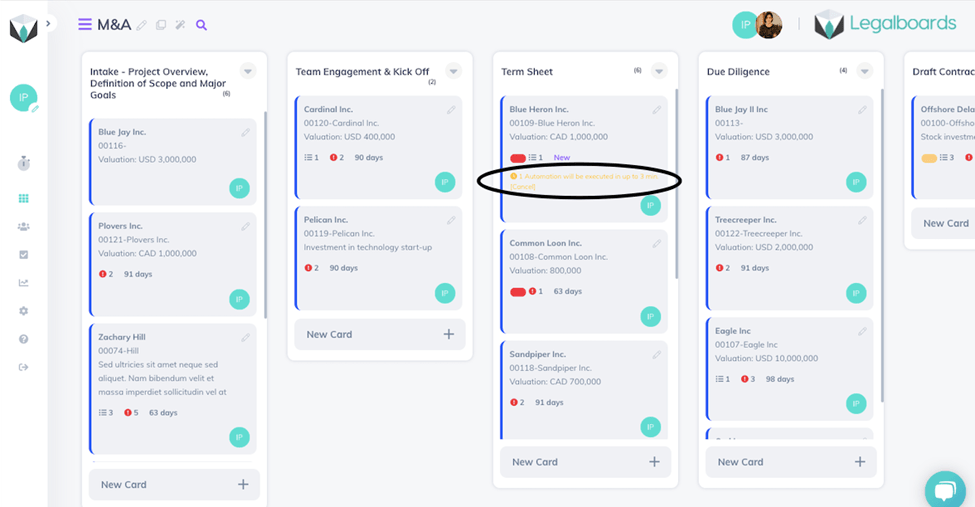
    In our example, we’ve identified a matter you want to move. We want to move a matter from “Due Diligence” to “Term Sheet”. By doing this however, we will trigger the automation to create the task “Draft Term Sheet”.

    If you don’t want this duplicate task to be created, click on the yellow message on the card (as seen below).

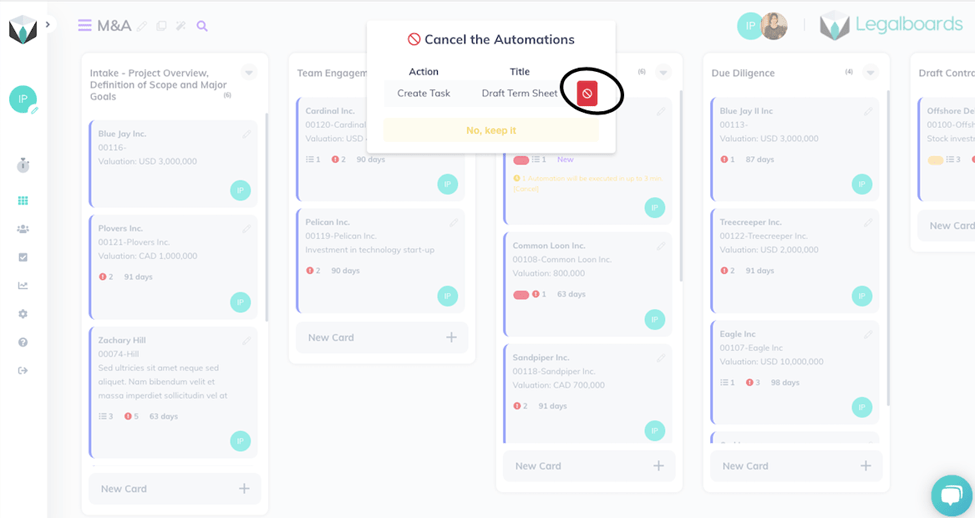
    When you click on this yellow warning text, a pop-up will appear that allows you to cancel the automation (below).

    By doing this, no duplicate task has been created and we have successfully avoided any duplicate tasks that may arise with a backwards card movement.

    Still Need Some Help?

    Didn’t find what you needed? Learn more about automations in Legalboards here, check out more videos, or visit our support portal for more help.

  • The Challenge of Achieving a Work/Life Balance

    The Challenge of Achieving a Work/Life Balance

    A healthy work/life balance has seemingly never been more difficult to obtain. Working professionals are prioritizing their work life over their own health and relationships even as their mental health deteriorates.

    The World Health Organization recognized this burnout culture in 2019 and described it as “chronic workplace stress that has not been successfully managed.” The American Bar Association found that 28% of American lawyers suffered from depression and 19% had symptoms of severe anxiety. Yet with more technology and productivity tools available today than ever before, why is this still the case? 

    One of the reasons behind the increased amount of burnout is ignoring the signs. We’ll go over the associated costs of not maintaining a work/life balance and how to achieve it.

    The Cost of Not Maintaining a Work/Life Balance

    • Stress & health
    • Lost time
    • Fatigue

    The toll your body takes from overworking yourself can be detrimental to your health as well as the relationships in your life. Stress and fatigue can worsen and even create negative effects on your overall health and wellbeing.

    By ignoring these factors and continuing to exceed your body’s natural limits, we risk losing the family and friendships which make our personal lives special.

    Set Limitations

    • Time management
    • Learning when to say no
    • Detach from work

    Not prioritizing the important tasks in work, and personal life, can lead to a decrease in your productivity and general job satisfaction.

    This also spills into our personal lives when deadlines take precedence over personal time with family or friends. Understanding yourself and setting healthy limitations in both professional and personal lives will lead to an overall increase in satisfaction and output.

    Discuss alternative solutions with your manager, alternate schedules and work hours if possible. “People who are most successful at finding solutions are willing to experiment until they discover ones that work.”

    Also, detachment from work is a crucial aspect to a healthy work/life balance, as technology has made sure we are always accessible no matter where or when. Learn to set healthy limits, utilize tech tools such as email notification ‘snoozers’ and other features which ensure your personal time remains entirely yours.

    Taking Care of Yourself

    • Relax & rejuvenate 
    • Volunteering and hobbies
    • Build a support system

    Taking time away for yourself is crucial, that means from both work responsibilities as well as personal ones. Don’t sacrifice the activities and experiences that you enjoy, these are what will help you recharge your system.

    Volunteering or joining external communities will also help to reinvigorate your wellbeing, while forging new relationships and decreasing mental distress. Also don’t forget that your peers and friends are probably going through similar difficulties in their work life balances.

    Seek out others for support and develop systems in your life to be able to adapt to new problems as they arise.

    Through technology we can separate the thin line between our work life and personal lives more efficiently than ever. Utilizing different tools and software applications the legal industry has become more streamlined than ever before. Studies found that flexible work arrangements didn’t damage business productivity, but actually increased it by 5% when workers adopted new technology and reduced time wasting activities such as commuting to and from work.

    The work/life balance importance has never been more critical in creating an efficient workplace for your employees. By adapting to new tools and routines we can increase satisfaction in both our work and personal lives.

  • Why Paralegals Are Important To a Well-Rounded Firm

    Why Paralegals Are Important To a Well-Rounded Firm

    Paralegals have an essential role in the legal system by providing services directly to the public or assisting lawyers in a law firm setting, or even independently through a contract. 

    One of the main roles of the paralegal’s profession is to plan, act on, and manage matters. Because of this, these professionals are expected to have excellent organization and time management skills. 

    However, it’s not unusual for paralegals to be overloaded with tasks like contacting and conferencing with clients. Therefore, it can be difficult to be organized and manage time effectively without assistance. 

    So, Why Are Paralegals Important?

    According to the American Bar Association (ABA), the top 5 indispensable skills for a paralegal are:

    • Ability to multitask;
    • Strong attention to detail;
    • Willingness to learn;
    • Expertise in organization; and
    • Psychic abilities.

    A paralegal will assist lawyers in delivering a variety of legal services. Since paralegals have the critical job to support all areas and tasks of a law firm or legal department, their role isn’t focused on specific matters. As reported by the U.S Bureau of Labour Statistics, paralegals help:

    1. Lawyers prepare for hearings, trials, and meetings;
    2. Make use of software to manage and organize documents related to cases;
    3. Investigate cases, conduct research, gather evidence, summarize reports, collect and file documents/affidavits; and
    4. Draft correspondence and communicate with those involved with the case.

    As you can see, the role of a paralegal is integral to success because of the amount of support they provide.

    Paralegals and legal assistants are increasingly performing their traditional duties as well as some of the tasks previously assigned to legal secretaries. According to the U.S. Bureau of Labor Statistics, employment of paralegals and legal assistants is projected to grow 10 percent from 2019 to 2029, about as fast as the average for all occupations.

    How to Help Paralegals

    Like many professionals, paralegals benefit from having efficient and reliable management systems in order to streamline their work. This is especially true for managing administrative work. A key aspect about paralegal’s work is the ability to work independently and efficiently.

    Automation and workflow software can aid paralegals with their work. By using technology to pre-establish procedures for onboarding, billing, a practice area, or even a matter, can improve paralegals’ work and productivity.

    To learn more about automation and how it can help with productivity, check out our article “Automating Practice Management“.

  • Personal Branding for Lawyers

    Personal Branding for Lawyers

    A key part of being competitive in any industry is the ability to attract and retain clients. Consumers tend to gravitate towards businesses that care about them, align with their values, and they trust to do a good job. Relationships are a key factor in the decision-making process, and building solid relationships is also important for lawyers. Personal branding for lawyers is a great way to start thinking about marketing in a fairly approachable way.

    Personal branding is the idea of positioning yourself in a certain way and is best done organically- don’t force what isn’t there. You can learn more about personal branding in general with this article from Forbes on the “Golden Rules of Personal Branding” published in 2018.

    Developing Your Personal Brand

    Let’s start by building your personal brand. In marketing theory, there is the Keller’s Brand Equity Model to measure and start understanding your brand. A key takeaway from this theory is the concept of branding building blocks (identity, values, tone, and relationships).

    Building a Brand Identity

    Thinking of yourself as a brand can be difficult since traditionally, we think of branding as related to companies. Here are some tips to build your personal brand in a communicable way:

    • Think of your personality. What adjectives would you use to describe yourself in a professional setting? What makes you unique (in both a personal and professional way)?
    • How can you translate some of your qualities into tangible benefits for clients that are unique? Start with your area of expertise and build that out; sharing knowledge and expertise helps build trust.
    • What values are important to you? For example, if access to justice or being client-centric is an important aspect of your work, your brand should communicate that.

    Also remember- brand imagery doesn’t just include headshots or logos. Brand imagery also includes what comes to mind when thinking about a brand. For example, if we think of Tiffany’s we may think of their very specific blue or Apple’s minimalist packaging for their products.

    Translating that into personal branding can be challenging, but developing a clear visual brand identity can include aspects like social media (and what kinds of content being shared there) or business cards and other print collateral.

    Going Further

    Above all, being consistent about your brand is important- both online and in-person. If you can maintain a specific tone, imagery, etc., you can convey to clients that you are trustworthy, dependable, and (if done correctly) authentic.

    However, when appropriate, that doesn’t mean that you have to stay away from anything personal. If you are comfortable and want to showcase an interest or hobby- do that! For example, a keen interest in art, history, music, or other hobbies can showcase what you do to relax or with personal time. Sometimes it’s easier to develop a relationship by connecting with someone on a specific interest.

    It’s important to remember that personal branding can be difficult- especially for lawyers. For further reading about personal branding check out these resources from Entrepreneur and Digital Marketing.org.

  • Automation Action: Update Task

    Automation Action: Update Task

    We’ve heard your requests and have added a new automation that allows you to update the status of your tasks based on the trigger you choose. By using this new automation, you can reduce your backlog of work by automatically updating your task’s statuses.

    If you’re more of a visual learner, check out the video walkthrough below.

    How To Set Up the Task Status Update Automation

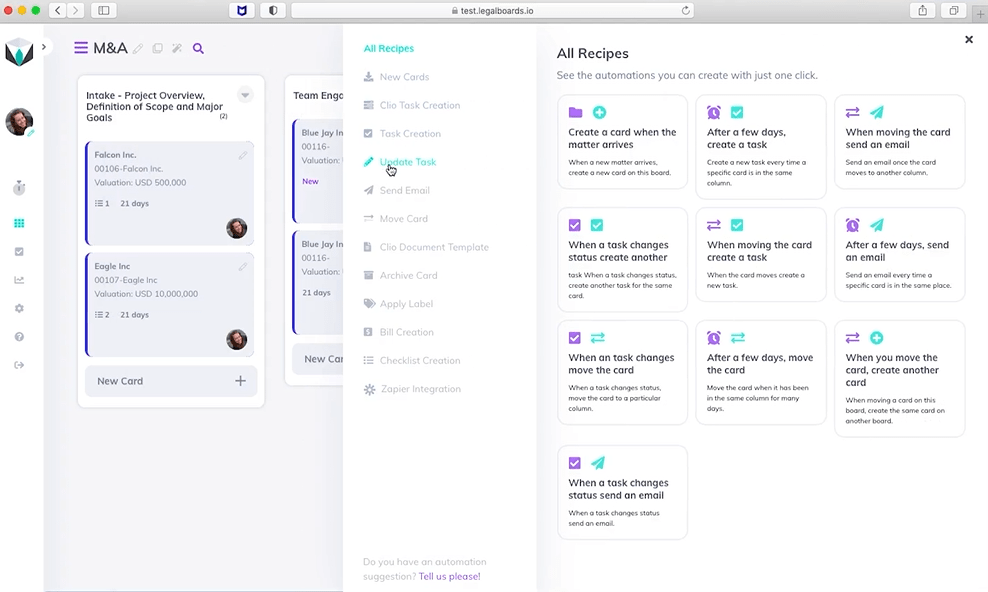
    To get started, let’s select the board we want to use this automation in. We’ll then select the “Automations For This Board” option in the toolbar. From there, we’re going to select “Update Task” from the menu (see below). When we select “Update Task”, another screen will appear with a “New Automation” button.

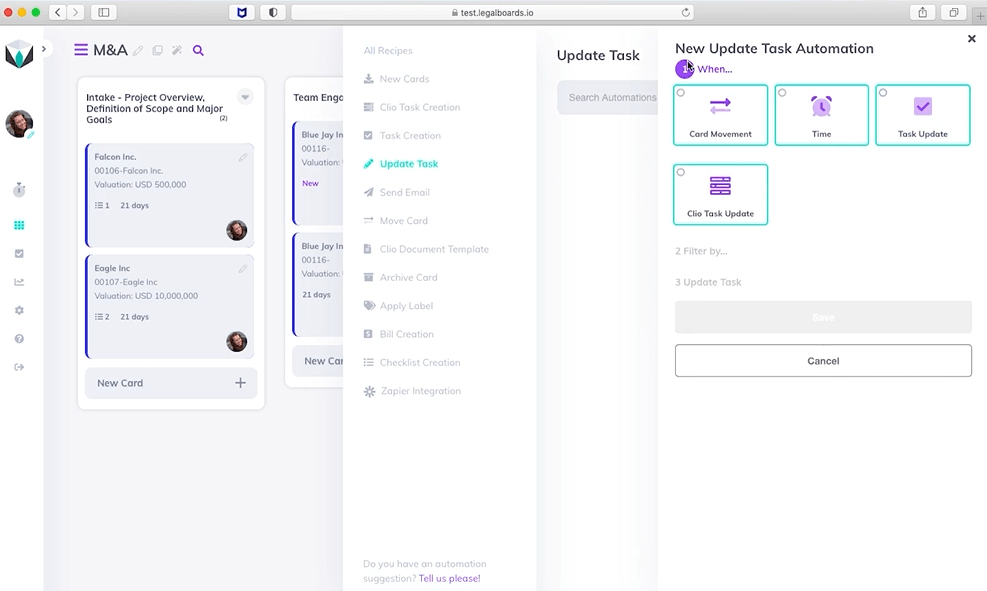
    Click on the “New Automation” button to see the screen below. Now, we will select which of the triggers we want to use to set up the automation. If you’re unsure of which trigger to pick, you can learn more about automation triggers here.

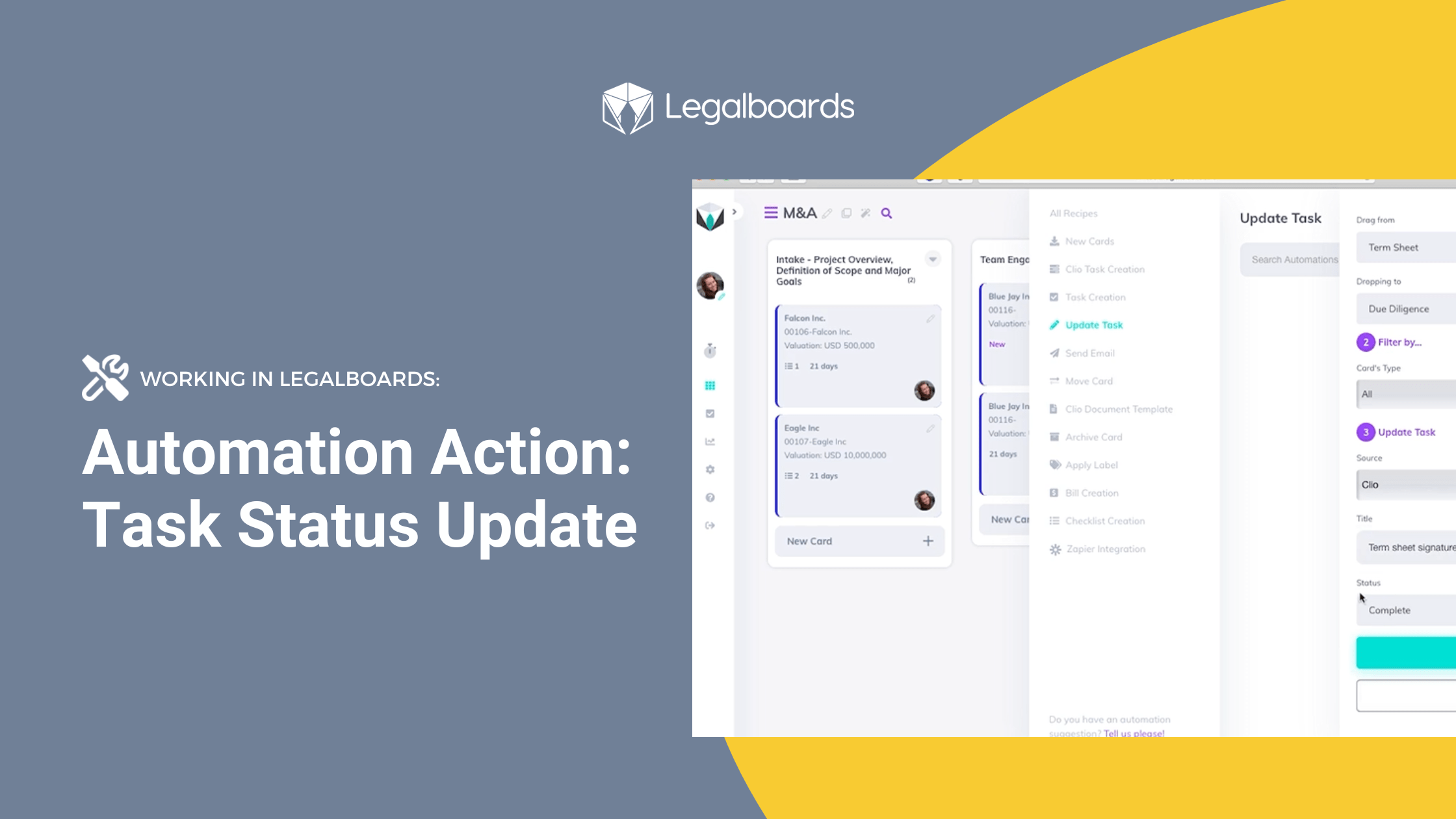
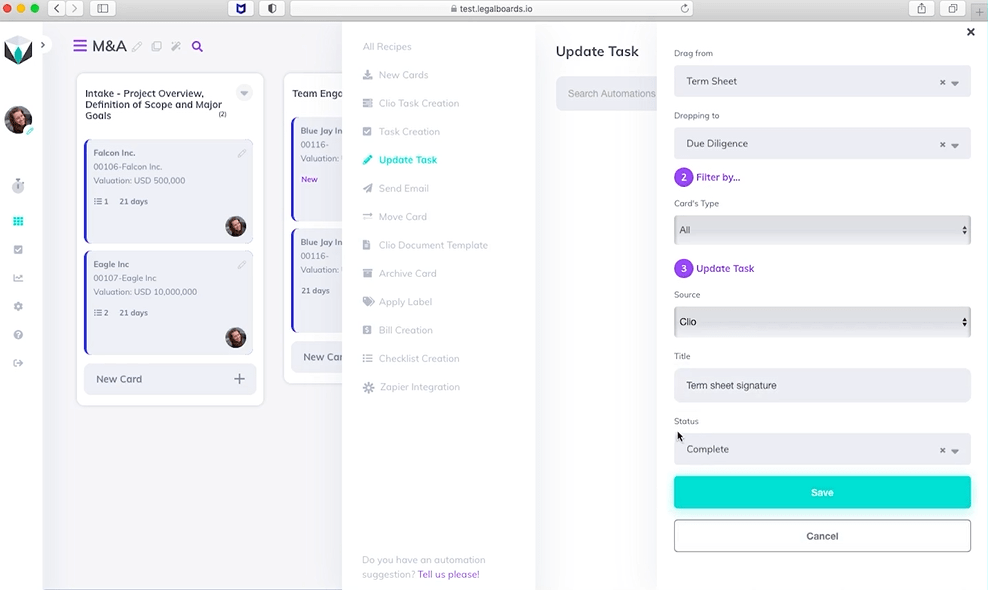
    For this example, we’re going to use the “Card Movement” trigger. Once we’ve selected it, we can specify the “Drag From” and “Dropping To” fields. We’re going to choose the Term Sheet option for “Drag from” and the Due Diligence option for “Dropping To”. Once we’ve specified those we have the option of also picking a filter. For this example, we’ll leave this and move on to the third step.

    The third set of fields will be where we set the task status update. As shown below, we’re using Clio as our source, have given the task the title “term sheet signature” to the task, and have selected “complete” as the status update.

    Once we have specified those fields, we can click on the “Save” button to save our automation details. Now that we’ve set up that automation it will appear in the list of automations for the board and is ready to be used!

    Task Status Update Automation in Action

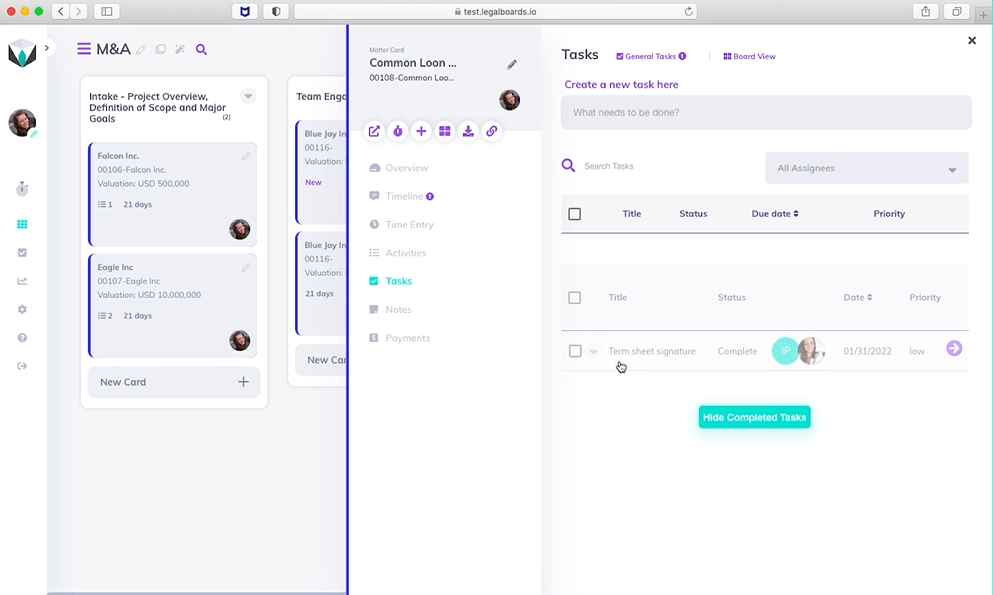
    Please note, when the card movement happens, a yellow warning will appear on the card that gives you the option of cancelling or keeping the automation. When the card is in it’s new column, we can now click on the card then on “Tasks” within the sub-menu and see the task as completed (as illustrated below).

    Examples of Use

    This automation prevents tasks from being left behind with the wrong status, which can be particularly helpful if someone forgot to update the status of their tasks. Here are some examples of how the automation could be implemented:

    • Trigger card movement: Whenever a matter moves from one column to the next in your workflow the system will automatically update the status of previous tasks to complete. In the example above, all matters arriving in the “Due Diligence” should have their term sheet signed already. Therefore, if someone forgot to mark this task as completed the system will automatically do that.
    • Trigger task update: You can set up this automation based on another task update. Often users have tasks (“task X”) that can only be completed if a certain task (“task Y”) was completed prior. If a user has completed both tasks on the same day or if someone completed task Y before and forgot to update the status, with this automation they will only have to update the status of one task and the other will be automatically updated.
    • Trigger time: If you have a task that is necessarily completed or no longer relevant, after a certain period of time you can set up an automation to update its status based on a time frame.

    Still Need Some Help?

    Didn’t find what you needed? Learn more about automation in Legalboards here, check out more videos, or visit our support portal for more help with creating automations.