Author: legalboardsdev

  • The Future of Hybrid Work

    The Future of Hybrid Work

    One thing to come out of the COVID-19 pandemic is the increased implementation of remote work. Whether that be only partial, to make a hybrid situation, or fully remote, where we work has changed.

    For many law firms, implementing remote work was a considerable feat. In a short period, firms needed to strategize and implement work-from-home policies. Working remotely has both benefits and challenges, but can be done effectively.

    James Cotterman, a law firm consultant with Altman Weil, told the ABA’s Journal that he saw small firms struggling more than larger competitors, particularly firms focused on consumer-oriented law:

    The pivot to remote work was more challenging with less robust tech support and clients less likely to engage or pay timely,” Cotterman says.

    When we talk about remote work, the first thing that comes to our mind is adopting tech tools. We may not know which tool will be best, but we do know what problems these tools need to solve.

    From communication to file management, moving to remote work requires software to improve business operations.

    However, this is only one aspect of remote work. Another important part to creating a positive remote work experience is moving past the traditional way of working in a physical office through a change in our mindset.

    How to Implement Remote Work Effectively

    There are multiple benefits to working from home, but the key is to learn how to take advantage of them. Remote work is common for startups and technology companies.

    For example, Legalboards’ team has worked remotely since its foundation. Our team is located in different countries, continents, and time zones (North America, Europe, and South America). But what can companies do to use remote work to scale?

    • Hold frequent team meetings: checking in with your team about the technology you’re using is important. Getting feedback on how they are adapting to working remotely and their experience with the technology solutions is key;
    • Get organized: remote work requires a high level of organization. Tasks, projects, matters have to be organized in order to be efficient. With in-person work, a team member could go to someone else in the office for help, remote is not that simple;
    • Clearly outline workflows: using clear procedures for everything you have to accomplish so everyone on your team knows what to do. Team members need to be able to know what the process is and what their next steps of a project will be;
    • Use effective communication tools: establish which technology tools will be used for communication. With some solutions, communication can be almost the same as being in person; and
    • Find software that solves a problem: creating synergy between your team’s work, dynamic, and a technology solution. Getting feedback about tools from your team while being open to changes is key. Only with testing software with your team, can you determine if it’s the right choice for you. Take advantage of trials and demo sessions (like ours) to learn more about the tool and test it with your team to make the final decision.

    The increased trend of hybrid work being implemented is also seen within the legal industry. With loosening pandemic restrictions, a hybrid work model blends remote and physical workplaces.

    Hybrid work may look different from firm to firm with some practices opting for specific work-from-home days and policies to allow for flexibility.

    The legal industry has adopted this model as a consequence of the pandemic and following the Court’s virtual changes. Virtual hearings, mediations, etc., allowed lawyers to adopt a hybrid model of work.

    Lawyers can experience the comfort of working at home while seeing the benefits of increased productivity and reduced costs. We can expect to see a hybrid model implemented for the foreseeable future- if done correctly.

    Law firms have been investing in the right technology tools to keep this model effective, and at the same time, provide value to their clients. To learn more about what lawyers can expect to see in the future, check out this article.


  • What Can Lawyers Expect to See in 2022?

    What Can Lawyers Expect to See in 2022?

    The legal industry was forced to quickly adapt to a new digital world during COVID-19. While some practices were adopting new technology prior to the pandemic, many had to make a quick pivot. One thing is for sure, 2020 and 2021 will be marked by the rapid adaption of technology and automation.

    As a result of the pandemic, almost every industry has quickly implemented some type of technology. For the legal industry specifically, some of these changes were long overdue. Legal innovation through increased use of legal technology is key to sustain growth within the industry.

    But, what trends can lawyers expect to see continued into 2022?

    Legal Technology in 2022

    For 2022, there can be no doubt that lawyers will continue to look at adopting new technologies in order to embrace the challenges that come with the world’s “new normal” while remaining competitive.

    Some key trends from 2021 can inform us about the future:

    1. Remote (or hybrid) work is here to stay;
    2. We will continue to rely on technology to assist with daily tasks through automation; and
    3. The challenge of productivity with increased competition within the industries.

    An increase in reliance on technology to make daily tasks easier is shown through the increased implementation of automation to handle tasks.

    Besides helping lawyers with repetitive and/or administrative tasks and helping with volume of work, automation also can be great for new team members.

    Why is Automation Important?

    McKinsey Global Institute estimates 23% of work done by lawyers can be automated by existing technology. Automation can look different for every practice as there is a variety of types of automation. One example is task-chain automation- check out our guide to task-chain automation to learn more.

    A main kind of automation is workflow automation. The goal of any type of automation is to simplify a process. Workflows are predetermined processes within which lawyers can track their matters, tasks, and procedures.

    By tracking these items, lawyers can gain insights into their firm’s productivity and collaboration in order to prevent any snags in workflows. By using software (like Legalboards) to automate workflows, law practices can see significant improvements in their firm.

    Software can improve the efficiency of their operations, reduce the learning curve associated with onboarding, and help visually organize matters. And, perhaps most importantly, automated workflows allow for the opportunity to learn about, analyze, and improve their processes over time.

    How to Get Started

    A great place to start with workflow automation is identifying high-volume, repetitive, and time-consuming tasks.

    For example, using software that can customize and automate workflows for each work type ensures the legal team receives sufficient information to complete the task and reduce errors.

    It’s important to keep in mind that the goal is not to automate 100% of a legal task but rather to achieve improve the efficiency of parts of a task wherever possible.

    Legalboards provides all the tools to create complete workflow automation so you can save time on your daily tasks (and reduce errors!) to spend more time on what’s important.

    Schedule a demo with us today and see how we can help improve your practice in 15 minutes.

  • How to Make Your Matter Management Technology More Than a Digital Filing Cabinet

    How to Make Your Matter Management Technology More Than a Digital Filing Cabinet

    Matter management is a crucial part of running a law firm – particularly for solo and small practices. A critical part of keeping firm overhead low is finding solutions that are effective yet low in cost. Newer software and applications can make a big difference in terms of efficiency.

    However, implementing technology can create an issue involving finding appropriate solutions that don’t work merely as digital filing cabinets. Instead, case management systems must be customizable, provide value, and offer a real solution to a problem or challenge faced.

    Features of The Technology

    Matter management technology helps manage information about a case – type of case, who’s working on it, budget – and track updates throughout the matter’s progression to completion. Some of the benefits of matter management technology include:

    • Upgraded organization. Legal teams can overcome challenges like misplaced or lost files and client information, miscommunication regarding timelines and workflow, and miscalculations about case status, timelines, and milestones with matter management technology.
    • Improved client experience. Case management solutions streamline back-end processes, enabling a firm to function more efficiently both internally and with clients. For example, with a case management solution, all available activity concerning the intake or matter will be retrievable as soon as a potential client contacts the firm.
    • Increased automation. Each case requires the completion of hundreds of small tasks – forms to fill out, documents to send, legal issues to address – all critical yet highly time-consuming. Matter management software takes repetitive everyday tasks off the shoulders of the legal team through automation.
    • Enhanced collaboration. Silos separate data and slow down progress. However, increased communication among team members facilitated by case management technology translates into greater efficiency and more successful outcomes.
    • Enriched analytics. Depending on the solution, matter management technology might reveal which cases are lagging in terms of resolution and help to keep them moving forward. For example, Legalboard’s time automation feature allows users to allow a specific time for each stage of a matter before a reminder is sent out.
    • Elevated communication. Even when team members work remotely, with software, they can provide timely updates regarding all aspects of a case to everyone involved.

    Depending on the specific matter management technology employed, many integrate with other software to provide a well-rounded solution to manage legal matters from start to finish.

    Implementing Technology

    To get the maximum benefit from a matter management solution, law firms need to implement technology that reflects their workflow and helps improve it. Automating processes to help streamline case management is an excellent place to start.

    However, decision-makers must ensure that the software offers solutions that are applicable through the entire lifecycle of the case, including billing, invoicing, and administrative functions.

    Legal matter management software is a tool to manage cases, not just file away information. So, if you’re ready to turn your digital file cabinet into an automated system, contact us to create your first matter board – for free – today.

  • Timesheet Reports

    Timesheet Reports

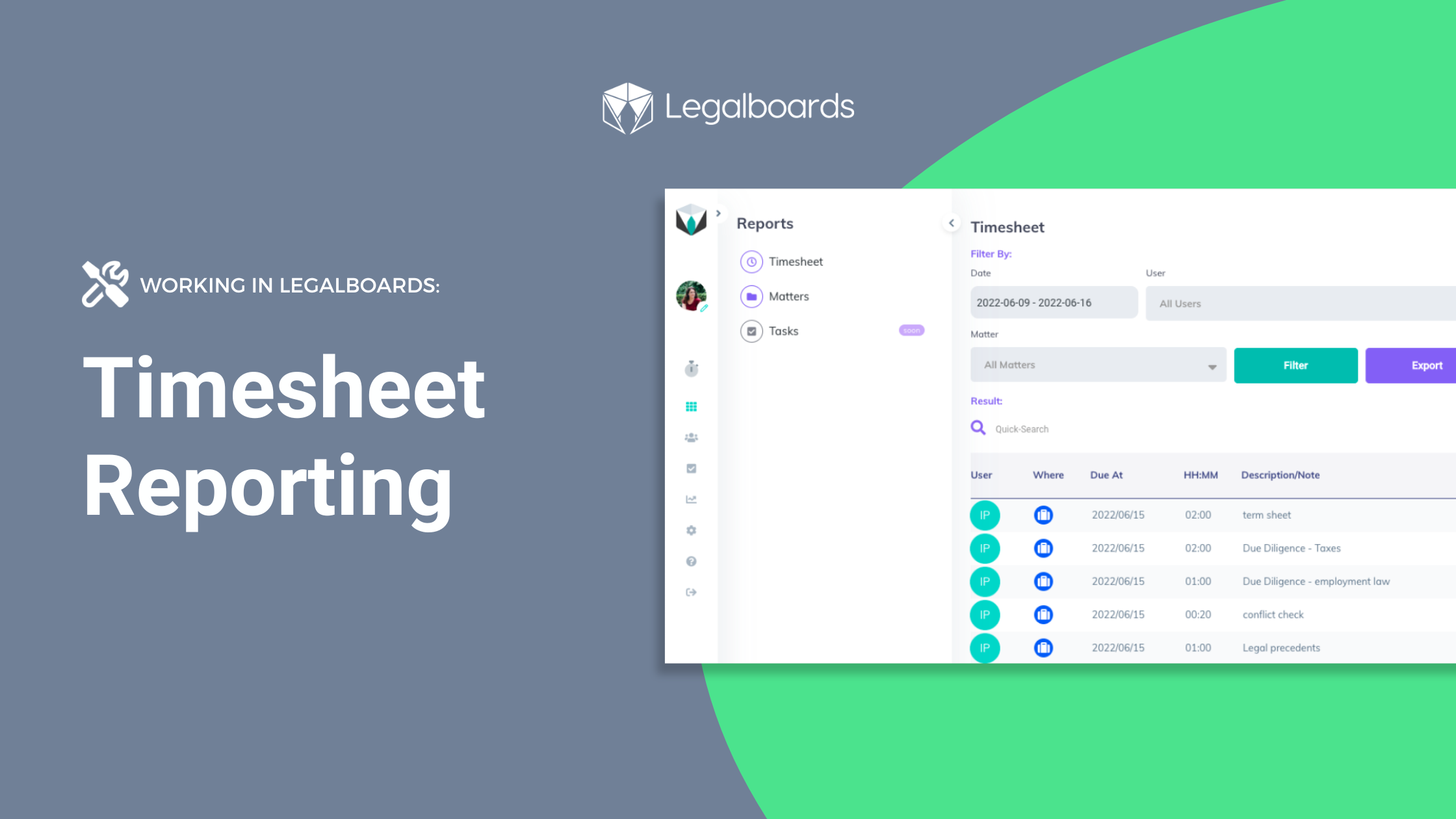
    A great way to track the progress of a workflow is to use reports to summarize information. In Legalboards, you can generate reports in three different ways- by tasks, matters, and now timesheets. Now, these reports can be generated using the time entries in your account.

    If you’re more of a visual learner, check out the video walkthrough of how to generate timesheet reports below.

    How to Generate Timesheet Reports

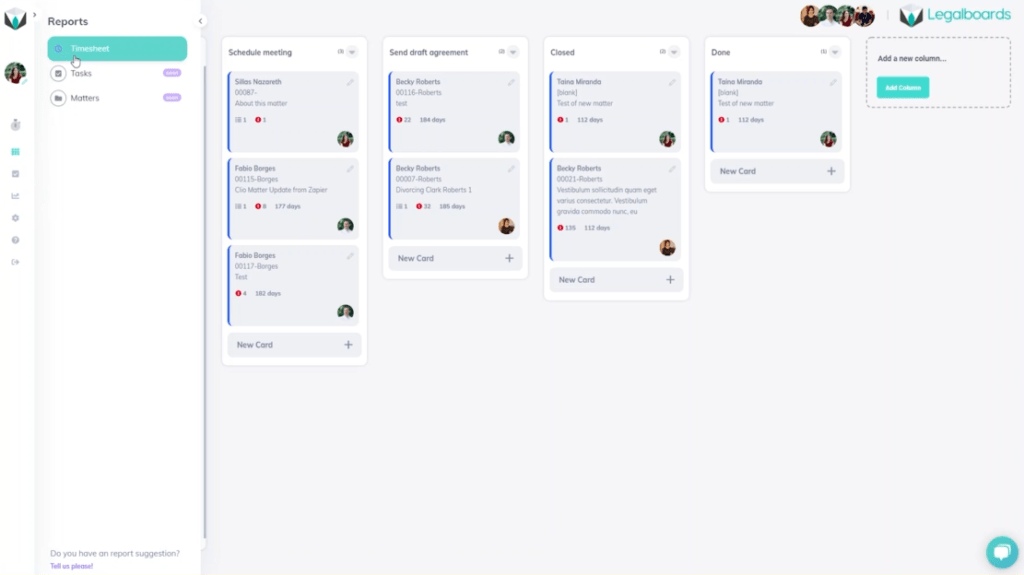
    Within Legalboards, we’re going to find the “Report” button on the left side of the screen. When we click on “Reports”, a sub-menu with three options will appear. Those three options are: timesheet, tasks, and matters. For this guide, we’ll focus on the timesheet option.

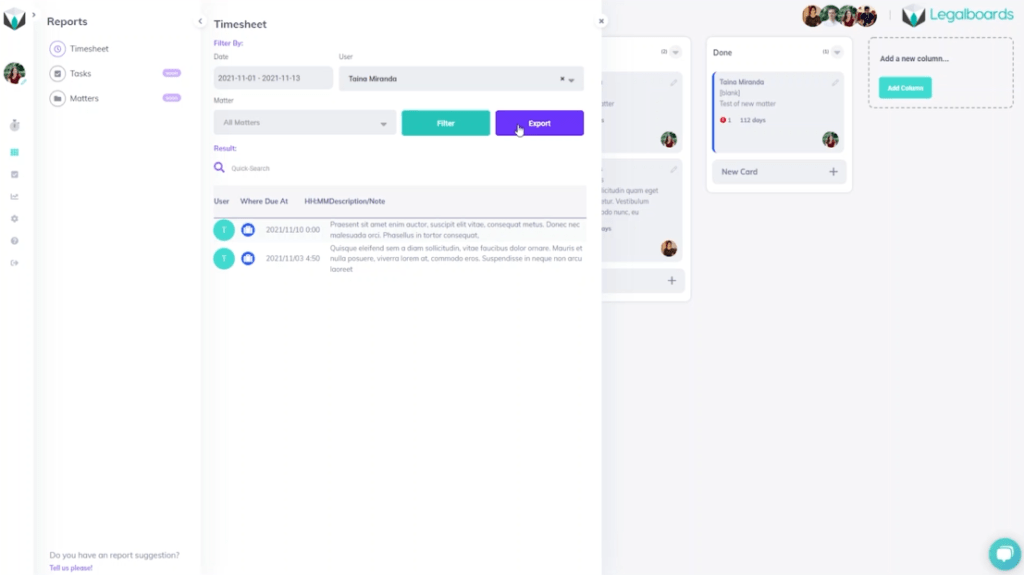
    Once we’ve clicked on the “Timesheet” option from the sub-menu, the report can be generated in different ways. Depending on what we want to capture within the report, there are a couple of options to choose from. We can filter the report by a date range, user(s) associated, or by matter.

    In this example, we’re going to first filter by the date range. With this, we’ll select a timeframe from November 1 to 13th, 2021 to first generate our report. And from there, we can further filter by selecting the user we want to focus on.

    If we wanted, we could also filter down one more level into specific matters. But, in this example, we’ll just stick to filtering by time and user in order to export our generated report.

    Next Steps

    Didn’t find what you needed? Check out our YouTube channel for more video guides, support portal, or contact our team for more help with Legalboards.

  • Estate Planning Template

    Estate Planning Template

    It can be difficult to organize your workflows as different cases require different processes. We want to help you organize your workflow, and having a template to work from can be helpful to get started. Our team has developed an Estate Planning template for you to get started with.

    How to Get Started

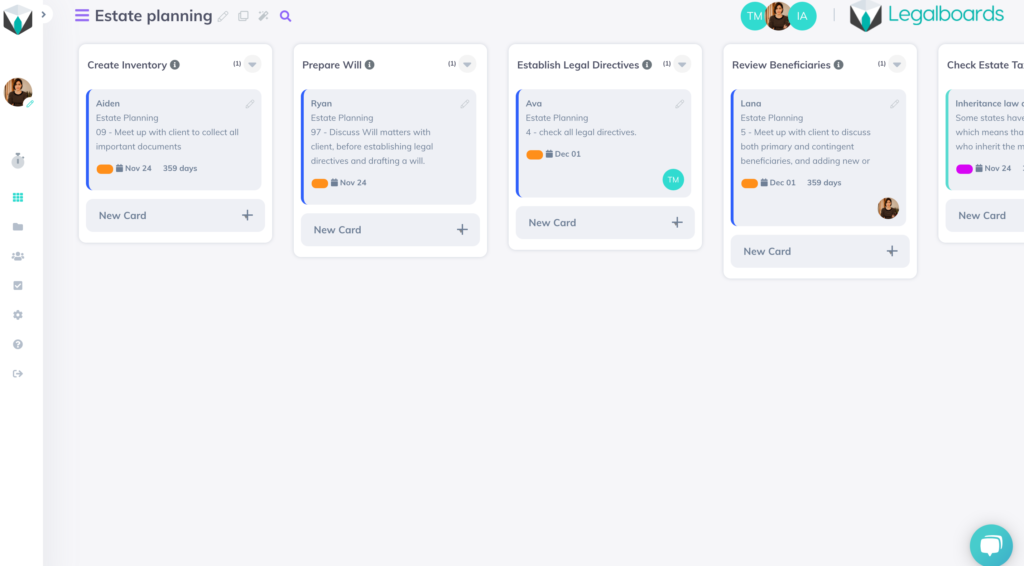
    In Legalboards, you’re able to either create your own boards or use one of the prepared templates. Our Estate Planning template is an example workflow for estate practices. Check out the video below to see how the template looks in action.

    We’ve included six common stages of the estate planning process as columns (or phases) on our board. These stages are “Create Inventory”, “Prepare Will”, “Establish Legal Directives”, “Review Beneficiaries”, “Check Estate Tax Laws” and “Final Arrangements”.

    If one or more of these titles are not applicable to your practice, you can edit the title to better reflect your process or delete the column altogether. As well, you can divide the board into separate smaller boards to track a more detailed workflow.

    Creating Boards to Reflect Specific Workflows

    Using a project management perspective, it’s helpful to think about three questions when creating a board to reflect your workflow:

    • What goals do you have for the matter that need to be reflected?
    • What pivotal moments/phases need to be tracked until they are completed?
    • How can the process be standardized so anyone viewing the board can easily understand what their role in completing the workflow is?

    If you’re unsure of how to start defining your workflow, check out our resource on how to get started applying agile methodologies to your practice that will aid you in creating a board that best reflects your specific process.

    How to Create an Effective Workflow Using The Template

    In order to make this Estate Planning template more tailored to your practice’s specific workflows, follow these steps:

    1. Edit General Information

    By clicking on the icon “Edit This Board”, you are able to change the name of your board, add a description for your team to understand the board, and share it by inviting other team members to work on the board with you.

    2. Set Up Automations

    Legalboards has almost 10 different automations to help you implement in order to streamline your workflows. All automations follow essentially the same process- check out this guide on how to get started setting them up.

    We recommend setting up at least 3 automations;

    • New Card so all new matters that meet certain criteria would automatically be attached to this board;
    • Task Creation so you don’t need to worry about managing roles and their timelines; and
    • Move Card so that matters can automatically be moved to the next phase of your workflow.

    Next Steps

    If you want to start using more automations in your workflows, check out our video guides on our YouTube channel.

    Didn’t find what you needed? Check out our support portalcontact our team, or check out our other resources for help using Legalboards.

  • The Best Productivity Applications For Lawyers in 2022

    The Best Productivity Applications For Lawyers in 2022

    Sometimes the biggest challenge is getting everything you need to get done in a limited time. Optimizing your time to be as productive and efficient as possible can be a strategy to overcome time constraints. But where can you start? Productivity applications.

    How to Increase Productivity Through Applications

    Liz McCausland will walk you through some highlighted productivity applications to improve aspects of your practice. From task management to note-taking to scheduling, there’s a solution to increasing productivity. We’ll share tips and tricks to increasing your productivity, how to automate parts of your workflow, and how to manage technology.

    Meet Your Host: Liz McCausland

    Liz is a legal tech consultant and a proud double gator grad from the University of Florida, Liz has practiced law for over 20 years. She is a Past President of the Orange County Bar Association, serves on the Executive Council of the Florida Bar’s Solos Small Firm section, and has been a speaker at several conferences and podcasts. Liz also travels throughout the US teaching other attorneys and mediators how to successfully obtain and mediate mortgage modifications in bankruptcy.

    Get in touch with Liz through her websiteLinkedIn, or on Facebook!

    Watch the Webinar on Demand

    You can watch the webinar on demand on YouTube or below.

    https://youtube.com/watch?v=ENARdpLVw-Y%3Fcontrols%3D1%26rel%3D0%26playsinline%3D0%26cc_load_policy%3D0%26autoplay%3D0%26enablejsapi%3D1%26origin%3Dhttps%253A%252F%252Flegalboards.com%26widgetid%3D1%26forigin%3Dhttps%253A%252F%252Flegalboards.com%252Fresources%252Fwebinars%252Fthe-best-productivity-applications-for-lawyers-in-2022%252F%26aoriginsup%3D1%26gporigin%3Dhttps%253A%252F%252Flegalboards.com%252Fwp-admin%252Fedit.php%253Fpost_type%253Dpost%2526paged%253D4%26vf%3D1

    Ready to Improve Your Firm’s Productivity?

    Check out our other resources for more help with finding the right tech stack for youautomating your workflow, and more!

    Curious about how Legalboards can help with the way you work? Learn more about our time-saving features here.

  • Cultivating a Mindset: Essential Management Books

    Cultivating a Mindset: Essential Management Books

    3 Essential Management Books for Lawyers

    Law school traditionally teaches students how to think like lawyers, not how to manage the business side of a law firm. However, practicing law is a profession and a business, and although each requires different skills, attorneys must master both to be successful. Here are some books that aim to school lawyers in what it takes to run a prosperous law practice: 

    Book 1: Attorney and Law Firm Guide to the Business of Law: Planning and Operating for Survival and Growth, Third Edition by Edward Poll

    Ed Poll, a respected columnist and management consultant with over 40 years of experience in business and law, celebrated the 20th anniversary of this book with an updated third edition. “Attorney and Law Firm Guide to the Business of Law,” addresses all aspects of running a law practice and helps lawyers understand business functions like finance, marketing, and human resources. It also provides valuable suggestions for technology tools.

    Modern practices require updated solutions, not more of the same. In this book, Poll helps lawyers understand what has changed within the legal industry, and how they can adapt, adopt, and innovate their practices. Whether you’re just starting out or looking to update your operation, this book can put you on the road to success. 

    Book 2: Smart Collaboration: How Professionals and Their Firms Succeed by Breaking Down Silos by Heidi K. Gardner

    For collaboration to be smart, it must be done right. In this book, Harvard Business School professor and lecturer Heidi Gardner explains why collaborating across silos is messy, risky, and expensive and how to do it more effectively. In “Smart Collaboration,” Gardner explains how firms earn can increase income, encourage client loyalty, attract and retain top talent, and be more competitive when they know how to effectively collaborate. 

    Published through Harvard Business Review (HBR), this book provides actionable insights into how to better develop teams, business plans, and improve the bottom line. Gardner has received praise for her clear methodology and how helpful the book is for any firm providing knowledge-based service.

    Book 3: How to Do More in Less Time: The Complete Guide to Increasing Your Productivity and Improving Your Bottom Line by Allison C Shields and Daniel J Siegel

    Time is money for lawyers, and although most attorneys work long hours, many still do not have enough time to get everything done – not even considering the business aspects of their job like marketing, business development, and strategic planning. 

    How to Do More in Less Time,” offers helpful tips and tricks on how to get and stay organized while navigating time constraints. The focus is on combining the authors’ programs to improve productivity – encouraging readers prioritize tasks, eliminate bad habits, and adopt new strategies. Want to do 90 minutes’ worth of work in 60 minutes, or maybe even 30 minutes? This book is for you.

    Ready to Boost Productivity with Technology?

    Our automated practice management solution can help your legal team maximize productivity and fit in time for essential business management activities. To learn more, contact us today.

  • Automating Practice Management: Start with Workflow, Not Tools

    Automating Practice Management: Start with Workflow, Not Tools

    Most law firms don’t struggle with automation because they lack tools.

    They struggle because work breaks between steps.

    If you automate tasks before you fix how work moves, you don’t get clarity.

    You just move confusion faster.

    Automation needs something stable to attach to.

    A clear workflow.

    So the question is simple: where do you actually start?

    If you want a full breakdown of how workflow automation works in law firms, start here.

    Why most law firm automation projects start in the wrong place

    Most firms start automation in one of three ways.

    They start with tools.

    They buy something that promises automation, then try to force their work into it.

    They start with isolated tasks.

    They automate a form, a reminder, or an email, but the matter still has no structure.

    They start with symptoms.

    They add more reminders because things keep slipping.

    • More alerts.
    • More checklists.
    • More “did you get my email?”

    Here is the problem.

    Automation needs a defined workflow.

    If your team does not agree on what stage a matter is in, no automation can fix that.

    If nobody owns moving work forward, automation will just create more noise.

    Practice management automation works when it makes work move.

    Not when it adds more messages.

    What to automate first in law firm practice management

    Don’t start with tasks.

    Start with where work moves or gets stuck.

    Think in workflow mechanics.

    Automate repeated workflow transitions

    A transition is when work should move from one stage to the next.

    Most firms already have these moments.

    They just handle them manually through email and memory.

    Examples:

    • Retainer signed, create kickoff tasks automatically
    • Documents received, create a review step and assign it
    • Draft approved, trigger send or file tasks

    This removes handoff friction.

    When the stage changes, the next work appears.

    Automate follow-up points where work usually stalls

    Most operational pain is waiting.

    • Waiting on client
    • Waiting on signature
    • Waiting on internal review
    • Waiting on missing documents

    If your system does not make waiting visible, your team will chase updates all day. That is where operational visibility matters most.

    Two rules:

    • Make “waiting” a real stage
    • Make waiting owned

    Even if the delay is external, someone owns moving it forward.

    Automate administrative steps after structure is clear

    Only after stages and ownership are defined should you automate admin work.

    Examples:

    • Billing reminders tied to a real stage
    • Client updates triggered by actual progress
    • Recurring tasks for predictable routines

    If you automate admin too early, you send updates that are wrong or premature.

    That breaks trust.

    What not to automate yet

    Most automation fails because it starts in the wrong place.

    Do not start here:

    A broken workflow

    If the team cannot describe the stages clearly, stop and define them first.

    Judgment-heavy work

    Legal strategy and decision-making should not be your starting point.

    Exception-heavy work

    If every case is different, automation will become messy fast.

    Anything without a clear “done”

    If you cannot define completion, you cannot automate transitions.

    If you are unsure where to start, this guide helps frame it properly: How to Prepare a Law Firm for Automation

    The 3 best places to start automation

    If you want a clean starting point, focus on where work transitions and stalls.

    Matter kickoff and case setup

    This is where many firms start behind.

    Define what “opened” means

    Trigger task plans automatically

    Assign owners immediately

    This sets the tone for the entire matter.

    Waiting states and follow-ups

    This is where most time is lost.

    Make these stages real:

    • Waiting on client
    • Waiting on signature
    • Waiting on internal review

    Then add simple rules:

    • If waiting exceeds X days, escalate
    • If something arrives, move the matter forward
    • If a signature is completed, trigger the next step

    Draft, review, approve, send or file

    This cycle exists in almost every firm.

    Automate the handoffs:

    • Draft complete, create review task
    • Review complete, create approval step
    • Approval complete, trigger send or file

    This reduces unclear ownership and missed handoffs.

    It also reduces deadline risk in law firms.

    How to know if your workflow is ready

    You are ready to automate when these are true.

    Your stages are defined

    You can list 5 to 7 stages.

    Each stage has a clear meaning.

    Your entry and exit conditions are clear

    For each stage:

    What moves a matter into it

    What moves it out

    Your ownership is explicit

    Each stage has one owner.

    Not “the team.”

    Not “someone will handle it.”

    One person is responsible for movement.

    Your waiting is visible

    Waiting is a stage.

    Not hidden in email threads.

    You can run a simple test

    Take 10 recent matters.

    Can you place each one into a stage without debate?

    If not, the workflow is not ready.

    Start by mapping one workflow here.

    A simple starting point for small and mid-sized firms

    If you are a 10 to 50 person firm, don’t try to automate everything.

    Start with one workflow.

    Step 1: Pick one high-frequency workflow

    Good options:

    • New matter kickoff
    • A common litigation cycle
    • A standard transaction flow
    • Monthly client reporting

    Pick the one that creates the most follow-ups.

    Step 2: Define the stages

    Keep it simple.

    5 to 7 stages.

    Plain language.

    Step 3: Define ownership

    Assign one owner per stage.

    If this feels uncomfortable, that’s the point.

    Step 4: Automate transitions

    Start with 2 to 3 automations:

    • Stage change creates next tasks
    • Waiting triggers follow-up or escalation
    • Approval triggers next steps

    Run it for two weeks.

    Then improve.

    FAQ

    Do we need new software to start automating practice management?

    No.

    Most firms already have tools with basic automation.

    The real requirement is workflow clarity.

    Should we start with intake automation?

    Only if intake is your biggest pain.

    It is not special.

    It is just another workflow.

    Do we need AI?

    No.

    Rules and triggers solve most early wins.

    AI comes later.

    Who should own automation?

    Usually someone operational:

    • Office manager
    • Paralegal lead
    • Operations lead

    With partner support.

    How long does it take?

    You can build a first version quickly.

    One workflow

    5 to 7 stages

    2 to 3 automations

    Two weeks to test

    The hard part is not building.

    It is defining ownership and “done.”

    Next step

    If your team is still chasing updates, your problem isn’t effort. It’s structure.

    Start with one workflow.

    Define the stages.

    Define ownership.

    Then automate the transitions.

    If you want a simple way to do this, start with the  workflow optimization checklist

  • Google Drive Integration

    Google Drive Integration

    In this guide, we’ll walk you through how to set up and start using the Google Drive integration within Legalboards. Keeping files attached to matters (or cards in Legalboards), can be difficult. File management is often the key to staying organized so you can continue to be productive.

    Our new Google Drive integration allows you to access your files within your Google Drive in your Legalboards account. Now, you can access your files in real time. As well, thanks to the automatic syncing between the Drive and Legalboards, it’s easy to keep matters on track. Even if you’re sending a file found inside a matter, the file is synchronized to reflect any changes made.

    If you’re more of a visual learner, check out our video guide below, or on YouTube. If you need more explanation on how to get started within Legalboards, check out our support portal for more help.

    Integrating Google Drive with Legalboards

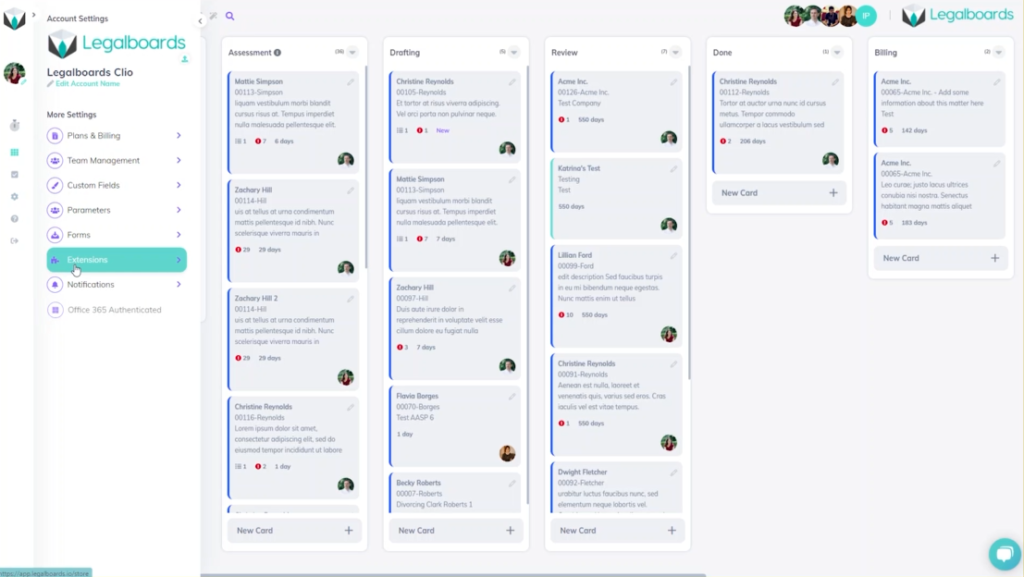
    In Legalboards, we’re going to find the “Settings” icon on the left of the screen and select it. In the sub-menu that will appear, we’ll then select “Extensions”. We’ll then be taken to our collection of extensions where we’ll select the free Google Drive integration to be added.

    Google Drive integration screenshot 1

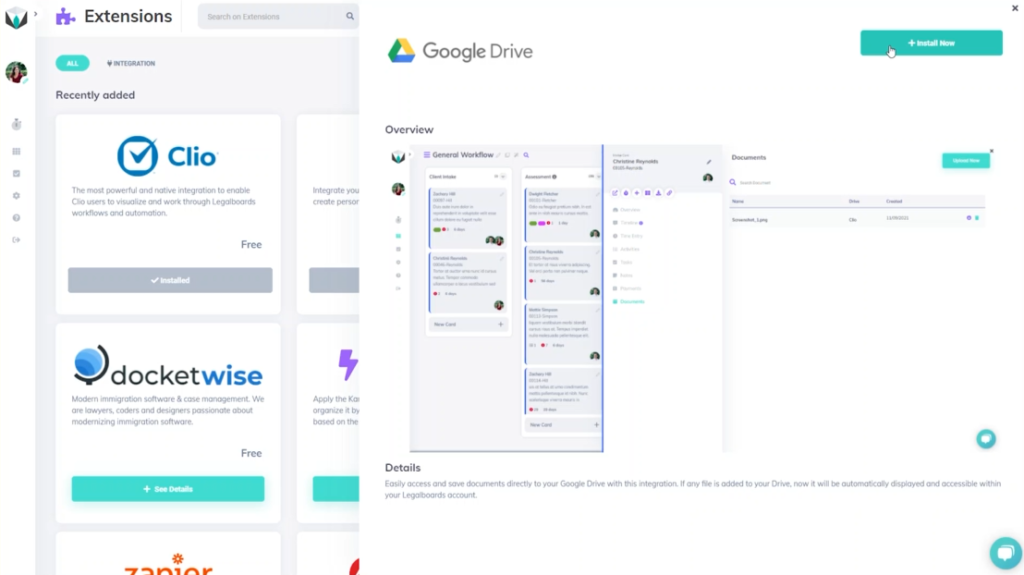
    When you select the Drive, you’ll see an overview of what it looks like while in use within Legalboards. From here, we’re going to select the “Install Now” button to add the Drive to our account.

    A confirmation pop-up will appear to make sure that we want to add the Drive to our account and once we’ve confirmed, we’ll need to authorize Google Drive. This is very simple, we’re just going to select the Google Account we want to connect and sign in. From here, we’ll see what Legalboards can access in your drive (i.e. see, edit, create, and delete files within the Drive, view pictures, etc.).

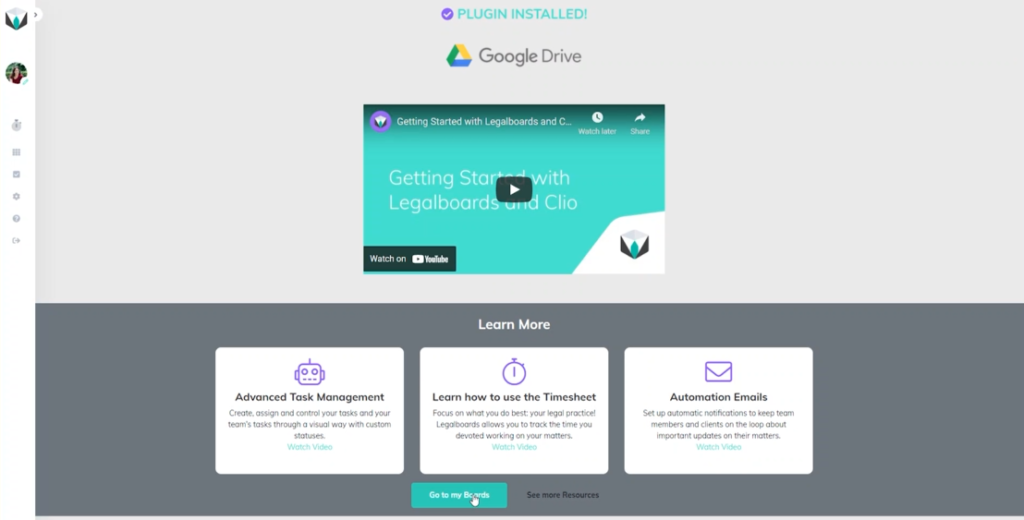
    After allowing Legalboards to access our Google Drive, the plug-in will be installed. From this screen showing the successful installation, we’ll go to our boards.

    What Does the Integration Looks Like Within Legalboards?

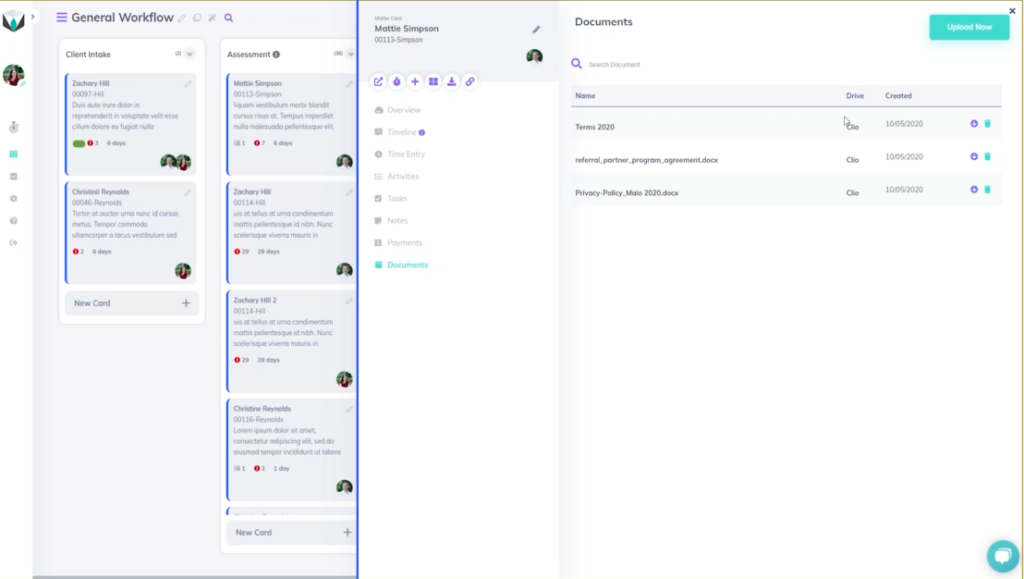
    Now that the Drive has been successfully added, we’ll take a look at how it works within Legalboards. We’ll click on a card (matter) and an overview of that card will appear. From the card’s sub-menu, we’ll select the “Documents” option to see any associated files with the matter.

    In our example, we have three associated files with the card. This screen tells us the name of those files, where they came from (i.e. Clio in our example), the date they were created, and allows us to delete files. We also can use the “Upload Now” button to upload new files- which we’ll do now.

    In the sub-menu that will appear we can now select “Google Drive” as a source and select which files from the Drive we want then save. Now we can see four files- three from Clio and one from Google Drive.

    What Does This Look Like Within Google Drive?

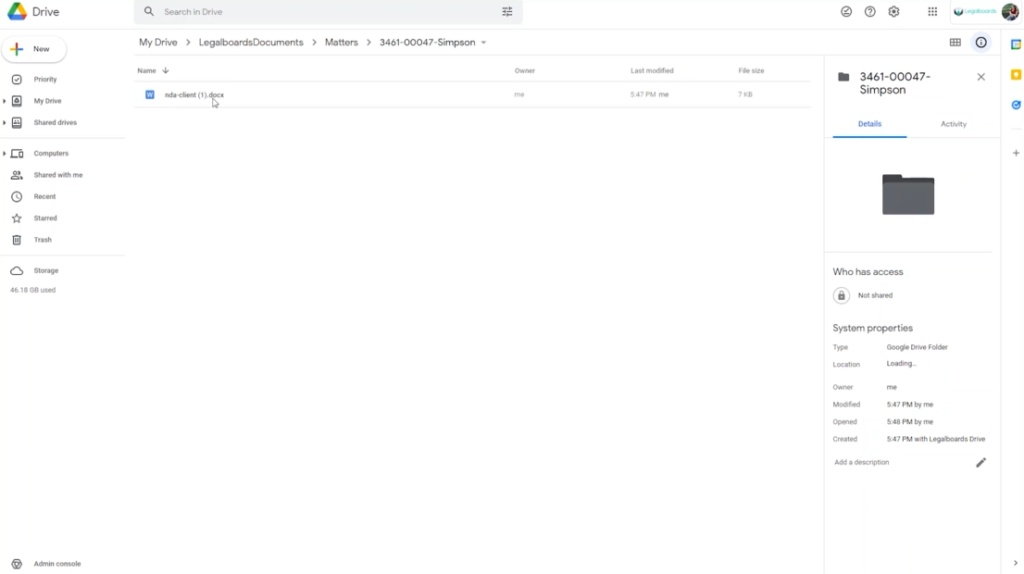
    So we know what the integration will look like within Legalboards, but what about in our Drive? As seen below, a folder called “LegalboardsDocuments” will have a sub-folder called “Matters”. When we select this, folders for associated matters will be created with the same name they have in Legalboards.

    Within that matter’s folder, the associated files they are connected to will be in the Drive and will be updated to reflect any changes made in Legalboards.

    Didn’t find what you needed? Check out our support portalcontact our team, or check out our other resources for help using Legalboards.

  • Checklists vs. Tasks

    Checklists vs. Tasks

    We know that checklists and tasks can be similar, especially depending on what needs to be done. Usually, checklists are comprised of a list of smaller tasks that need to be completed or reminders for upcoming tasks.

    “The Checklist Manifesto” by Atul Gawande helps to differentiate checklists and tasks by taking a look at how professionals would organize their workflows. The book primarily focuses on the medical field to explain how tasks have gotten more and more difficult.

    Complex tasks aren’t only present in a single industry. We know that for the legal industry, this is especially true. At Legalboards, we’ve developed a system to help keep track of matters by breaking them down (check out this article for more information about how to do this).

    What Is The Difference?

    So, what is the difference? Checklists hold the “less important” tasks and are more for reminders. That’s not to say that checklists can’t hold important tasks, but it is more about separating a specific task into smaller phases.

    Another key difference is that tasks have deadlines attached to them and a checklist usually does not have a timeline attached.

    For example, a very common task we all usually complete is grocery shopping. Where that is the task, the items you need to purchase would be the checklist.

    In this very simple example, a task is broken down into a series of things that need to be done in order to complete the task. But how does this translate into the legal industry?

    Let’s look at how this would work within the legal industry and what this looks like within Legalboards. Legalboards has tasks integrated with Clio but the checklist is not normally included while using Clio.

    Examples of Checklist vs. Tasks in Legal

    Say you need to draft an agreement for a client (the task). When you put this into Legalboards, this would look to be in any one of the phases (columns) in a workflow.

    But, drafting an agreement contains more than one task. It could include a meeting with the client, drafting the agreement itself, any required research like if a compliance clause is applicable to the draft or if there needs to be a mediation clause, etc.

    For this client’s matter, we would want to have a task named “draft agreement” with a checklist including these smaller tasks. The checklist would therefore include:

    • Check compliance clause; and
    • Check the mediation clause.

    Let’s look at another example. In the first phase of a workflow, the task “File a Motion” has been created by the responsible lawyer. The task needs to be completed in 3 days. At the same time and within that same workflow, a checklist will be automatically created with the items:

    • Check documents; and
    • Open a folder in Google Drive.

    Likely, a paralegal will need to check and complete these items. The items are important but they are less important than the overall task and they do not have a deadline.

    Creating Checklists and Tasks in Legalboards

    Now that we know the difference between checklists and tasks, we can fully understand just how beneficial they are when it comes to organizing and keeping track of workflows.

    If you want to learn how to start creating checklists and automations in Legalboards, check out this article, or if you’re more visual, this video tutorial.

    Didn’t find what you needed? Check out our support portalcontact our team, or check out our other resources for help using Legalboards.

  • Organization and Making Finances Easier for Law Practices

    Organization and Making Finances Easier for Law Practices

    Billing can be tough- whether it’s client-facing or internal, there are various challenges practices face. Organization throughout the process is important to stay on top of cases at various points. At Legalboards, we’ve teamed up with LawPay to make this process easier than ever.  

    Organizational Tips to Make Finances Easier For Practices

    Join our panelists Jordan Turk from LawPay and Flavia Borges from Legalboards to discuss how to stay organized and keep on top of your practice’s finances. They’ll be addressing billing models, how to streamline the billing process, and how to combat the challenges that lawyers face related to their finances.

    Meet The Speaker: Jordan From LawPay

    Jordan Turk is a Legal Content & Compliance Manager at LawPay, and a practicing attorney in Texas. She earned a B.A. from the University of Texas, and a law degree from the University of Arkansas School of Law. Prior to LawPay, Jordan worked with a high-asset family law firm in Houston, Texas.

    Make sure you’re kept up to date with what’s going on at LawPay by following them on social media (LinkedIn and Twitter).

    Meet The Speaker: Flavia From Legalboards

    Flavia Borges is a lawyer, legal consultant, and legal entrepreneur with over 16 years of experience in civil law. She also is our COO at Legalboards. She specializes in the areas of consumer protection, digital law, and privacy & data protection for international clients.

    Connect with Flavia on LinkedIn or follow her on Twitter for more updates.

    Watch The Webinar On Demand

    Get Started With Legalboards and LawPay

    LawPay is one of our integration partners here at Legalboards. You can learn more about the LawPay integration here.

    Looking for more information about legal billing? Check out LawPay’s resources for more.

  • Custom Task Statuses

    Custom Task Statuses

    In this guide we’ll walk you through how to set up and use our unique feature of custom task statuses. Not all tasks look or can be classified the same. Administrative, consultative, and billing all require different steps, so why shouldn’t that be reflected in their statuses?

    Out of wanting to address this discrepancy, we’ve developed a way to assign different statuses based on the task type within Legalboards. Now you can give as many custom task statuses and task types you need for your work.

    If you’re more of a visual learner, check out our video guide below, or on YouTube. If you need more explanation on how to get started within Legalboards, check out our support portal for more help.

    Creating Custom Statuses by Type of Task

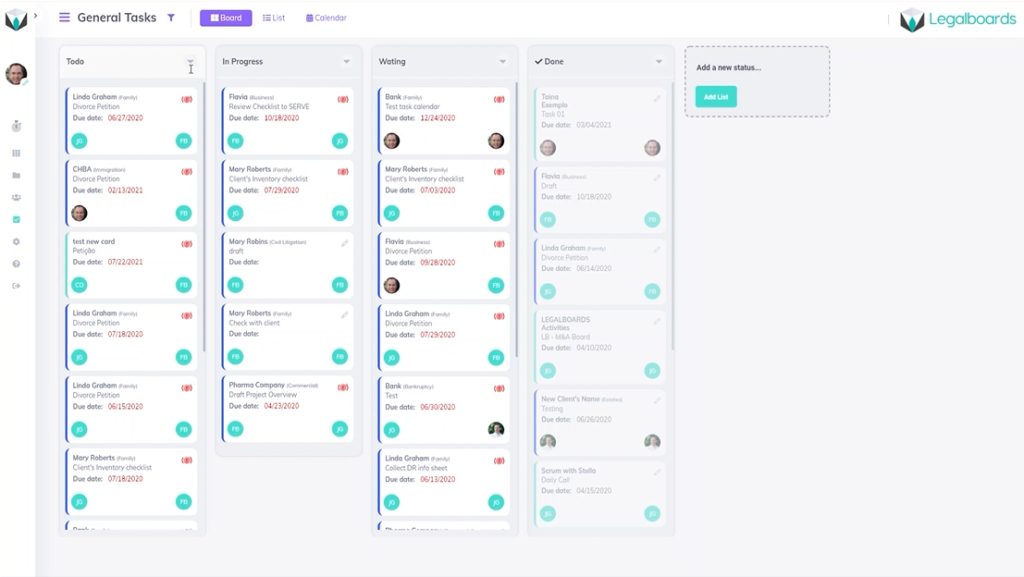
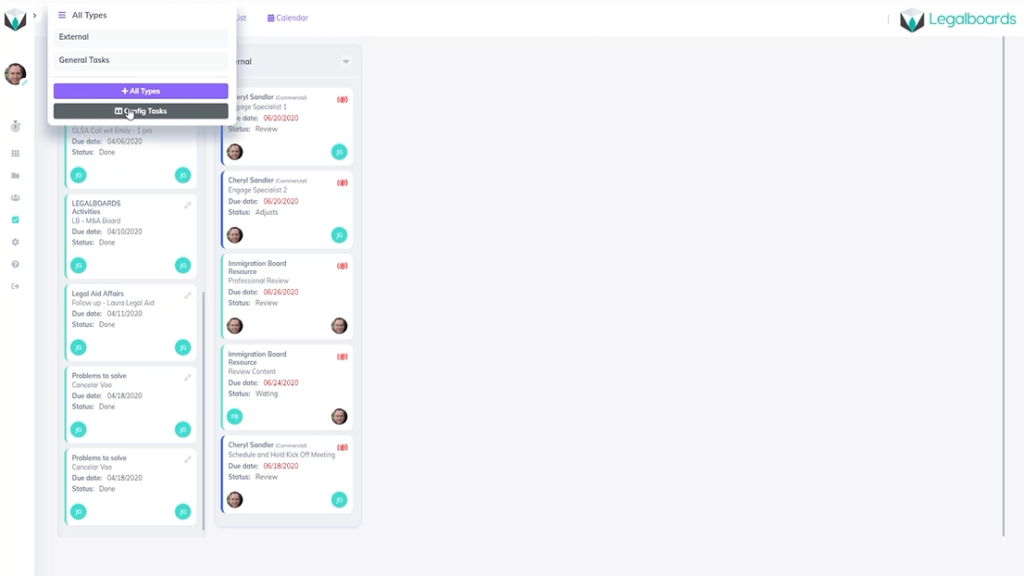
    In Legalboards find the icon on the left side of the screen titled “tasks” and select it. This will pull up tasks by their type where columns represent the different task statuses. In our example, we have the task types of general and external, but we can also choose to view all tasks by toggling the board title.

    You can see for our example’s general tasks have the statuses of to-do, in progress, waiting, and done. Compare that to the external task board where the task statuses are waiting, review, adjust, and complete. Regardless of which task type you view, you’ll be able to easily see your tasks and their status.

    Let’s hover over the task title until the sub-menu appears. From there, click on the “config tasks” button, as seen below.

    Parameters Menu: Creating a New Task Type and Changing Status

    By clicking the config tasks button, you’ll be taken to the parameters section of account settings. Within parameters, you can create new task types and customize certain fields.

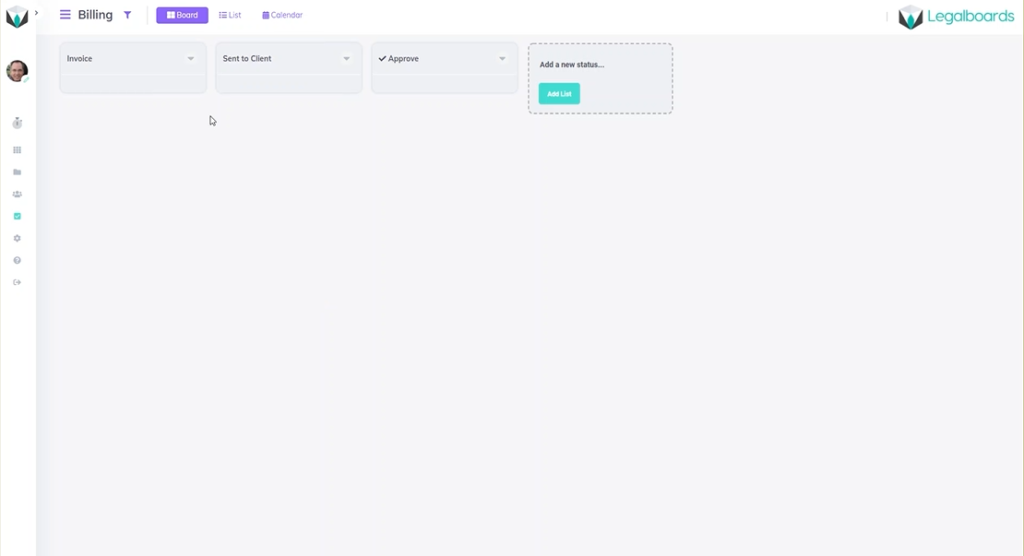
    To create our new task status, click on the new item button where a sub-menu called “new parameter” will appear. In this menu let’s name the new task type “billing”. When you go the billing task board, the default statuses are to-do, doing, and done.

    While that can be sufficient, giving tasks specific statuses helps to stay organized and keep matters on track. Using statuses that truly reflect the tasks they are associated with helps you to visualize the work being done and keeps you and your team informed.

    So, let’s change those statuses to reflect the example billing process. Let’s use invoice, sent to client, and approved instead of to-do, doing and done.

    Changing Tasks Within a Board

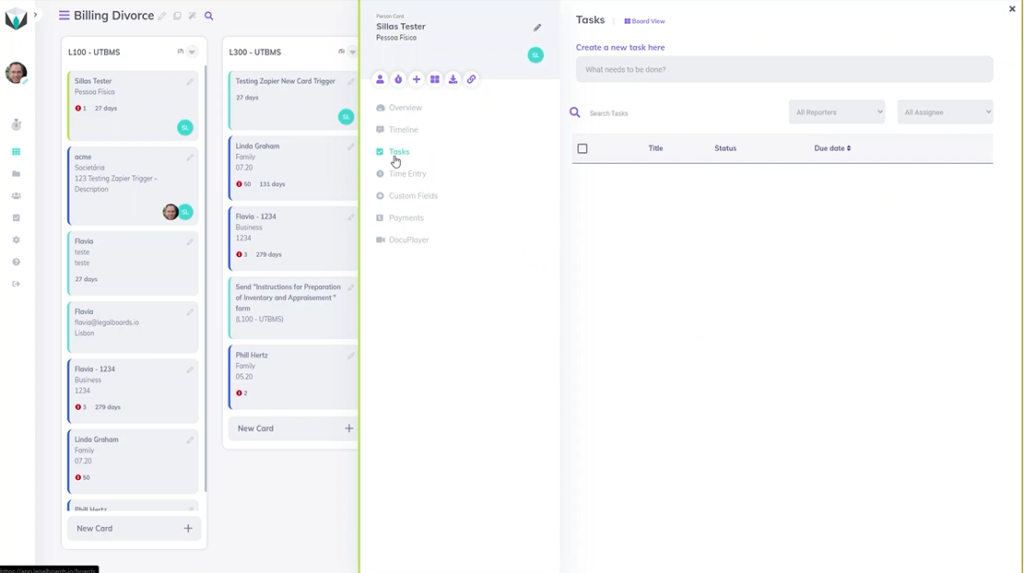
    If you want to change your task type and the status associated with it, go to any board and click on a card. From there, the card information will be brought up where you’ll select the task section, where you can create a new task or edit an existing one.

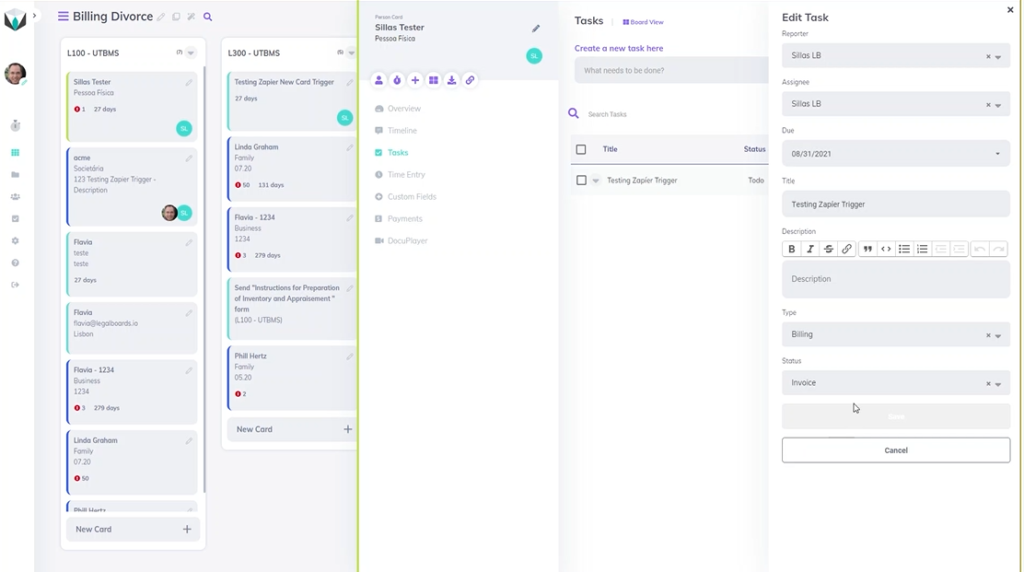
    Now you’ll be able to change the task type or specify more information about that card. In the “type” section, select the task type associated with the card. In the example, our person belongs within the billing task type so we selected “billing”.

    Once you have specified a task type, you can now specify a task status. In our example, we’re going to assign this card the status of “invoice” and then hit save to complete this task customization.

    Didn’t find what you needed? Check out our support portal, contact our team, or check out our other resources for help using Legalboards.