Category: Partners

  • Google Calendar Integration

    Google Calendar Integration

    We’re excited to announce our latest integration- Google Calendar! By connecting your calendar to Legalboards, you’ll be able to automatically sync data between the platforms and get back to what matters most- delivering superior service to your clients.

    By combining our task management and automation features with your Google Calendar, you can start saving time while also working with a simplified visual workflow. With the seamless integration of Google Calendar and Legalboards, your data will be updated in real time- no need to input data twice. As well, Legalboards can also integrate with your Google Drive (learn more about that here).

    Why Integrate Google Calendar + Legalboards?

    1) Save Time With Automations

    Legalboards has basic automations that will help you to become more efficient. Some of the most common automations we see involve email updates to team members (more on that later), checklist creations, and board (aka matter) management. With the Google Calendar integration, you’ll be able to set up schedule-based events directly based on your workflow. For example, you could create automated events with clients or other important contacts related to a case based on intake or pre-agreement.

    2) Easily Understand Your Workflow

    Legalboards allows you to easily visualize and organize your matters in whatever way works for you. By using Kanban, you and your team can see your matters in a bird’s eye view or drill down into specific matters. By customizing your board through checklists and custom labels, you can tailor your account to reflect your actual workflow. 

    Legalboards also allows users to view their matters in different ways- calendar (through the task center), list, and Kanban. By using the Google Calendar integration, you can also set up work previews and after-work processes. For example, you could set up tasks for your paralegal to prepare documents for the meeting, send a task to your team after the meeting to follow up with the client with their next steps, or directly send a client an email detailing what they’ll need for the next meeting. 

    How to Integrate Your Accounts

    It’s easy to use the Google Calendar integration. If you’re more of a visual learner, you can watch the video below or on YouTube to learn more.

    Step 1: Set Up Your Account

    The first step is to create a Legalboards account. If you’re a new user of Legalboards, you can follow our onboarding wizard to create your first board and connect your account to the programs you already use.

    If you’re an existing user, you can integrate your Google Calendar by accessing the “Extensions” tab within “Settings”. The next step in setting up your account is to integrate software. Click on the Google Calendar tile and then select the “Install Now” button to initiate this process.

    Step 2: Authorize Google Calendar Integration

    Before you can connect your accounts, you’ll need to authorize Legalboards to connect with your Google account. After clicking “Install Now”, you’ll be automatically prompted to complete this process. 

    Once you’ve clicked on the authorization button, you’ll need to sign in using your preferred Google account and allow Legalboards to access your calendar data. 

    Step 3: Creating Schedule-Based Automations

    Example: Automated Event Creation

    To show you how you can use the integration, we’re going to use an example immigration board and create an automated event.

    To do this, we’ll navigate to the correct board and click on the “My Automation” button at the top of the board. Once clicked, we’ll see all of the current automations that have been created for this specific board. 

    Next, click on the “New Automation” button to be able to create an automated event using the “Create Event” action (shown below).
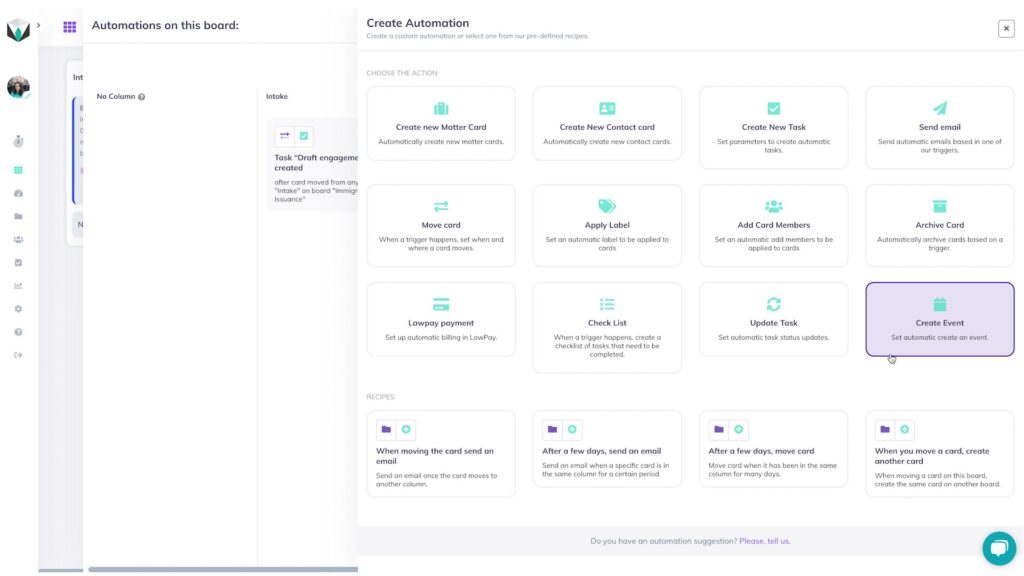
    Google Calendar Integration 1

    From here, you’ll need to set up the automation by indicating what happens after a trigger is completed.

    For this example automation, we’ll set up an automated event creation based on the card movement trigger. In this specific example, when a card is dropped into the “Intake” column on the board, an event will be created on Google Calendar 3 days after the card movement from 12-1 PM.

    In order to do this, the “Then…” fields need to be entered as the following:

    • On: Google Calendar
    • Calendar: Legalboards
    • In how many days? 3
    • Start at: 12 PM
    • End at: 1 PM

    We’ll use the “Summary” field to title this event as “First Meeting” and give the description “Discovery call with the client”. Then, we’ll set who we want to be invited to this event. For this example, we can use the dynamic fields of “Matter’s Responsible Attorney”, “Contact’s Email”, and “Card’s Members” to automatically invite those involved with this card on Legalboards.

    Example: Automated Email Updates

    So now we’ve set up an automated event to be created based on our client intake. To make this more effective, we’ll now set up an automated email to be sent out to relevant parties. To do this, we’ll follow the same steps as before by clicking  on the “My Automation” button and then “New Automation”. Next, click on the ” Send Email” tile where we’ll specify the details of this automation.
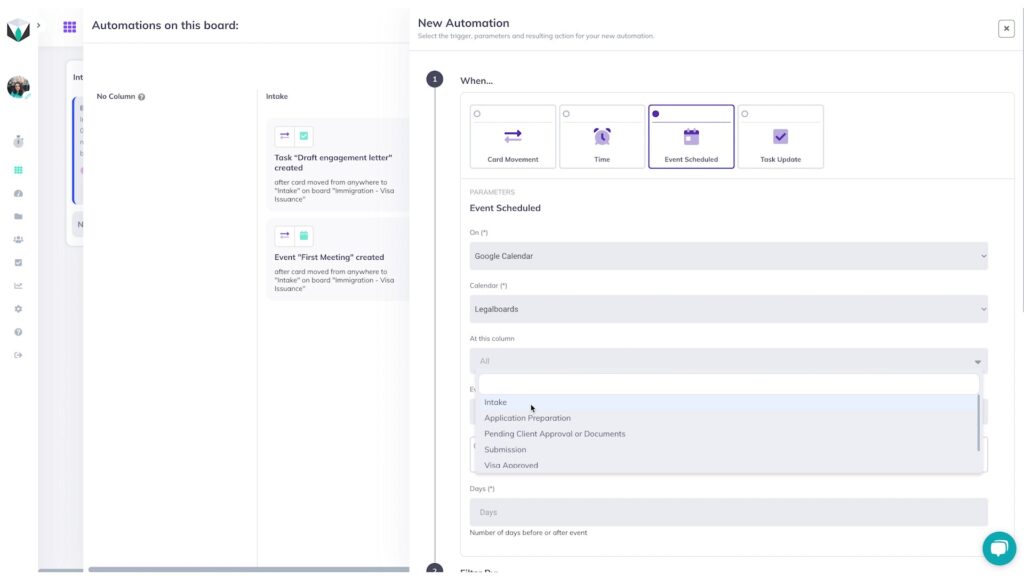
    For this automation, we want the trigger for it to be that an event was scheduled. So, we’ll select that for the “When…” section.

    Now, we’ll need to input the information about the event this automation will be based on. As the event we’re using is the same as the one we just created, we’ll use the first example for reference.

    One thing to note here is that we need to specify if the email is being sent before or after the meeting, and the time period between the email and the meeting. In this example, we want the email to be sent 1 day before the meeting in order to remind the responsible attorney about the upcoming meeting.

    Next, we’ll need to choose who we want to receive this email. Because we want to remind the responsible attorney of this meeting so that they are prepared, we’ll select them. We’ll make the subject “First Call Tomorrow” and give a brief description of what the attorney needs to do. We can also select if we want to include the card information to provide more clarity.

    Still Need Some Help?

    If you have any questions or problems with your data being synced, please contact us at support@legalboards.com, generate a ticket, or contact us through the chatbot.

    You can learn more about Legalboards here, or visit our YouTube channel for more help getting started in Legalboards. And if you have any questions, reach out to us!
  • Filevine Integration

    Filevine Integration

    We’re excited to team up with Filevine to provide users with new ways to organize and manage their workflow. By using the Filevine integration with your Legalboards account, you’ll be able to have all of your data in one place. Now, you’ll be able to do what you love and more efficiently- practicing law.

    By combining our task management and automation features with Filevine’s legal case management capabilities, you can start saving time while also working with a simplified visual workflow. With Filevine and Legalboards, you can be sure that you’re delivering excellent client-led service.

    Filevine + Legalboards Benefits

    1) Save More Time

    Utilizing the Legalboards automation capabilities, busy lawyers can save time by automating repetitive processes of their work. Some of the most common automations we see involve email updates to team members, checklist creations, and board (aka matter) management.

    By automating emails, you can set up triggers like time or card movement so that team members and clients can stay updated on the progression of a case. With the time trigger, this can be especially useful for preventing delays or bottlenecks in your workflow. For example, you could set up an automated email to be sent to a responsible attorney when they are approaching a key deadline in a case.

    Additionally, checklist creation helps keep you and your team on top of your tasks. By automating checklists, you can address all of the smaller tasks that are involved with the stages of a case. You can learn more about automation and how to set up common ones in our automation resources.

    2) Get Unparalleled Views Into Your Firm

    Legalboards allows you to easily visualize and organize your matters in whatever way works for you. By using Kanban, you and your team can see your matters in a bird’s eye view or drill down into specific matters. 

    By customizing your board through checklists and custom labels, you can tailor your account to reflect your workflow. If you’re a visual learner, you have multiple options for you to organize your board and cards. Legalboards also allows users to view their matters in different ways- calendar (through the task center), list, and Kanban.

    3) Real-time Data

    With the seamless integration of Filevine and Legalboards, your data will be updated in real-time- no need to input data twice. This saves you the stress of worrying about if the data you’re working with is updated and prevents miscommunications or misunderstandings for your team.

    Getting Integrated With Filevine

    It’s easy to use the Filevine integration. If you’re more of a visual learner, you can watch the video below to learn more

    Step 1: Setting up your account

    The first step is to create a Legalboards account. If you’re a new user of Legalboards, you can follow our onboarding wizard to create your first board and connect your account to the programs you already use. If you’re an existing user, you can integrate Filevine by accessing “Extensions” in the menu.

    The next step in setting up your account is to integrate software. Click on the Filevine tile and then select the “Install Now” button to initiate this process.

    Step 2: Input Your Information

    Because this integration requires an API key to integrate, you’ll need to provide your company name, API key, and App secret (optional) to complete the integration. If you’re unsure as to what that means- don’t worry, finding the API key and App secret is a lot easier than it may seem.

    Filevine has security rules that require you to have access to API credentials to make this integration work properly. The only thing you’ll need to do here is to create Legalboards API credentials in your account. If you need help doing this, Filevine has a great guide to how to get your API key and App secret and connect your accounts.

    If you have any questions or problems with your data being synced, please contact us at support@legalboards.com, generate a ticket, or contact us through the chatbot.

    You can learn more about Legalboards here, or visit our YouTube channel for more help getting started in Legalboards. And if you have any questions, reach out to us!
  • Practice Panther Integration

    Practice Panther Integration

    We’ve teamed up with Practice Panther to provide users with new ways to organize and manage their workflow. By integrating Practice Panther with your Legalboards account, you’ll be able to have all of your data in one place. Now, you’ll be able to do what you love and more efficiently- practicing law.

    By combining the two programs, you can start saving time with automations while also working with a simplified visual workflow. With Practice Panther’s robust features, Legalboards can supplement your task and case management to deliver better service to your clients.

    Practice Panther + Legalboards Benefits

    1) Enhanced Automation

    Utilizing the Legalboards automation capabilities, busy lawyers can save time by automating different aspects of their work. Some of the most common automations we see and help users set up involve email updates to team members, checklist creations, and board (aka matter) management.

    By automating emails, you can set up triggers like time or card movement so that team members and clients can stay updated on the progression of a case. With the time trigger, this can be especially useful for preventing delays or bottlenecks in your workflow.

    Additionally, checklist creation helps keep you and your team on top of your tasks. By automating checklists, you can address all of the smaller tasks that are involved with the stages of a case. You can learn more about automation and how to set up common ones in our automation resources.

    2) Visualize Your Workflow

    Legalboards allows you to easily visualize and organize your matters. By using Kanban, you and your team can see your matters in a bird’s eye view. The Legalboards interface allows you to see how your cases are progressing at a glance. You don’t need to open each individual case file in order to see what stage it’s at. 

    By customizing your board through checklists and custom labels, you can tailor your account to reflect your workflow. If you’re a visual learner, you have multiple options for you to organize your board and cards. Legalboards also allows users to view their matters in different ways- calendar (through the task center), list, and Kanban.

    3) Updated Data in Real-time

    By integrating Practice Panther, your data will be automatically synced. Because of this, you won’t need to input your data twice. The specific fields that are synced between Practice Panther and Legalboards are the following:

    Contact information: first and last name, email, and phone number; and

    Matter information: name, case number, opened date, practice area, description, SOL date, and clients.

    Getting Integrated With Practice Panther

    It’s easy to integrate your Legalboards account with Practice Panther. If you’re more of a visual learner, you can watch the video below to learn more.

    Step 1: Setting up your account

    The first step is to create a Legalboards account. If you’re a new user of Legalboards, you can follow our onboarding wizard to create your first board and connect your account to the programs you already use. If you’re an existing user, you can integrate Practice Panther by accessing “Extensions” in the menu.

    Please note, we use the Probate board template in this example but if you practice in a different area, we have multiple options within our board gallery for you to quickly get started. 

    The next step in setting up your account is to integrate software. You’ll find the Practice Panther icon and then click on the “Install Now” button to initiate this process.

    Step 2: Authorizing your account

    Whether you’re a new or existing user, you’ll need to authorize Legalboards to access your Practice Panther data. Once this is completed, you’ll see the data in your Legalboards account.

    To do this, log in to your Practice Panther account and click on the “Grant Access” button. If you have any questions or problems with your data being synced, please contact us at support@legalboards.com, generate a ticket, or through the chatbot.

    Step 3: Getting Started with Legalboards

    You can learn more about the Practice Panther integration here, or visit our YouTube channel for more help getting started in Legalboards. And if you have any questions, reach out to us!
  • Introducing Our New Partner: Selectius

    Introducing Our New Partner: Selectius

    One of our current partners is Selectius. Selectius is a firm that focuses on helping improve legal management and leadership through consulting, training, and coaching services providing Kanban University programs targeted to legal services professionals.

    Like Legalboards, Selectius also focuses on Kanban and agile legal management. Their goal is to help the legal industry become more innovative and adaptive through the use of the Kanban Method. They provide legal professionals with the capabilities and tools they need to start delivering modern legal services to their clients with more effective and efficient processes.

    Selectius’ Services

    Selectius starts reflecting on the corporate culture of a firm and encourages a mindset shift to adopt the key leadership values that are associated with agility and specifically with the Kanban Method. They provide training on how to apply specific practices in a legal setting that will allow teams and organizations to emerge the necessary cultural values to promote evolutionary change.

    As well, they can help design and implement Kanban systems that are tailored to a team or a firm’s workflow and provide coaching/mentoring to make sure everything runs smoothly. With their consulting services, they also can suggest some technology to help improve this new base.

    Why We Love Selectius

    Kanban Method is a great way for lawyers to visualize their workflow and save time managing it while improving how professionals collaborate and they deliver legal services to clients. At Legalboards, we love the visual aspect to Kanban boards. In one glance, you can see exactly what needs to be done, what has been done, and where bottlenecks occur.

    Selectius focuses on helping firms make the switch from out-dated methods with their consulting, training, and coaching. We’re aligned with their focus on innovation and empowering legal teams to work more effectively. 

    Special Programs for Legalboards Users

    Selectius founder Lilian Mateu is a Kanban University Accredited Trainer and Coach and offers a training and coaching program “Fast Start Kanban”, which includes the  “Legal Kanban Practitioner” class and credential granted by Kanban University. Lilian also offers tailored STATIK Workshops and coaching sessions that cover all you need to use Kanban Method in a legal setting.

    Current Legalboards’ users will receive discounts on the LKP course and for the Workshops and coaching sessions. Contact Selectius to get started.

  • Introducing Our New Partner: KORE Accounting Solutions

    Introducing Our New Partner: KORE Accounting Solutions

    We’re excited to announce a new partnership between KORE Accounting Solutions and Legalboards! KORE Accounting Solutions is a future-focused bookkeeping and management accounting firm specializing in providing legal professionals and business owners with the data and insights they need to stay compliant and run more profitable practices.

    KORE serves law firms from across the United States and works hard to ensure that their clients are empowered to reach their goals. The KORE Team has over 30 years of combined accounting experience and has been specializing in addressing the unique needs of attorneys since 2017. Through their expertise in both legal accounting and industry-leading legal practice management platforms such as Clio and MyCase, KORE works closely with their customers to improve efficiency and increase profitability while maintaining compliance.

    Why We’re Excited About KORE Accounting Solutions

    KORE Accounting Solutions provides expert guidance on accounting best practices, insights that can be gained through analysis, and support with Client Trust Account management. They’re focused on providing their clients with the tools they need to address their business goals and challenges. By focusing on developing and implementing effective processes, KORE Accounting Solutions helps firms lay a strong business foundation. 

    The KORE Accounting Solutions team is experienced, knowledgeable, and above all, want to deliver the best customer service they can to their clients. This is something that we at Legalboards can relate to. KORE Accounting are also Quickbooks ELITE Certified ProAdvisor, Clio Certified Consultants, regular presenters on various accounting and law firm operation CLEs, and proud members of the American Institute of Professional Bookkeepers.

    Want to learn more about our newest partner? Visit their website, or follow them on LinkedIn to hear more from them and how they can help provide you with a complete solution for your firm. 

    Interested In Becoming A Partner?

    Interested in becoming a partner with us? Contact us today to learn more about our partnership program or see how we can help your firm by booking a demo.