Category: Integrations

  • Legalboards Announces Partnership With Clerx

    Legalboards Announces Partnership With Clerx

    Legalboards is partnering with Clerx to help small and mid-sized law firms bring more structure and clarity to client intake.

    This partnership connects two parts of the same workflow that are often disconnected in practice: the first client call and the internal work that follows.

    Why This Partnership Exists

    Client intake is one of the most operationally fragile moments in a law firm.

    Calls arrive at unpredictable times. Information is captured quickly. Then the real work begins: follow-ups, document collection, internal review, and decisions. Without a clear handoff, intake becomes dependent on memory, inboxes, and constant check-ins.

    Legalboards and Clerx are partnering to reduce that friction.

    About Clerx

    Clerx is an AI-powered receptionist and phone intake platform built for small and mid-sized law firms.

    Clerx answers inbound calls instantly, captures and qualifies leads, gathers intake details, and ensures calls are handled consistently, including after hours. The focus is not on replacing people, but on making sure every potential client is handled reliably and no opportunity is missed due to timing or availability.

    In this partnership, Clerx owns the first interaction.

    About Legalboards

    Legalboards is a legal operations platform designed to bring visibility and structure to how law firms run their internal workflows.

    Using visual, customizable boards, Legalboards helps firms manage intake, tasks, and case-related work in one place. Teams can see ownership, next steps, and status without relying on spreadsheets, emails, or manual follow-ups.

    In this partnership, Legalboards owns execution after intake begins.

    Integration Intention

    The Clerx and Legalboards integration is designed around intake continuity.

    When Clerx captures a new lead by phone, that information can flow into Legalboards as a structured intake item. From there, Legalboards workflows guide what happens next.

    This means:

    • Intake details are not trapped in call notes or inboxes
    • Ownership is clear from the start
    • Follow-ups and next steps are visible to the whole team

    This is a workflow handoff, not a complex technical build. The goal is operational clarity, not feature overload.

    What This Means for Law Firms

    Firms using Clerx and Legalboards together can expect:

    • Fewer manual handoffs between phone intake and internal systems
    • Clear visibility into new leads and intake status
    • Reduced reliance on memory and individual team members
    • More consistent follow-through after the first call

    The result is a more reliable intake process that works even when the firm is busy, understaffed, or handling higher volume.

    Built for Small and Mid-Sized Firms

    This partnership is designed for firms that want structure without enterprise complexity.

    Firms that need intake to work when calls come in after hours, when someone is out, or when volume spikes unexpectedly.

    Clerx and Legalboards support those realities instead of assuming perfect conditions.

    Book a session to explore more

    Learn More

    Explore Clerx:

    https://www.clerx.ai

    This partnership reflects how Legalboards approaches integrations: connecting the right tools at the right moments so firms can operate with less friction and more clarity.
  • MyCase Integration

    MyCase Integration

    We’re excited to be teaming up with MyCase to help busy lawyers get (and stay) organized! The MyCase and Legalboards integration will allow you to get back to practicing law, not administrative tasks.

    By combining Legalboards and MyCase, you can start saving time while working in a new visual way. Legalboards provides some great advantages to MyCase users to help make their case management software run smoothly.

    Benefits of Integrating MyCase + Legalboards

    1) Legalboards Automation Capabilities

    Legalboards allows you to automate various aspects of your work. Common automations include sending email updates, checking in on clients after certain periods, checklist creation, and more.

    Automated emails are to be sent based on triggers like time or card movement, so team members (or even clients) can stay updated on their matter’s progress. The time trigger is especially helpful for ensuring the continued progress of matters.

    For example, if you have an inactive or delayed board, you can set up emails to be sent to the responsible attorney to check in on that matter. If you want to learn more about how these work, check out our automation resources.

    2) Visualizing and Organizing Your Work

    With Legalboards you can easily visualize and organize your matters. The minimal Kanban user interface allows you to see at a glance what stage your matters are at without having to open each case file. Through customizations to the board, you can tailor your account to reflect your workflow accurately.

    As you can see in the screenshot below, how your work is progressing in Legalboards can be understood at a glance. It’s up to you how customized you want to make your board/cards. With the customization capabilities, you can add checklists and custom labels (including colors) to cards so you can quickly navigate your matters.

    Within the task center, Legalboards also has a calendar view so you can see your matter’s timeline in a simple format.

    3) Two-way Synchronization

    By integrating MyCase, your data will be automatically synced. Because of this, you won’t need to input your data twice. The specific fields that are synced between MyCase and Legalboards are the following;

    • Contact information: first and last name, email, and phone number; and
    • Matter information: name, case number, opened date, practice area, description, SOL date, and clients.

    Get Integrated

    To use the MyCase integration, you’ll need to first connect your MyCase and Legalboards accounts. Learn how to do so in the video below;

    Learn more about this integration here, or contact us for more help!

  • OneDrive Integration

    OneDrive Integration

    It’s easier than ever to keep track of your files with the OneDrive integration in Legalboards. By integrating your Legalboards account with OneDrive, you can seamlessly sync all of your files so you and your team can collaborate effectively while increasing your productivity.

    In this guide, we’ll walk you through how to set up the integration. If you’re more of a visual learner, check out the video guide below, or on our YouTube channel.

    https://youtube.com/watch?v=lnuM21jTL3Y%3Fcontrols%3D1%26rel%3D0%26playsinline%3D0%26cc_load_policy%3D0%26autoplay%3D0%26enablejsapi%3D1%26origin%3Dhttps%253A%252F%252Flegalboards.com%26widgetid%3D1%26forigin%3Dhttps%253A%252F%252Flegalboards.com%252Fresources%252Fintegrations%252Fonedrive-integration%252F%26aoriginsup%3D1%26gporigin%3Dhttps%253A%252F%252Flegalboards.com%252Fwp-admin%252Fedit.php%253Fpost_type%253Dpost%2526paged%253D2%26vf%3D1

    How to integrate OneDrive with Legalboards

    Step 1: Installing OneDrive

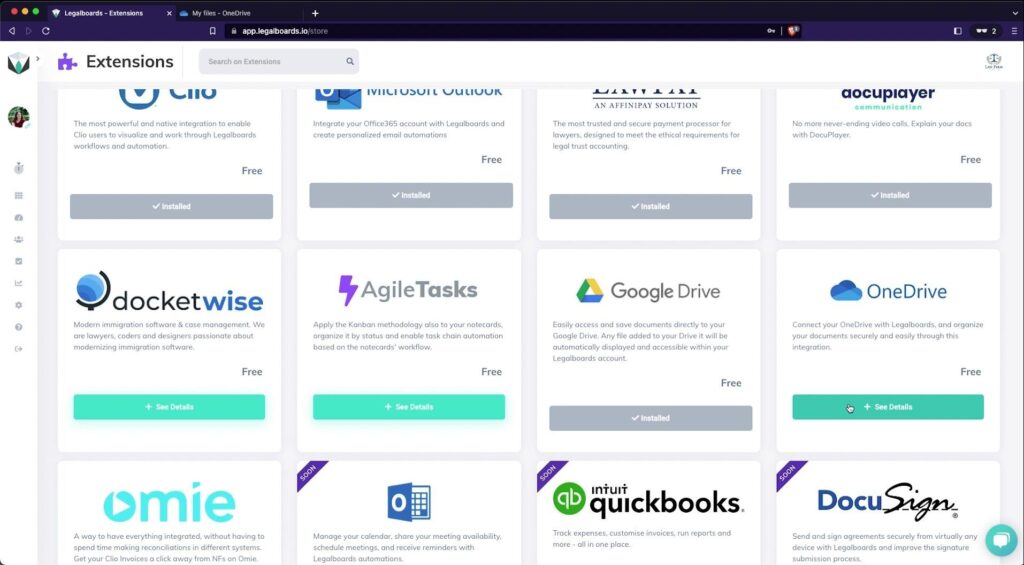
    From the menu on the left of your screen, click on the “Settings” icon. From the sub-menu that appears, choose “Extensions”, and then find OneDrive and click on the “See Details” button (as shown below).

    OneDrive Integration Extension Screenshot in Legalboards

    From here, click on the “Install Now” button and select “Install” on the confirmation pop-up.

    Step 2: Authorizing the OneDrive integration

    After you selected “Install”, another pop-up should appear that will allow you to authorize the integration.

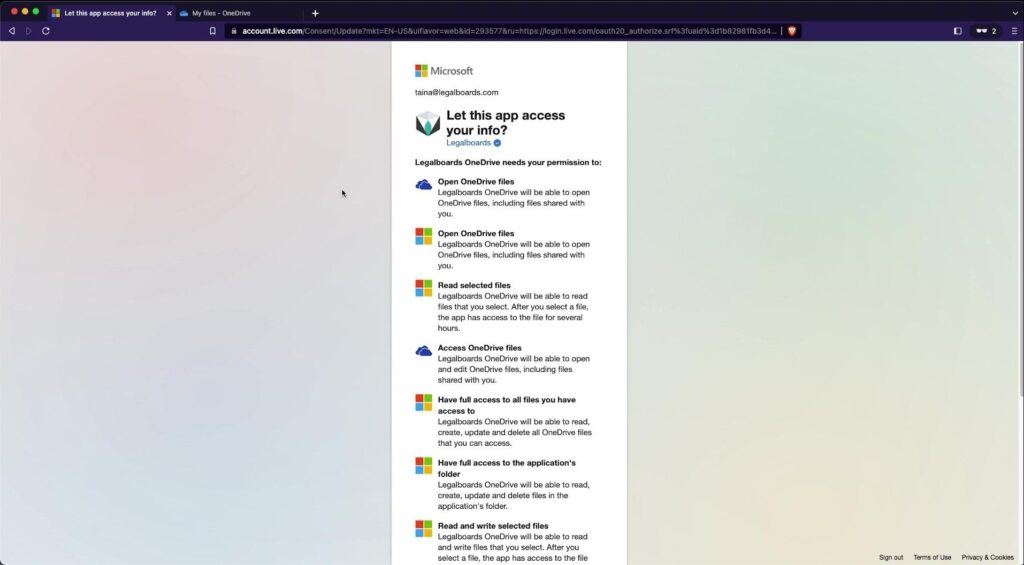
    From here, we’ll sign into our Microsoft account and confirm that we want to allow Legalboards access to our cloud storage (see below).

    Once we’ve allowed Legalboards access to our OneDrive account, we’ll be taken back to the Legalboards interface where we can select which OneDrive we want to use and select “Save” to link the drive to our Legalboards account.

    Step 3: Using OneDrive in Legalboards

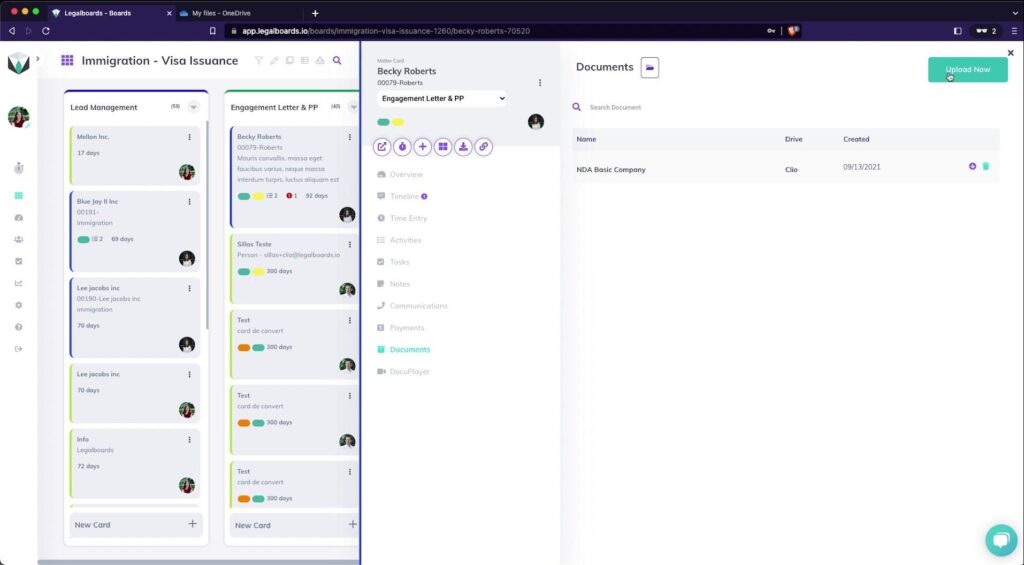
    Now that we’ve successfully integrated OneDrive, we’re able to click on any card and upload or see files from OneDrive in the “Documents” tab.

    To upload files from our computer, we’ll need to add the files by selecting the “Upload Now” button.

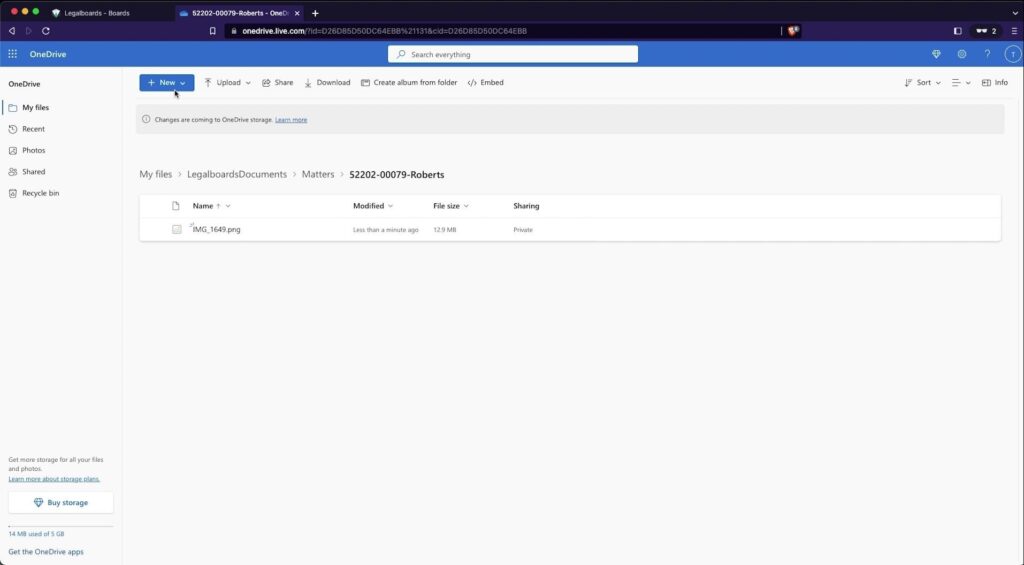
    When we select the file from our computer, we can also now specify OneDrive as a source for the file to upload to as well. We’ll do this now, and then shortly after, that file can be found in our OneDrive.

    As you can see, this integration allows you to easily sync your accounts so you can access the files you need for matters and keep both systems updated in real time.

    Need some more help?

    Didn’t find what you were looking for? Check out our support portal, and YouTube channel, or contact us for more help.

  • LawPay Integration

    LawPay Integration

    Legalboards and LawPay are both simple, user-friendly, and smart tools for an agile legal practice. We know that today’s lawyers are strapped for time. That’s why we’ve integrated Legalboards and LawPay so you can boost your productivity with the help of experts.

    Through the use of agile methodologies, the Legalboards platform allows you to increase workflow efficiency. By integrating LawPay within your system, now you can improve the legal payment part of any matter.

    How to Set Up The Integration

    Let’s walk you through how to get started with the integration. If you’re more visual, you can also follow with our video guide on YouTube.

    Getting Started in Legalboards

    First, you’ll need a Legalboards account to integrate LawPay to. If you already have a Legalboards account, you can skip to the next section (Adding LawPay to an Existing Account).

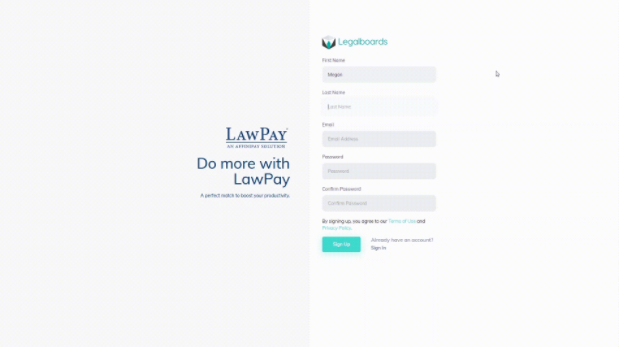
    You can create a new Legalboards account either directly from the Legalboards sign-up page or through the LawPay and Legalboards sign-up page.

    After you submit either form, you will be transferred  to LawPay´s authentication page. Now you’ll need to sign-in with LawPay in order to authorize Legalboards´ access so we can connect with the LawPay system.

    After authorizing Legalboards integration in LawPay, you will be sent back to Legalboards. Now you can use Legalboards to create your workflows and automations while managing your payments through LawPay.

    Adding LawPay to an Existing Account

    If you already have a Legalboards account, adding the LawPay plugin is very simple. You just need to sign in to Legalboards as an admin permission user and then go to Settings > Extensions.

    Find the LawPay icon and click on “See Details” then “Install Now”.

    After confirming your choice, you will be sent to the authentication page in LawPay, sign in there, and authorize Legalboards to be integrated with LawPay. Now you can also use Legalboards as you normally would but have LawPay’s legal billing and payment management capabilities.

    How to Use the Integration

    Now you should have both accounts linked, which allows them to be synchronized. When you open the car’s detail and click on the Payments tab (located on the left side of the screen), you’ll be able to see all bills created for any card that has an email linked, such as contacts or matters.

    You can also create a new bill for any contact or matter that you have on Legalboards, again, with the caveat that the contact/matter has an email attached to it.

    To see the full capabilities of the LawPay integration, open a card that contains an email and then select “New Bill”. Fill in the form as you need, and save. The new bill will be created in your LawPay account directly, and your client will be notified about this open bill.

    Once the client pays the bill, Legalboards and LawPay will both automatically update. Because the two platforms are synced, you don’t need to monitor and manage both platforms.

    If you still need help or have any questions, check out our support portal, contact us here, or check out other resources about the integrations Legalboards offers here.

  • Google Drive Integration

    Google Drive Integration

    In this guide, we’ll walk you through how to set up and start using the Google Drive integration within Legalboards. Keeping files attached to matters (or cards in Legalboards), can be difficult. File management is often the key to staying organized so you can continue to be productive.

    Our new Google Drive integration allows you to access your files within your Google Drive in your Legalboards account. Now, you can access your files in real time. As well, thanks to the automatic syncing between the Drive and Legalboards, it’s easy to keep matters on track. Even if you’re sending a file found inside a matter, the file is synchronized to reflect any changes made.

    If you’re more of a visual learner, check out our video guide below, or on YouTube. If you need more explanation on how to get started within Legalboards, check out our support portal for more help.

    Integrating Google Drive with Legalboards

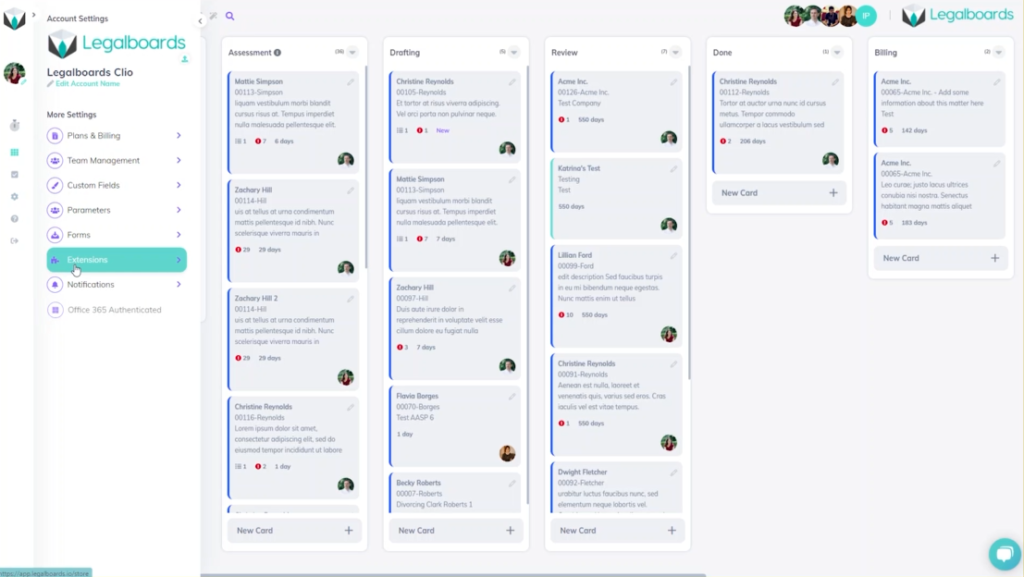
    In Legalboards, we’re going to find the “Settings” icon on the left of the screen and select it. In the sub-menu that will appear, we’ll then select “Extensions”. We’ll then be taken to our collection of extensions where we’ll select the free Google Drive integration to be added.

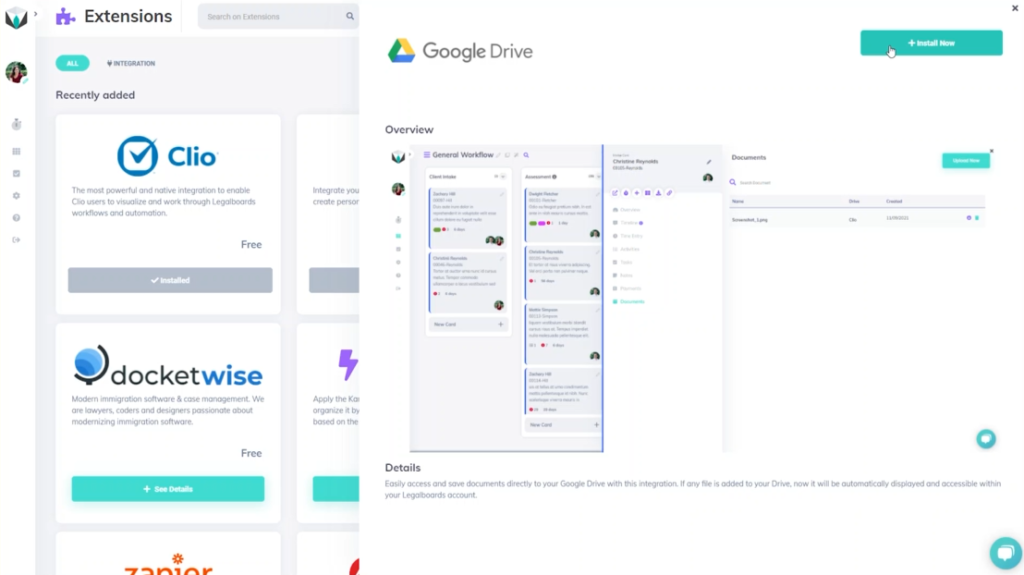
    Google Drive integration screenshot 1

    When you select the Drive, you’ll see an overview of what it looks like while in use within Legalboards. From here, we’re going to select the “Install Now” button to add the Drive to our account.

    A confirmation pop-up will appear to make sure that we want to add the Drive to our account and once we’ve confirmed, we’ll need to authorize Google Drive. This is very simple, we’re just going to select the Google Account we want to connect and sign in. From here, we’ll see what Legalboards can access in your drive (i.e. see, edit, create, and delete files within the Drive, view pictures, etc.).

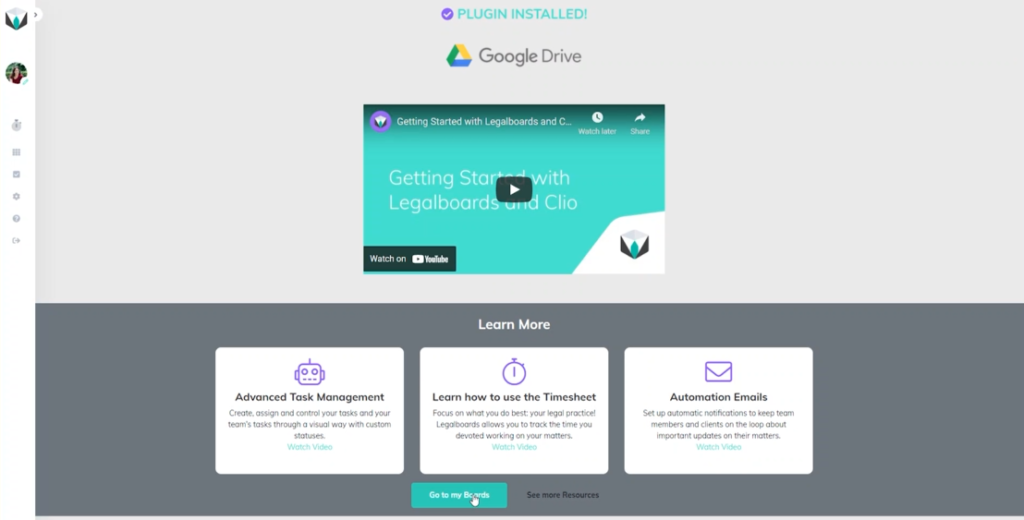
    After allowing Legalboards to access our Google Drive, the plug-in will be installed. From this screen showing the successful installation, we’ll go to our boards.

    What Does the Integration Looks Like Within Legalboards?

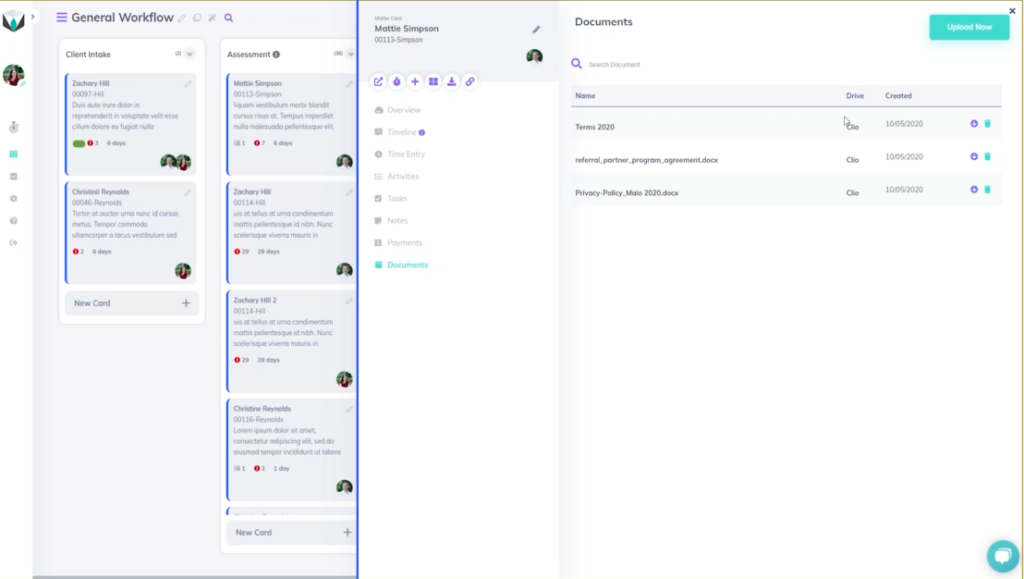
    Now that the Drive has been successfully added, we’ll take a look at how it works within Legalboards. We’ll click on a card (matter) and an overview of that card will appear. From the card’s sub-menu, we’ll select the “Documents” option to see any associated files with the matter.

    In our example, we have three associated files with the card. This screen tells us the name of those files, where they came from (i.e. Clio in our example), the date they were created, and allows us to delete files. We also can use the “Upload Now” button to upload new files- which we’ll do now.

    In the sub-menu that will appear we can now select “Google Drive” as a source and select which files from the Drive we want then save. Now we can see four files- three from Clio and one from Google Drive.

    What Does This Look Like Within Google Drive?

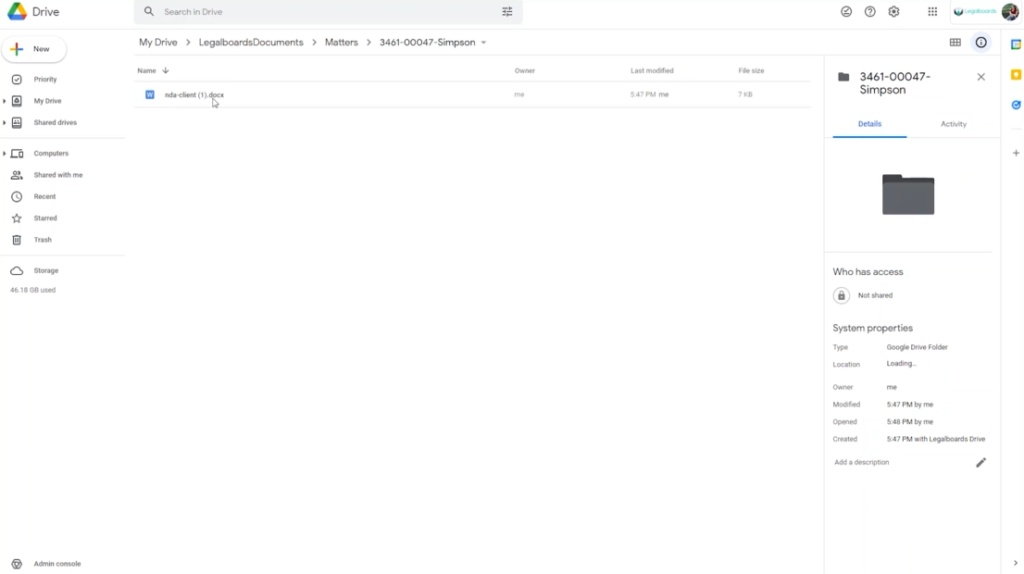
    So we know what the integration will look like within Legalboards, but what about in our Drive? As seen below, a folder called “LegalboardsDocuments” will have a sub-folder called “Matters”. When we select this, folders for associated matters will be created with the same name they have in Legalboards.

    Within that matter’s folder, the associated files they are connected to will be in the Drive and will be updated to reflect any changes made in Legalboards.

    Didn’t find what you needed? Check out our support portalcontact our team, or check out our other resources for help using Legalboards.

  • Legalboards and Clio

    Legalboards and Clio

    For today’s time-strapped law firms, being able to collaborate effectively with your internal team and external clients has never been more critical. With so many matters on the go, it’s easy for tasks and deadlines to slip through the cracks, with potentially devastating results for your firm, and a poor client experience.

    Luckily, there are a wide variety of technologies available to help law firms combat these problems. These solutions manage the firm’s caseload, gain visibility into their workflows, and identify and fix gaps in procedures. In this post, we’ll look at how law firms around the world are using Legalboards and Clio, the world’s leading cloud-based legal software, together, and the benefits they’re enjoying as a result.

    Living Better Through Integration

    Firms using Clio to manage matters, contacts, and billing already have a significant advantage over the competition. They see improvements in firm productivity and accessibility. By adding Legalboards to the mix, Clio can be even more powerful.

    Legalboards and Clio integration

    Legalboards is visually based with a user-friendly dashboard that gives firms access to the information they need at a glance. However, sometimes choosing additional solutions to pair with Clio can result in wasted time. This can be from entering redundant information into both systems—but with Legalboards, this doesn’t happen.

    By integrating Legalboards and Clio, law firms can eliminate dual data entry between the two products. This is because information about matters, tasks, notes, time entries, payments, and even custom fields are automatically synced.

    This eliminates unnecessary time spent by admin and legal staff entering client or case information into two systems and reduces the risk that information is entered incorrectly.

    Visual Learners

    Law firms have a lot of moving pieces and firm deadlines (no pun intended). Filing dates, court dates, and client meetings are key obligations. Each of these obligations carries its own list of required work, and drastic consequences if deadlines are missed.

    In fact, failure to meet deadlines is listed as a leading cause of legal malpractice. This only grows in frequency with more staff members being associated with a particular matter.

    A big benefit of the Legalboards/Clio integration is the ability to apply an easy-to-understand visual layer to Clio’s data. Legalboards provides a visual timeline of matter status, tasks, and upcoming deadlines.

    Legalboards: The Visual Matter Management Software

    It also gives everyone working on a matter a clear understanding of what work needs to be done, and by when. This will help firms ensure they’re meeting their professional obligations, identifying breakdowns in processes and workflows, all while delivering a great client experience, every time.

    Automations

    For law firms not using automation, you’re at risk of falling behind. Thanks to software and integrations, law firms are now able to automate workflows. Automations help reduce the risk of error and save valuable time by letting software handle unnecessary busy work.

    With Legalboards’ automations, law firms are able to plan and organize efficiently by automating actions such as: creating tasks, sending emails, and moving cards.

    Automation can be created at the matter level, or at the account level to apply the same task creation for each matter (or client) entering the pipeline. If you’re a high-volume firm or practice group managing a lot of similar cases, this feature can be invaluable.

    It could save countless admin hours that can be focused on doing something more valuable for the firm—like acquiring new clients. For businesses that bill out at hundreds of dollars an hour, every second counts.

    Benefits of Using Legalboards and Clio

    By integrating Legalboards and Clio, law firms can supercharge their Clio experience to operate more efficiently and on schedule. The combined software also provides firmwide visibility into the workflow in order to serve clients effectively.

    See how Legalboards can give your Clio account superpowers—book a demo today.