Category: Featured

  • Multiple Checklists

    Multiple Checklists

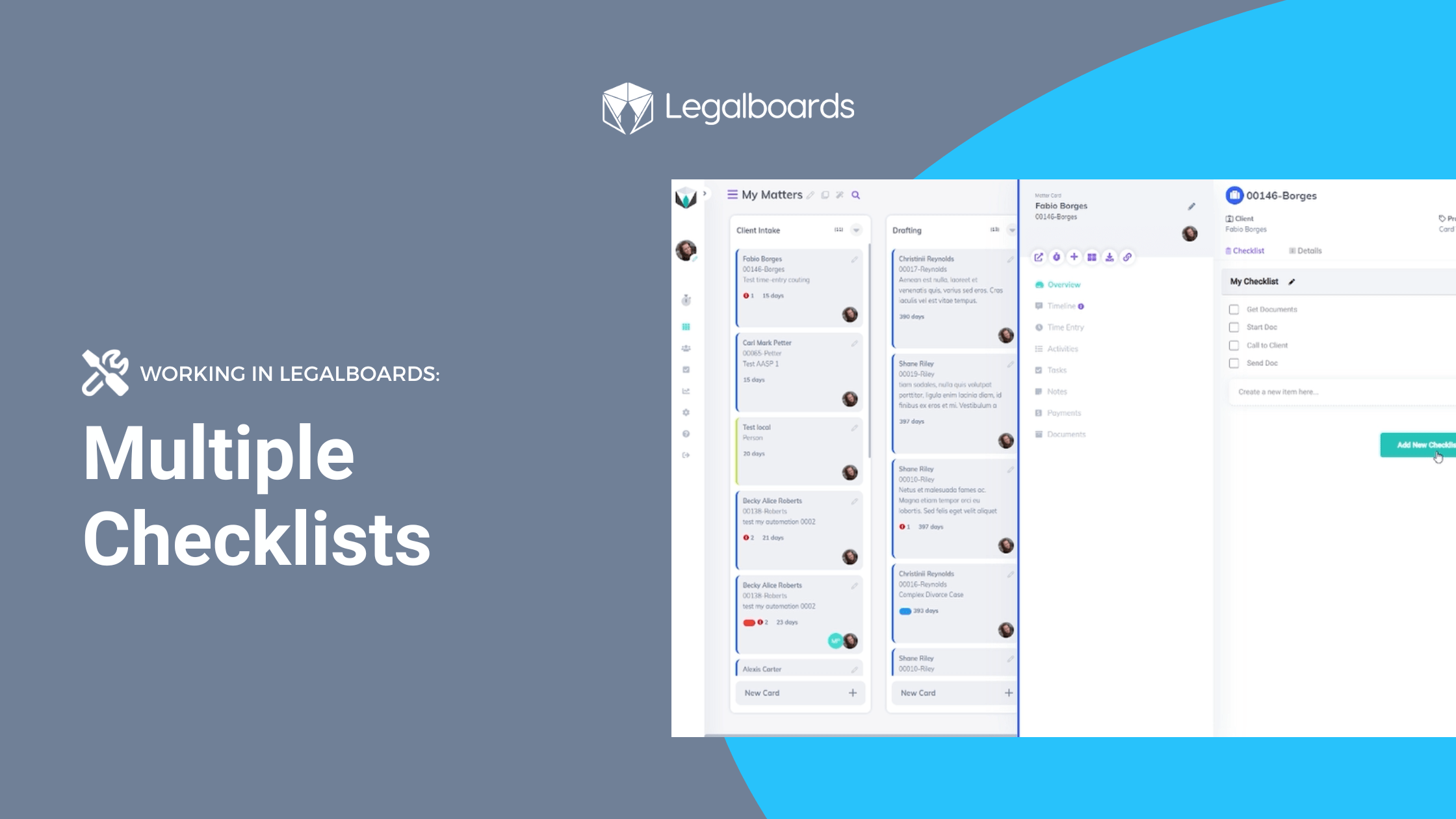
    Having multiple checklists within the same card in Legalboards can be super helpful. With the ability to create multiple checklists, you can improve the organization of your workflow by enhancing your cards.

    In this guide, we’ll walk you through how to create multiple checklists within the same card in Legalboards.

    How to Create Checklists

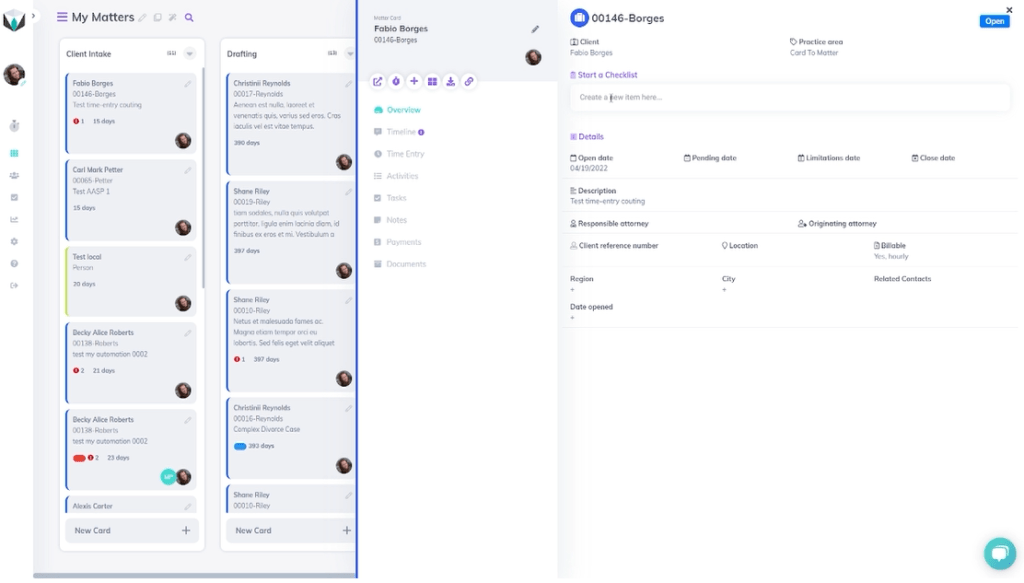
    Let’s start by clicking on a card within our board. From the sub-menu, we’re going to focus on the “Start a Checklist” field. In our example, we’re going to add the item “Get Documents” here.
    Once we’ve added that item to the checklist, it will appear under a sub-menu called “My Checklist”, as seen below.
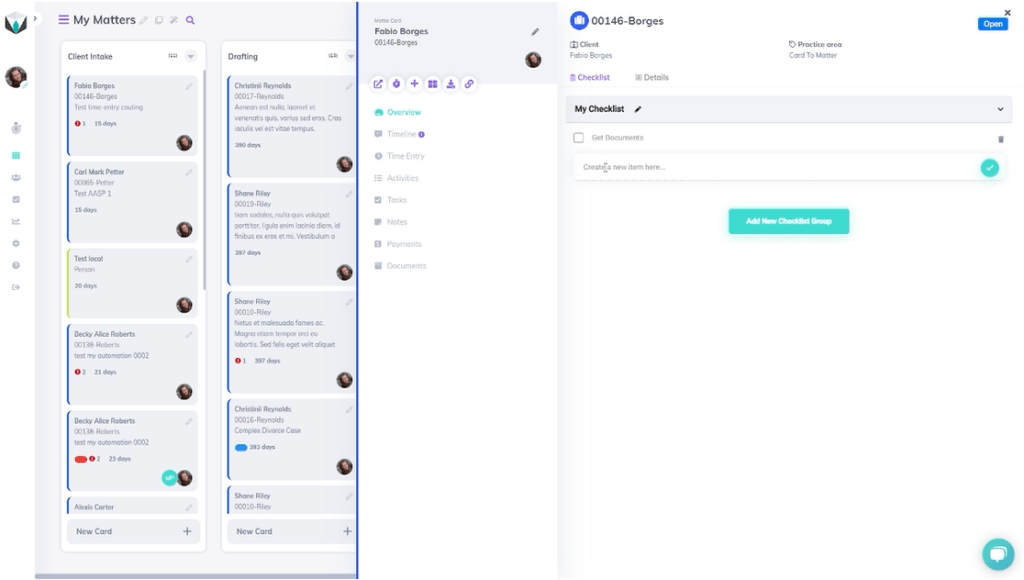
    From here, we can add more items to the checklist for this card. For our example, we’re going to add three more items on our checklist (“Start Doc”, “Call to Client”, and “Send Doc”) that are relevant to the card. Once we’ve added these tasks, we have now created one checklist.
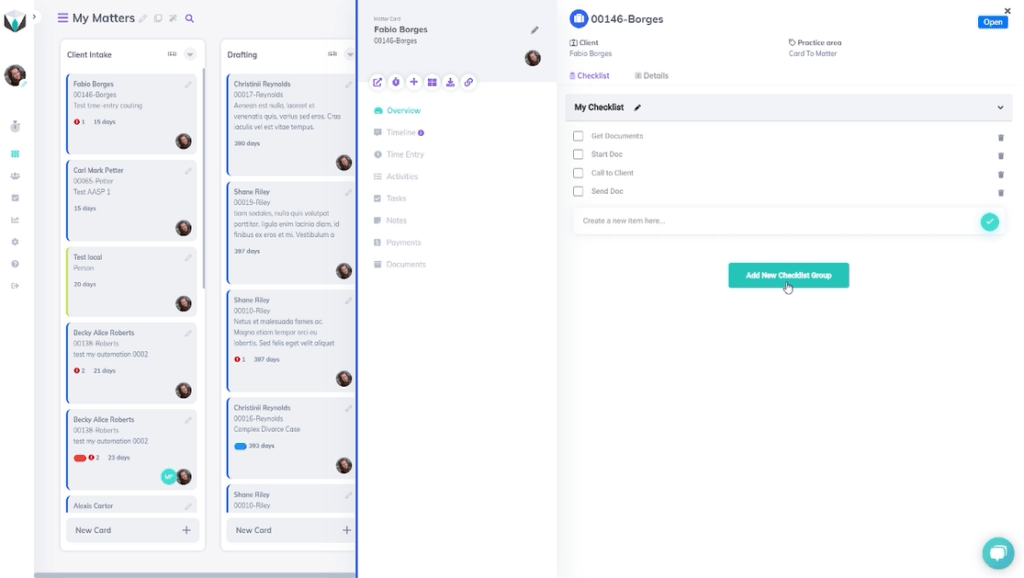
    To create another, we’ll click on the “Add New Checklist Group” and give it a name. For this example, we’ll name the new checklist “Accounting” and click on the name to be able to add new items to this new checklist within the card.

    For this specific list, we’re focused on billing activities. So, we’ll add the items “Start Bill”, “Approve Bill”, and “Contact Client” to the checklist (shown below). A reminder, by clicking the checklist name, the items will be shown.

    Completed Items and Changing Names

    Completed Items

    The goal of creating a checklist is to break up a larger task into smaller and easily completed steps (find more about the difference in our resource). So, let’s go over what happens when you complete an item on a checklist.

    When we’ve completed an item, we can click on the name of the checklist that it’s associated with. In our example, we want to update the checklist to reflect the completion of one of the tasks on the “My Checklist” checklist.

    By clicking the box next to an item, it’s then marked as completed. To see these items, we can click the purple text (“View Completed Checklist”) next to the checklist name.

    Changing The Name of a Checklist

    In our example, we also want to change the name of the “My Checklist” checklist to “General Checklist”. We can change the name by clicking the “Edit” button next to the checklist name, where our screen will look like the one below.
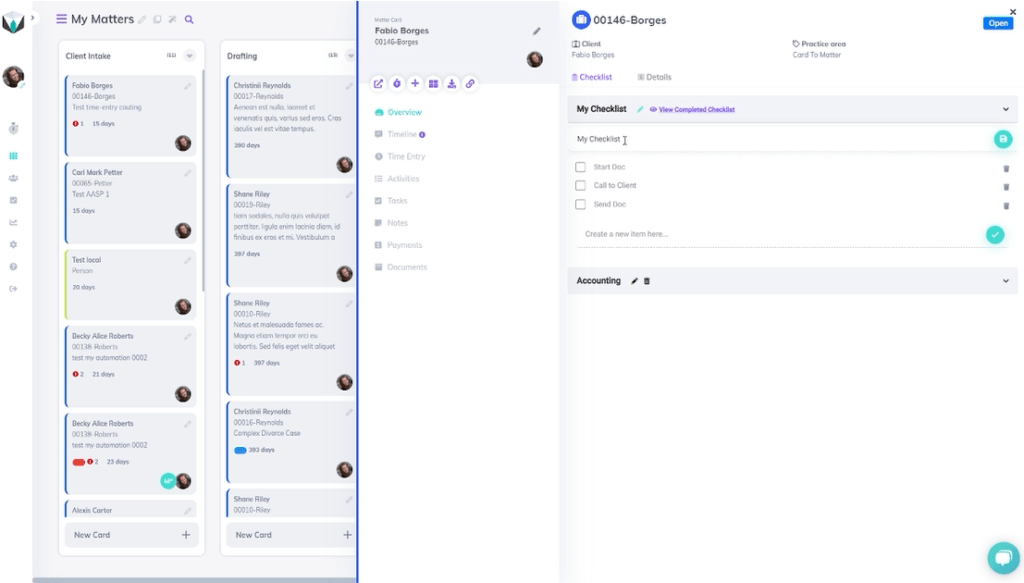
    To change the name, we’ll update it to be “General Checklist” and select the save button to save the changes.

    Still, Need Help?

    Didn’t find what you needed? Check out more videos, visit our support portal for more help, or contact our support team.
  • Benefits of Adding Legalboards to Your Clio Account

    Benefits of Adding Legalboards to Your Clio Account

    Many professionals- in any industry, are grappling with what combination of software and devices works best for them. As we move into fully remote or hybrid work environments, it’s clear that using multiple devices/software is the best way to get things done.

    For software specifically, a combination of multiple programs can be the best solution for optimizing how we work. However, it’s important to keep in mind that software should work with you to complete tasks. And a common challenge is finding the right combination of programs to include in your tech stack.

    Within the legal industry, a leading software designed specifically for lawyers is Clio. And the benefits of adding Legalboards to your Clio account are clear.

    Legalboards allows Clio users to visualize their workflow, simultaneously update files/data, and automate tasks within workflows. You can read more about this in this article.

    With Legalboards’ features focused on getting your tasks organized, you can enhance the data you already have in Clio. By integrating Legalboards with Clio, we can help you automate tasks and visualize your work. Using automations can be a great place to start getting organized, so let’s focus on it first.

    1) Legalboards Automation Capabilities

    Legalboards allows you to automate various aspects of your work. Common automations include sending email updates, checking in on clients after certain periods, and more.

    Automated emails to be sent out for triggers like time or card movement so clients (and even team members) can stay updated on their matter’s progress. The time trigger is especially helpful for ensuring the continued progress of matters.

    For example, if you have an inactive or delayed board, you can set up emails to be sent to the responsible attorney to check in on that matter. If you want to learn more about how these work, check out our automation resources.

    2) Visualizing and Organizing Your Work

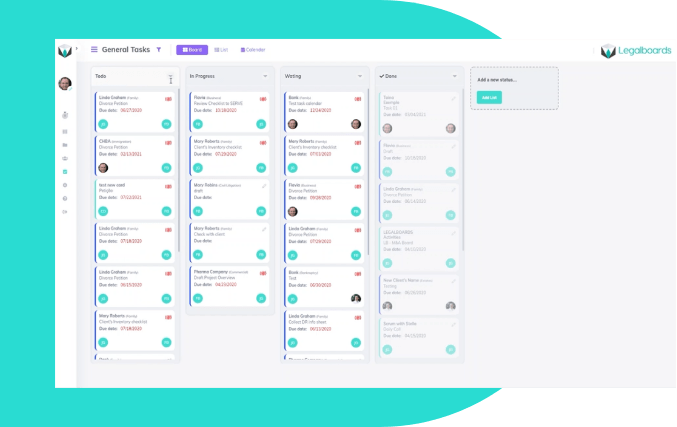
    With Legalboards you can easily visualize and organize your matters. The minimal Kanban user interface allows you to see at a glance what stage your matters are at without having to open each case file. Through customizations to the board, you can tailor your account to reflect your workflow accurately.

    As you can see in the screenshot below, how your work is progressing in Legalboards can be understood at a glance. It’s up to you how customized you want to make your board/cards. With the customization capabilities, you can add checklists and custom labels (including colours) to cards so you can quickly navigate your matters.

    Legalboards screenshot

    By integrating Clio, your data will be automatically synced. Synced data means you don’t need to input updates twice. Within the task center, Legalboards also has a calendar view so you can see your task’s timeline in a simple format.

    3) Get Integrated

    By integrating your Clio account with Legalboards you can get organized and save time through our automation capabilities and easy-to-understand interface. These are just two of the benefits of adding Legalboards to Clio, and some can be specific to practice areas.

    Find us in Clio’s App Directory here, and start your free trial with us here.

  • Managing Board Members

    Managing Board Members

    At Legalboards, we want to help you and your team collaborate more effectively. One of the ways to improve how your team works is adding board members to your Legalboards account. These members can be view-only or have the ability to make changes, so you can work effectively, so managing board members is easier than ever.

    In this guide, we’ll walk you through how to manage board members within your Legalboards account. If you’re more of a visual learner, check out the video guide below or on our YouTube channel.

    Managing Board Members

    Editing Board Members

    Managing board members in Legalboards is easy. The first step is to go to a board and click on the pencil icon (“Edit this board”) next to the board’s name.

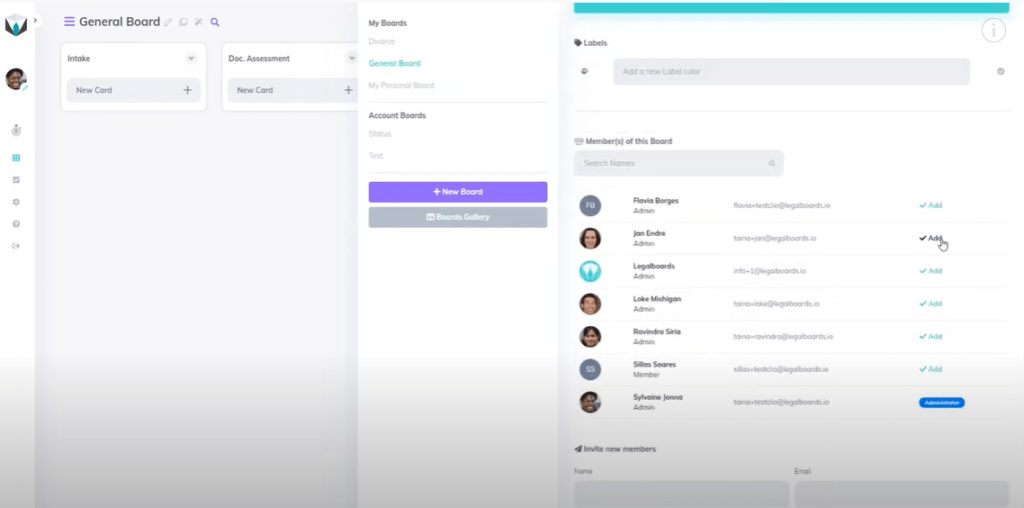
    From here, we can add, edit, or invite new members to the board we select, as seen below.

    We can easily add or remove members by clicking the “Add” button next to a name. When members are added, this icon will change to “Remove”, which allows you to remove them from the board. Also remember that you can edit members at any time!

    Inviting New Members

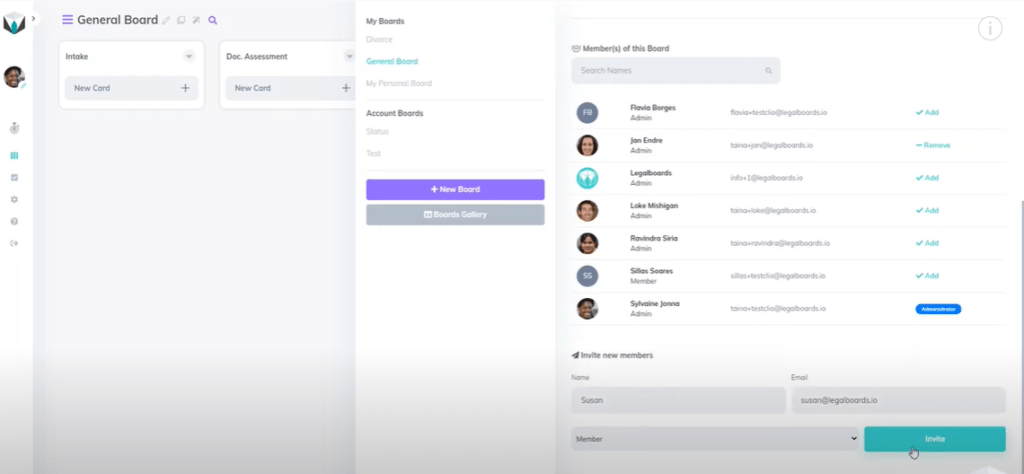
    If we want to invite new members, we’re going to scroll down within the menu to the heading “Invite New Members”. To invite a new member, we just need to provide their name and email and then select what kind of permission they will have.

    Types of Permissions:

    • Admin: Admin permission allows a member to manage all features. These members can use boards that are shared with them and create their own.
    • Viewer: Viewers can only access the boards that are shared with them but do not have permission to make changes.

    Once we’ve selected a permission type, we’ll click on the “Invite” button to invite that person to the board, as seen below.

    Once that invite has been sent, the person will appear under the “Invite New Members” heading similar to the “Member(s) of This Board” heading. If you want to change this, you can also hit the remove button.

    Need Some More Help?

    Didn’t find what you needed? Learn more about other features in Legalboards by checking out more videos or visit our support portal for more help.

  • The Best Productivity Applications For Lawyers in 2022

    The Best Productivity Applications For Lawyers in 2022

    Sometimes the biggest challenge is getting everything you need to get done in a limited time. Optimizing your time to be as productive and efficient as possible can be a strategy to overcome time constraints. But where can you start? Productivity applications.

    How to Increase Productivity Through Applications

    Liz McCausland will walk you through some highlighted productivity applications to improve aspects of your practice. From task management to note-taking to scheduling, there’s a solution to increasing productivity. We’ll share tips and tricks to increasing your productivity, how to automate parts of your workflow, and how to manage technology.

    Meet Your Host: Liz McCausland

    Liz is a legal tech consultant and a proud double gator grad from the University of Florida, Liz has practiced law for over 20 years. She is a Past President of the Orange County Bar Association, serves on the Executive Council of the Florida Bar’s Solos Small Firm section, and has been a speaker at several conferences and podcasts. Liz also travels throughout the US teaching other attorneys and mediators how to successfully obtain and mediate mortgage modifications in bankruptcy.

    Get in touch with Liz through her websiteLinkedIn, or on Facebook!

    Watch the Webinar on Demand

    You can watch the webinar on demand on YouTube or below.

    https://youtube.com/watch?v=ENARdpLVw-Y%3Fcontrols%3D1%26rel%3D0%26playsinline%3D0%26cc_load_policy%3D0%26autoplay%3D0%26enablejsapi%3D1%26origin%3Dhttps%253A%252F%252Flegalboards.com%26widgetid%3D1%26forigin%3Dhttps%253A%252F%252Flegalboards.com%252Fresources%252Fwebinars%252Fthe-best-productivity-applications-for-lawyers-in-2022%252F%26aoriginsup%3D1%26gporigin%3Dhttps%253A%252F%252Flegalboards.com%252Fwp-admin%252Fedit.php%253Fpost_type%253Dpost%2526paged%253D4%26vf%3D1

    Ready to Improve Your Firm’s Productivity?

    Check out our other resources for more help with finding the right tech stack for youautomating your workflow, and more!

    Curious about how Legalboards can help with the way you work? Learn more about our time-saving features here.