Category: Board Templates

  • Estate Planning Template

    Estate Planning Template

    It can be difficult to organize your workflows as different cases require different processes. We want to help you organize your workflow, and having a template to work from can be helpful to get started. Our team has developed an Estate Planning template for you to get started with.
    How to Get Started

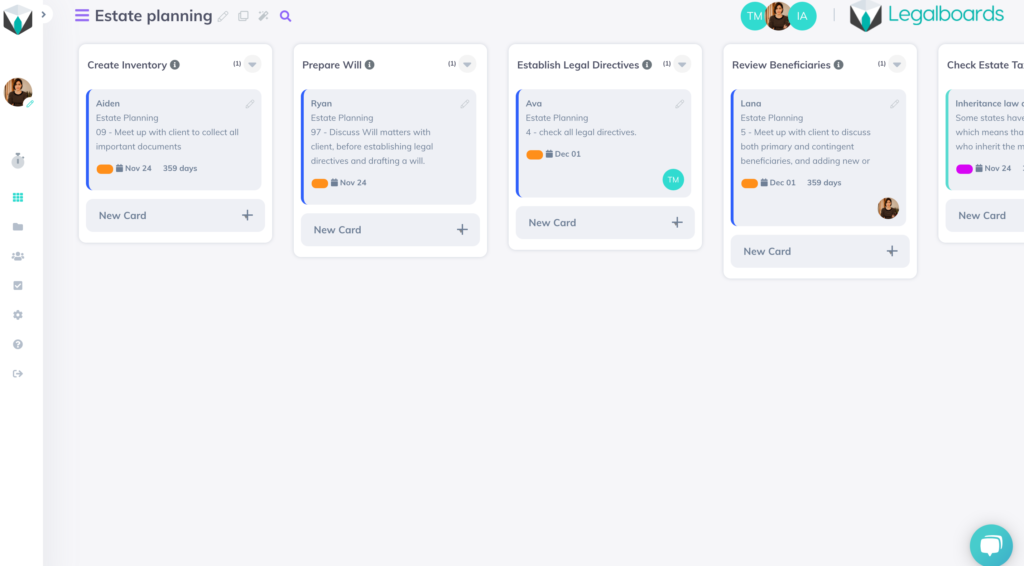
    In Legalboards, you’re able to either create your own boards or use one of the prepared templates. Our Estate Planning template is an example workflow for estate practices. Check out the video below to see how the template looks in action.

    We’ve included six common stages of the estate planning process as columns (or phases) on our board. These stages are “Create Inventory”, “Prepare Will”, “Establish Legal Directives”, “Review Beneficiaries”, “Check Estate Tax Laws” and “Final Arrangements”.

    If one or more of these titles are not applicable to your practice, you can edit the title to better reflect your process or delete the column altogether. As well, you can divide the board into separate smaller boards to track a more detailed workflow.

    Creating Boards to Reflect Specific Workflows

    Using a project management perspective, it’s helpful to think about three questions when creating a board to reflect your workflow:

    • What goals do you have for the matter that need to be reflected?
    • What pivotal moments/phases need to be tracked until they are completed?
    • How can the process be standardized so anyone viewing the board can easily understand what their role in completing the workflow is?

    If you’re unsure of how to start defining your workflow, check out our resource on how to get started applying agile methodologies to your practice that will aid you in creating a board that best reflects your specific process.

    How to Create an Effective Workflow Using The Template

    In order to make this Estate Planning template more tailored to your practice’s specific workflows, follow these steps:

    1. Edit General Information

    By clicking on the icon “Edit This Board”, you are able to change the name of your board, add a description for your team to understand the board, and share it by inviting other team members to work on the board with you.

    2. Set Up Automations

    Legalboards has almost 10 different automations to help you implement in order to streamline your workflows. All automations follow essentially the same process- check out this guide on how to get started setting them up.

    We recommend setting up at least 3 automations;

    • New Card so all new matters that meet certain criteria would automatically be attached to this board;
    • Task Creation so you don’t need to worry about managing roles and their timelines; and
    • Move Card so that matters can automatically be moved to the next phase of your workflow.

    Next Steps

    If you want to start using more automations in your workflows, check out our video guides on our YouTube channel.

    Didn’t find what you needed? Check out our support portalcontact our team, or check out our other resources for help using Legalboards.
  • Divorce Board Template

    Divorce Board Template

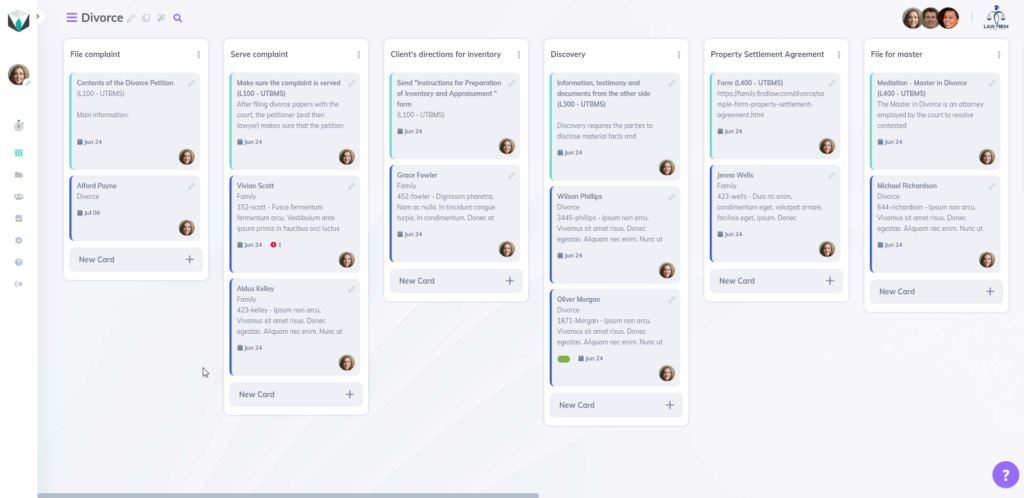
    The Legalboards team has developed a Divorce board template to help legal teams easily get started in Legalboards. This template can be tailored to your workflow but we wanted to share some general tips on how to streamline your family law cases.

    With Legalboards, you can easily visualize how your matters progress and identify where in your process there are issues/delays. Family lawyers need to focus on their client’s experience by offering quick and high-quality service.

    Getting Started With The Divorce Board

    Step 1: Determine Column Headings

    The first step is deciding the phases that best reflect your workflow. For our template, we’ve chosen to include 11 stages. If those stages don’t reflect how your matters typically progress, you can easily change them.

    Boards don’t have to cover additional parts of a case either. You can create one (or more!) separate boards for trial, trial preparation, judgment, or even appeal. Depending on how detailed you need your workflow, it’s often better to divide the workflow into two or more boards.

    From a project management perspective, the key to deciding how your board needs to be structured is to:

    1. Have clear goals for the matter/case
    2. Understand the pivotal moments or steps in which several tasks would need to be monitored and accomplished
    3. Seek to standardize the processes of a case so that every team member has a clear understanding of when and how they need to be involved.

    Tip: You can use the “note” card to describe for you and your team what to do in that particular column/phase, which documents should be used (maybe a link for a form), which type of billing, and indicate who is responsible to accomplish tasks

    Step 2: Review Your Checklist

    Next, you should review your workflow’s checklist. As a family lawyer, you likely have a checklist already with all of the tasks associated with certain types of cases. It doesn’t matter if that checklist is written, digital, or mental but it important to refer to.

    With this checklist, you can decide which automations are best for you. In Legalboards, you can choose 3 different automation actions:

    1. Task Creation

    In the divorce board template, there are 9 automated tasks. The first task is named “Divorce Petition”. When a matter card drops into the column “File complaint” and stays in that column for more than 1 day, an automated task called “Divorce Petition” will be created.

    This “Divorce Petition” task will be assigned to the paralegal with a deadline of 2 days. Within the description of the task, the paralegal can find all the information they need before drafting the petition. To learn more about how this process works, watch the video below or on YouTube.https://www.youtube.com/watch?v=ORT5qj8okQo

    2. Send Emails

    Emails are essential tool for communicating with both clients and team members. By using email templates, you can create standardized emails that are sent periodically.

    With automated templates, you can save time and ensure your team isn’t forgetting an important follow-up or request. Learn more about email automations in the video below or on YouTube.https://www.youtube.com/watch?v=Rlaryzv5SNo

    In the divorce board template, every time a card is dragged from the column “Serve complaint” and dropped to the column “Client’s directions for inventory,” the client will receive an email from the responsible attorney with a request of information.

    3. Move Cards

    This last automation allows the user to automate the movement of cards within the same board or to another board.

    Tip: you can create a specific board for “Billing” and by using the move card automation, every time a card moves to the column “Concluded”, a new card will be created in the Board “Billing”. 

    General Tips For The Divorce Template

    Legalboards allows you to customize your boards with labels, checklists, and custom statuses. Labels can help you see and quickly understand your matters through using labels to reflect if it’s an urgent matter, has pending tasks, etc. The description of the board can be used to inform which team is responsible for that board, explain the process, or include important information.

    After you’ve created your board, it’s important to test it with your team. Ask everyone to review the board and add tasks, automations, or information that may be missing. Improving collaboration is one of the central goals of Legalboards.

    Next Steps

    If you want to start using more automations in your workflows, check out our video guides on our YouTube channel.

    Didn’t find what you needed? Check out our support portalcontact our team, or check out our other resources for help using Legalboards.
  • Working in Legalboards: Immigration Board Template

    Working in Legalboards: Immigration Board Template

    When it comes to immigration matter management, Legalboards board templates allows immigration practices streamline their workflows and increase productivity.

    For example, activities related to visa issuance matters can easily be set up in Legalboards including various features to help move along the matter efficiently. (learn more about Legalboards’ features here),

    Board Features

    First, we’ll look at the general board features of lead management, workflow, and automating procedures in detail.

    1. Lead Management

    Let’s start with our lead management feature. We recognize that practicing immigration means facing a lot of competition. As such, we have created an efficient way for lawyers to manage and nurture leads so they could potentially become clients.

    This process is called “forms,” and is a personalized lead management tool included in our immigration board. Within this, you can customize forms and where they are presented. You can either upload the forms to your firm’s websites or send them through emails.

    Either way, this allows you to collect basic and preliminary information (e.g., type of case, contact information) from leads. Once those leads have completed the forms, their information will become a new “card” in the Legalboards platform. Now legal teams can keep their client’s information visually organized in a simple manner.

    2. Workflow

    The workflow feature in the immigration board starts with “columns” which represent different phases of a matter.

    In this visa issuance file example, the workflow comprises examples of both the internal steps related to the interaction of the firm and the client and the actual filing of the visa. As such, steps like “engagement letter and case identification” and “visa submission and visa issuance” are included as columns.

    Remember: Columns can be added, edited, and deleted in order to best suit your needs. Columns assist in managing the workflow of legal tasks from one to another and can help simplify you and your team’s understanding of the workflow.

    3. Automating Procedures

    We understand that a significant portion of a lawyer’s day is filled with activities that may not be translated into revenues. Using Legalboards, several repetitive activities can be automated. Automations can address cards, tasks, and emails in order to allow you to focus on more important responsibilities.

    Automations in Immigration Boards

    Next, let’s look at the automation capabilities within Legalboards. For our immigration board specifically, we use automations in three different ways- card and task creation, and sending emails.

    1. Card Creation

    Every time a new matter is created on a case management platform (like Clio, Docketwise, Practice Panther, etc), a new card will also be created in the “engagement letter” column. Because of this synchronization between integrated platforms, it eliminates the redundant and repetitive task of updating your management tools.

    2. Task Creation

    Tasks can be automatically created and assigned according to the movement of the case on the workflow. If you want to learn more about task creation within Legalboards, check out this resource.

    For example, when a client signs the retainer and the lawyer decides that an internal case can be initiated, the case will drop into the column “initiate case” and a new task will automatically be sent to the following team member. That team member can now proceed with the internal measures required to open the file and initiate the case.

    3. Send Emails

    With Legalboards, sending automatic emails to staff or clients is easy. Automated emails can be extremely helpful in promoting constant follow-up or serving as reminders of tasks that should be completed within a deadline.

    Immigration Matter Management

    As you can see from this generic visa issuance case, Legalboards is able to provide you with a flexible template to create an immigration board. By taking advantage of personalized forms, managing channel leads, and specialized columns and cards, you can simplify case management. Even better, you can set up automation of emails, cards, and tasks so clients can be your focus.

    You can learn more about automation within Legalboards in general here, see in action here, or check out our support portal for more help.